How to Save Previous Version Files in SOLIDWORKS

Video by Alaa Hosn updated June 19, 2026

Cette vidéo vous plaît ? Obtenir une formation en ligne en direct de Javelin
Suivez un cours de formation en ligne en direct avec un instructeur certifié et devenez un expert SOLIDWORKS.
À propos de la vidéo
The ability to save previous version files in SOLIDWORKS was introduced in the 2024 release to avoid complications between users with different versions of SOLIDWORKS installed. Previously, to share files with an older version, you were required to save them to a neutral format, like STEP or IGES.
With SOLIDWORKS 2024 and newer, you can now collaboratively work with vendors or clients when you have a version mismatch.
What is Saving Backwards?
SOLIDWORKS did not allow any backwards compatibility with previous versions. If you were using Service Pack 5 of the previous release, an icon in the feature tree would indicate that the document opened was a future version file.
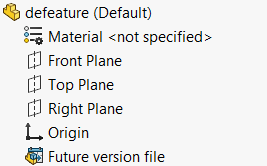
SOLIDWORKS FeatureManager showing a previous version icon
This meant that when a file was saved in a later version of SOLIDWORKS, it could no longer be modified in a previous version of SOLIDWORKS. The issues with not being able to save backwards came up in instances where an organization may be working with a client who has an older version of SOLIDWORKS or when users in an organization have different versions of SOLIDWORKS installed.
How to Save Previous Version Files in SOLIDWORKS
SOLIDWORKS can now save documents backwards to the previous two releases. This provided a full feature tree that could be modified without confusing intermediate steps.
Save As
Saving to an older version is beneficial for situations where there may be a part or assembly that needs to be saved backwards without compressing it to a zipped directory.
To save to a previous SOLIDWORKS version:
- Navigate to File > Save As.
- In the file type dropdown, select SOLIDWORKS 20XX for the year you want to save to.
- Follow the prompts to complete the save.

The file type dropdown
When performing a Save As on an assembly or drawing, SOLIDWORKS will also save out all referenced components as well.
Fais tes valises et pars
The Pack and Go method is best for assemblies that need to be saved into a previous version, especially when additional data like drawings, Toolbox components, simulation results, and visual appearances may need to be included.
To use Pack and Go to save to previous:
- Navigate to File > Pack and Go.
- In the Pack and Go interface, check the box to save to a previous year.
- Customize the export and save.
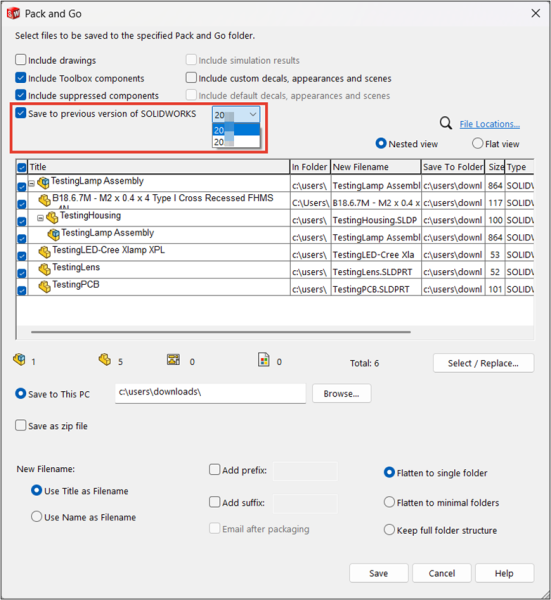
Using Pack and Go to save previous version files in SOLIDWORKS
Limitations When Saving to a Previous Version
Saving backwards in SOLIDWORKS is one of the best tools introduced in previous years and enhances collaboration with external stakeholders. However, there are a few key considerations when saving to a previous version.
- A document can be saved back to a previous release one time only. If a document is saved from 2026 to 2024, you cannot open that file in 2024 and save it to 2022.

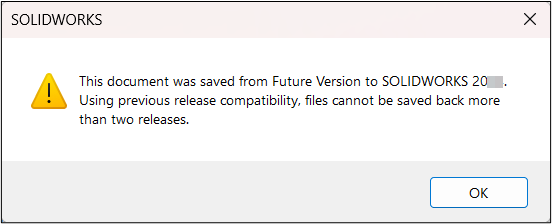 Warning message about the file already being saved backwards
 - The document cannot contain any features that did not exist in the older version. If there are any new features in the design, SOLIDWORKS will notify the user in the Previous Release Check dialog box.
- You must have an active subscription license to access this functionality.
Despite these limitations, saving backwards in SOLIDWORKS addressed a long-standing limitation that caused real collaboration challenges for many organizations.
Staying Up to Date with the Latest SOLIDWORKS Enhancements
Upgrading SOLIDWORKS to the latest version is often a straightforward process, but it is important to plan for any downtime and to ensure your team is ready to use the latest enhancements. You must consider the hardware, documentation, backup, licensing, and more.
Our team is standing by to provide guidance and share the latest enhancements to SOLIDWORKS that will make the biggest impact on your team.
To schedule a complimentary SOLIDWORKS What’s New session, contact us here.
Content related to 'How to Save Previous Version Files in SOLIDWORKS'