


How to Fix “Class Not Registered” Errors for SOLIDWORKS PDM Add-Ins

Article by Jay Khajuriwala updated June 22, 2026
Article
When logging into SOLIDWORKS PDM, you may be given a message like “Failed to extract add‑in… Class not registered”. This is one of the more common SOLIDWORKS PDM errors seen, especially after upgrades, Windows updates, or changes to custom add‑ins.
This error might not stop SOLIDWORKS PDM add-ins from running at the vault level, but could cause issues in the client-side interface.
What Does “Class Not Registered” Mean?
In most cases, this isn’t a vault‑breaking issue. It’s usually a client‑side problem that can be resolved with a few targeted checks. SOLIDWORKS PDM uses add‑ins to power things like tasks, integrations, and automation.
When you log in to a vault, it pulls those add‑ins down to your local machine and registers them, so they are ready to run. The “Class not registered” error typically shows up when something interrupts that process.
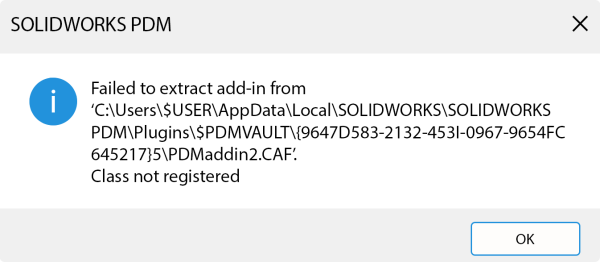
An example “Class not registered” error message
Common causes include:
- An add‑in version that doesn’t match the SOLIDWORKS PDM environment.
- Missing or disabled Microsoft .NET components.
- Corrupted or outdated add‑in files are cached on the workstation.
- A failed registration during login or an update.
Fixing the Error
“Class not registered” errors in SOLIDWORKS PDM are usually the result of client-side cache, framework, or version mismatches. Most of the time, the fix is on the local machine, not the server.
By methodically verifying add-in versions, enabling required system components, and clearing cached files, most environments can be restored with minimal disruption.
Ensuring the SOLIDWORKS PDM Add-In Version is Supported
Before diving into troubleshooting, it’s worth confirming a few things first.
Open the SOLIDWORKS PDM Administration tool and check the list of installed add‑ins for your vault. If an add‑in is outdated or no longer supported by your current SOLIDWORKS PDM version, it can cause registration errors.
If this is the case, either:
- Update the add‑in if a newer version is available
- Remove it if no longer needed or supported
Checking the .NET Framework Settings
Many SOLIDWORKS PDM add‑ins, especially older or custom ones, rely on Microsoft .NET. Newer versions of Windows do not always have legacy .NET components enabled by default.
Take a minute to confirm:
- The .NET Framework 3.5 is enabled.
- A supported .NET Framework 4.X version is also enabled.
After making any changes, restart the machine. This ensures Windows can properly load and register .NET‑based add‑ins.
Clearing the Local SOLIDWORKS PDM Add-In Cache
SOLIDWORKS PDM stores extracted add‑ins in a local cache for each user. If those files become corrupted or out of sync, registration can fail even if everything looks fine on the server.
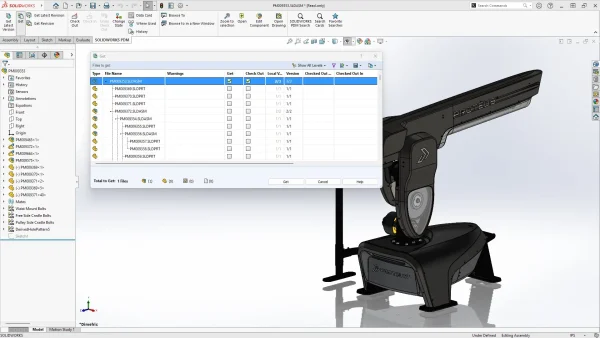
Viewing cached data with SOLIDWORKS PDM 2025
Clearing the cache is the most common fix to the “Class not registered” error, as it forces SOLIDWORKS PDM to download and register a fresh copy.
To clear the SOLIDWORKS PDM add-in cache:
- Close SOLIDWORKS and fully exit SOLIDWORKS PDM.
- Open Task Manager and restart Windows File Explorer.
- Navigate to the folder C:\Users\$USER\AppData\Local\SOLIDWORKS\SOLIDWORKS PDM\Plugins\$VAULTNAME.
- Delete everything in that folder.
- Log back into the SOLIDWORKS PDM vault.
These files are temporary and will be recreated automatically.
Once you have successfully logged back into the vault:
- Confirm the add‑in loads without errors.
- Test any tasks or features tied to that add‑in.
- Close and reopen SOLIDWORKS PDM to make sure the issue doesn’t return.
Additional Issues
If the “Class not registered” error persists after clearing the local add‑in cache and verifying .NET requirements, the issue may be caused by a conflicting or outdated COM registration from a previous add‑in version.
In these situations, SOLIDWORKS PDM may repeatedly fail to re‑register the add‑in, even though the correct files are present in the vault and on the server.
Manual SOLIDWORKS PDM Add-In Re-Registration
The following steps to manually re-register should be performed by experienced administrators or with the guidance of our Technical Support.
- Close SOLIDWORKS and fully exit SOLIDWORKS PDM.
- Open the Windows Registry Editor as an administrator.
- Navigate to the CLSID referenced in the error message.
- Right‑click the CLSID key and select export to create a backup.
- After exporting, right‑click the same CLSID key and select delete.
- Restart Windows Explorer.
- Browse to the SOLIDWORKS PDM vault using Windows File Explorer to trigger add‑in re‑registration.
When the vault is accessed, the SOLIDWORKS PDM client will download fresh copies of the add‑ins from the archive server, extract them locally, and register them again.
Further SOLIDWORKS PDM Troubleshooting
If, after troubleshooting with the steps above, you are still running into SOLIDWORKS PDM errors, there may be more going on under the hood. While you can continue to troubleshoot your SOLIDWORKS PDM vault yourself, our team of experts is standing by to assist.
Our certified Technical Support team has years of experience helping configure and troubleshoot common SOLIDWORKS PDM errors. Don’t hesitate to contact us so you can get back to working as quickly as possible.
Liens connexes
Vous souhaitez exploiter davantage SOLIDWORKS PDM ?
Nos experts certifiés SOLIDWORKS PDM peuvent vous aider à :
Posts related to 'How to Fix “Class Not Registered” Errors for SOLIDWORKS PDM Add-Ins'
