


Utilisation des options de sauvegarde et de restauration automatique de SOLIDWORKS

Article de Griffin Pacey, mis à jour le 11 mai 2026
Article
SOLIDWORKS propose plusieurs options qui vous permettent d'effectuer régulièrement des sauvegardes et de restaurer automatiquement vos fichiers en cas de panne.
Les paramètres SOLIDWORKS relatifs à la sauvegarde, à l'archivage et à la récupération automatique garantissent la sécurité de vos pièces, assemblages et dessins. En vous assurant que ces options sont correctement configurées, vous vous prémunissez contre toute catastrophe.
Comment accéder aux paramètres de sauvegarde et de restauration
Les paramètres de sauvegarde et de restauration se trouvent dans les Options système de SOLIDWORKS et disposent chacun de commandes spécifiques. Notez que ces sections apparaîtront en gris tant que l'option principale n'aura pas été activée.
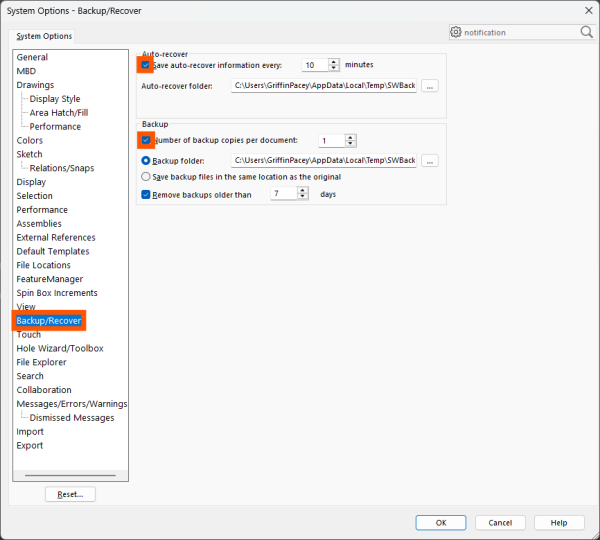
Accéder aux paramètres de sauvegarde et de restauration de SOLIDWORKS
Pour accéder aux paramètres de sauvegarde et de restauration :
- Ouvrez les options système de SOLIDWORKS en sélectionnant Outils > Options.
- Sélectionnez l'onglet « Sauvegarde/Restauration » situé à gauche.
Options de récupération automatique de SOLIDWORKS
La première section de la fenêtre « Options du système » concerne les options de récupération automatique. Dans cette section, vous pouvez définir le répertoire et la fréquence à laquelle SOLIDWORKS enregistrera les fichiers de récupération automatique pour le document en cours.
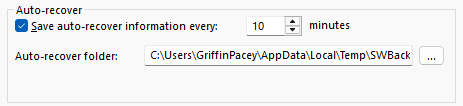
Options de récupération automatique dans SOLIDWORKS
Lorsque la fonction de récupération automatique des fichiers est activée, SOLIDWORKS enregistre des points de sauvegarde au fur et à mesure que vous travaillez. En cas de plantage, SOLIDWORKS affiche les fichiers récupérés dans l'onglet « Alertes » de la boîte de dialogue d'accueil ; ceux-ci sont supprimés une fois que le fichier a été enregistré à nouveau avec succès.
Éléments clés à prendre en compte pour la fonction de récupération automatique de SOLIDWORKS
- Les fichiers de récupération automatique ne seront enregistrés qu'après que le document aura été enregistré au moins une fois.
- L'emplacement par défaut des fichiers de sauvegarde est C:\Users\$username\AppData\Local\Temp\SWBackupDirectory\swxauto20XX.
- Si l'emplacement par défaut est modifié, il doit se trouver sur un disque local, car les fichiers de récupération automatique ne peuvent pas être enregistrés sur un réseau.
Options de sauvegarde de SOLIDWORKS
La première section de la fenêtre « Options du système » concerne les options de sauvegarde. Tout comme pour les options de récupération automatique, vous pouvez indiquer l'emplacement où les sauvegardes seront enregistrées ainsi que leur nombre (dans la limite de dix). De plus, SOLIDWORKS peut supprimer automatiquement les sauvegardes datant de plus d'un certain nombre de jours.
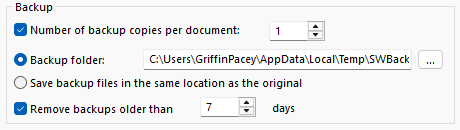
Options de sauvegarde dans SOLIDWORKS
Chaque fois que vous enregistrez un document, SOLIDWORKS enregistre une copie de sauvegarde de votre fichier. Cette version de sauvegarde correspond à l'état du document d'origine avant toute modification apportée au fichier après l'enregistrement.
Éléments clés à prendre en compte pour les sauvegardes SOLIDWORKS
- Les différentes sauvegardes d'un document sont nommées d'après la version la plus récente. Par exemple, la deuxième sauvegarde s'appellera Sauvegarde(2).
- L'emplacement par défaut pour les fichiers de sauvegarde est C:\Users\$username\AppData\Local\Temp\SWBackupDirectory
- Si l'emplacement par défaut est modifié, il doit se trouver sur un disque local, car les fichiers de récupération automatique ne peuvent pas être enregistrés sur un réseau.
- La suppression des anciennes sauvegardes s'effectuera au démarrage de SOLIDWORKS.
Option « Rappel d'enregistrement » de SOLIDWORKS
Le rappel d'enregistrement de SOLIDWORKS s'affiche pour vous avertir que le document SOLIDWORKS n'a pas été enregistré depuis un certain temps. Par défaut, il apparaît en bas à droite de la fenêtre graphique de SOLIDWORKS.
Bien que ce paramètre ne sauvegarde pas automatiquement vos fichiers, il vous rappellera discrètement de sauvegarder votre travail en cas de plantage ou de coupure de courant. Selon la version de SOLIDWORKS que vous utilisez, les paramètres permettant de configurer ce message se trouvent à différents endroits.
SOLIDWORKS 2022 et versions ultérieures
À partir de SOLIDWORKS 2022, la fenêtre contextuelle de rappel d'enregistrement figure dans les Options système de SOLIDWORKS, dans la section Messages/Erreurs/Avertissements.
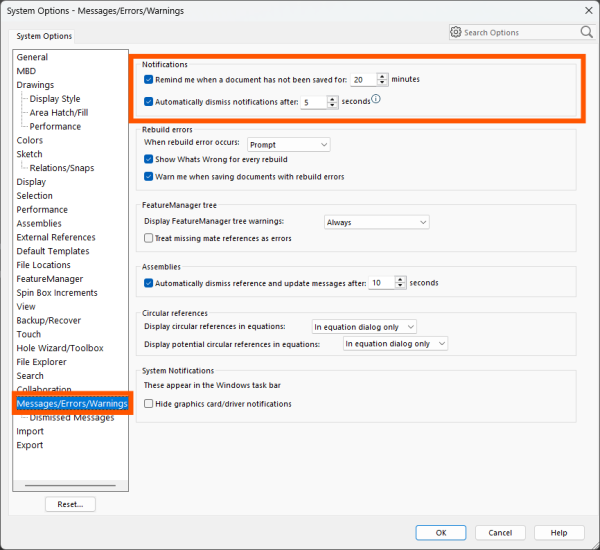
Paramètre SOLIDWORKS permettant de contrôler les notifications d'enregistrement dans la version 2022
Avant SOLIDWORKS 2022
Dans SOLIDWORKS 2021 et les versions antérieures, la fenêtre contextuelle de rappel d'enregistrement se trouve dans les Options système de SOLIDWORKS, dans la section Sauvegarde/Restauration.
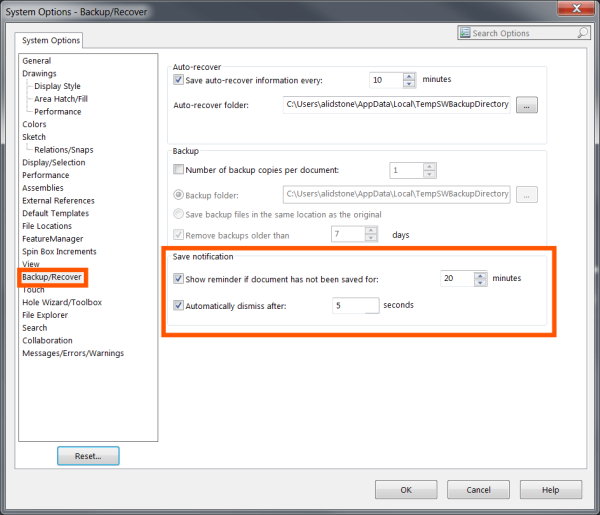
Paramètre permettant de contrôler les notifications d'enregistrement avant SOLIDWORKS 2022
Protégez-vous contre les plantages de SOLIDWORKS
Les paramètres de sauvegarde et de restauration automatique de SOLIDWORKS permettent de protéger vos pièces, vos assemblages et vos dessins en cas de sinistre. Ces options offrent une protection contre la perte de données lorsque vous travaillez en local, mais leur efficacité est moindre lorsque vous travaillez en réseau.
Lorsque vous enregistrez des fichiers sur un lecteur réseau ou que vous travaillez en collaboration avec d'autres personnes, il est important d'adopter un système de gestion des données adapté à la CAO. L'utilisation d'un système de gestion des données dédié permet de suivre les modifications apportées aux pièces, d'effectuer des sauvegardes automatiques et de restaurer d'anciennes versions des fichiers avec un minimum de perte de données.
Pour en savoir plus sur la gestion des données compatible CAO, consultez notre guide ici.
Liens connexes
Services SOLIDWORKS certifiés proposés par Javelin
Javelin peut vous aider à :
Articles liés à « Utilisation des options de sauvegarde et de restauration automatique de SOLIDWORKS »
