


How to Use a Sketch to Create Bodies in SOLIDWORKS

Article by Lily Bar updated July 3, 2026
Article
Knowing how to use a sketch to create bodies in SOLIDWORKS is an essential design skill. Planning out how to model a component can lead to faster creation of the part and improved design intent.
Mastering the SOLIDWORKS fundamentals sets you on a path to learning new techniques, time-saving workflows, and ultimately software mastery.
Which Features Can Use a Sketch to Create Bodies in SOLIDWORKS?
Many tools in SOLIDWORKS can create a body from just a sketch; however, the most useful features that can take a sketch to a body include:
- Extruded Boss/Base
- Tête/base pivotante
- Swept Boss/Base
These SOLIDWORKS features are the first listed in the CommandManager along with the Lofted Boss/Base and Boundary Boss/Base. With these features, you can convert 2D sketches into 3D complex geometries.

Foundational features in the CommandManager
Extruded Boss/Base
The first feature that appears when using a sketch to create bodies in SOLIDWORKS is the Extruded Boss/Base. It uses a 2D sketch on any primary or custom plane and makes a 3D solid by giving it a depth of your choosing.
To use the Extruded Boss/Base:
- Select the plane you want to create a sketch on.
- Activate the Sketch command from the Sketch tab of the CommandManager.
- Draw a closed shape and dimension it. If you choose to leave it open, SOLIDWORKS will assume your intent is to make a Thin Extrude.

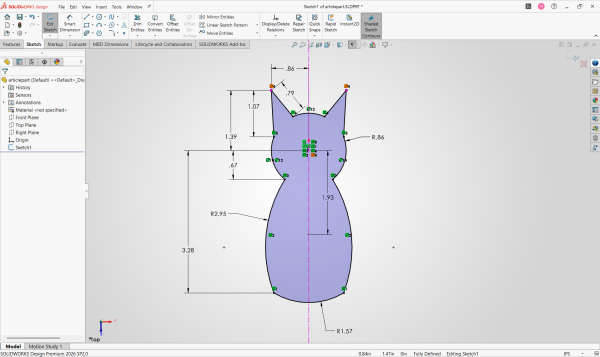 A fully dimensioned cat sketch
 - Exit the sketch and navigate to the Features tab in the CommandManager.
- Select Extruded Boss/Base and then use the flyout FeatureManager to select the sketch you want to extrude.
- The Extrude PropertyManager will open with options for extrusion location, direction, length, draft, and selected contour.
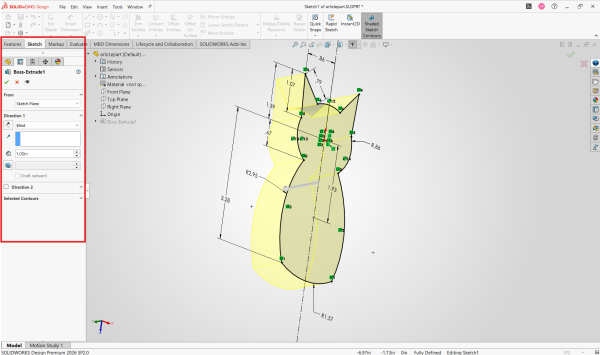 Boss Extrude options
 - Ensure that the preview is enabled to verify that the direction and thickness are correct..
- Once satisfied with the extrude, hit the green checkmark to accept.
You now have a solid body made with just one 2D sketch. If you were to make another sketch and allow a merge during a second extrusion, you can begin to model more high-level parts.
Tête/base pivotante
The second SOLIDWORKS feature in the CommandManager that allows you to create a solid from a sketch is the Revolved Boss/Base. This takes your 2D sketch and rotates it a specified number of degrees around an axis of your choosing.
To create a Revolved Boss/Base:
- Select a plane to sketch on, keeping in mind the orientation of the part you are creating.
- Create a fully defined and closed sketch.
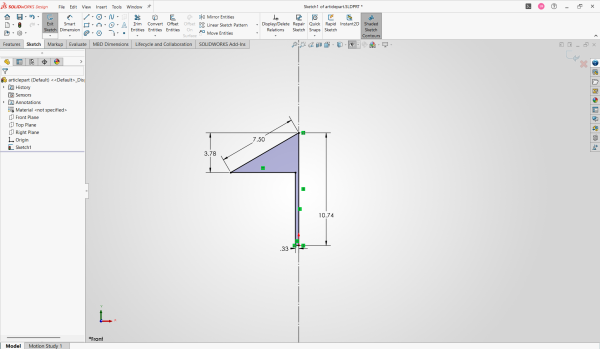 Fully defined sketch with axis of rotation
 - Exit the sketch and go to the Features tab of the CommandManager.
- Select the Revolved Boss/Base command and then the sketch you want rotated.
- In the PropertyManager, select your axis of rotation, direction, and degrees of rotation.
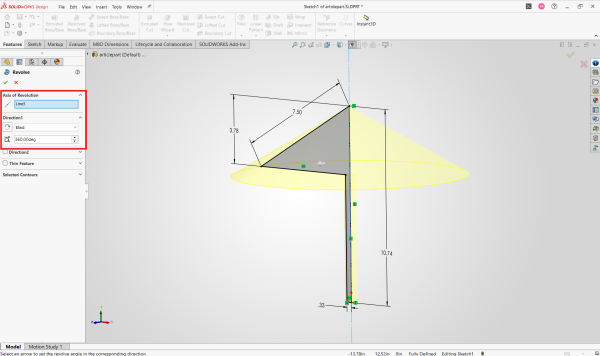 Specify the direction and degrees
 - When satisfied with the preview, select the green checkmark
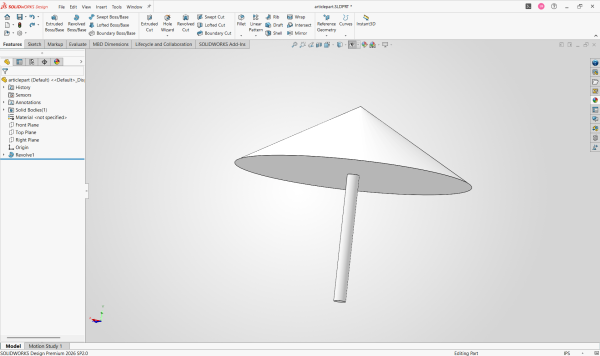
Umbrella made from a sketch and Revolve
Revolves are best for parts that contain circular, cylindrical, or symmetric parts.
Swept Boss/Base
The Swept Boss/Base command resides in the list of three Boss/Base features next to the Revolve Boss/Base. It is the easiest way to create complicated geometry from sketches. This SOLIDWORKS feature operates differently from an extrude or revolve as it requires a second sketch to be drawn.
To use Swept Boss/Base:
- Select a plane to sketch the profile of the sweep. Plan out the position of your sketch to ensure no problems down the line.
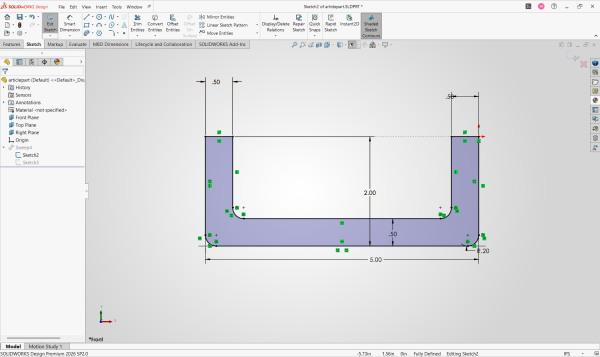 Sketch profile for Swept Boss/Base
 - Save and exit the initial sketch before creating a new one on an orthogonal plane.
- Sketch the guide curve, or path, that you want the body to take.
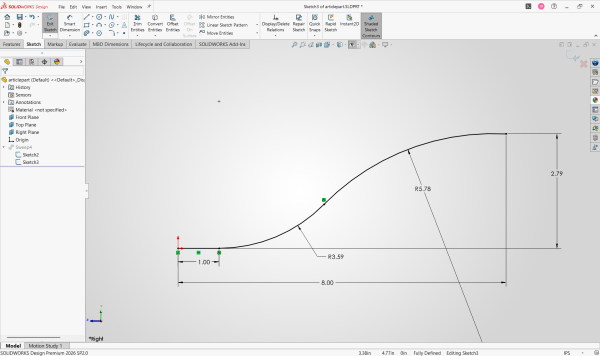 Path for the profile sketch to follow
 - Ensure that the profile and path intersect one another.
- Click the Swept Boss/Base feature and select the profile and path sketches.
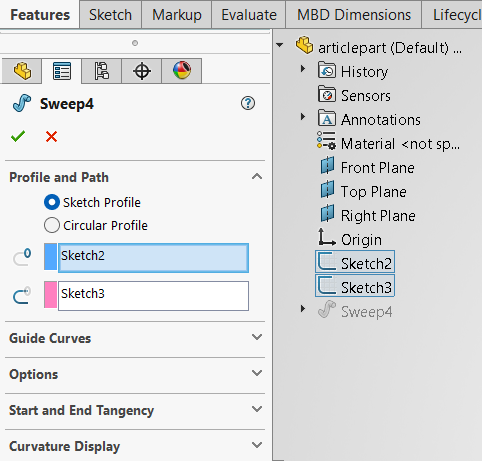 The Sweep PropertyManager
 - Once satisfied with the body, click the green checkmark.
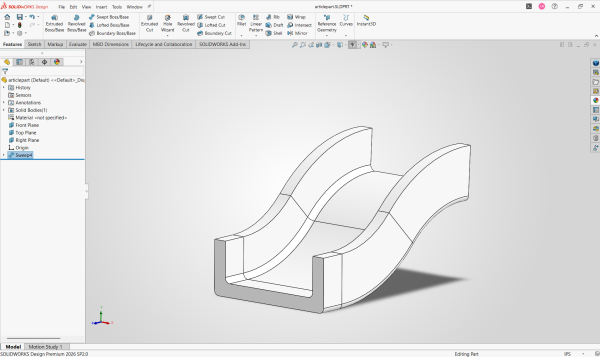 Slide made from a Swept Boss/Base
The Swept Boss/Base is best suited for parts that require a complex guide curve with an unchanging profile.
Become a SOLIDWORKS Expert
Foundational and advanced SOLIDWORKS techniques like these are covered in formal, instructor-led training courses. Javelin offers a multitude of training classes with three methods of learning, allowing you to find a class that fits your schedule.
These courses help you become more efficient at day-to-day tasks, prepare for a certification, or get ready for new capabilities.
Review upcoming training courses and register for a session here.
Liens connexes
Services SOLIDWORKS certifiés proposés par Javelin
Javelin peut vous aider à :
Posts related to 'How to Use a Sketch to Create Bodies in SOLIDWORKS'
