


How to Filter Reports in SOLIDWORKS Electrical

Article by Danish Butt updated July 10, 2026
Article
Arguably, the most effective skill for managing electrical projects is knowing how to filter reports in SOLIDWORKS Electrical.
Learning to filter reports in SOLIDWORKS Electrical, specifically by book, is an effective tool to manage electrical projects and reports. Filtering reports will provide streamlined data and organization.
Why Filter Reports in SOLIDWORKS Electrical?
Managing bills of materials and generating accurate reports are essential parts of any SOLIDWORKS Electrical project. As projects grow in size and complexity, especially those containing multiple document books, organizing and filtering reports becomes increasingly challenging. When you need to isolate information by book, such as separating BOMs, wire lists, or component reports, manually sorting through pages of data can quickly become overwhelming.
Fortunately, SOLIDWORKS Electrical provides a clean and efficient way to filter reports by book without modifying SQL queries or writing custom code. The key is to assign each document book to a location, then filter your reports based on that location. This method keeps your workflow simple, organized, and fully within the standard interface.
Getting Started with Report Filtering
The process for filtering reports in SOLIDWORKS Electrical by book can be split into three steps:
- Assigning document book locations
- Filtering by location
- Generating the reports
Assign Document Books to Locations
Before you can filter reports by book, you must first assign each document book to a unique location. This creates a clear organizational structure that SOLIDWORKS Electrical can reference when generating filtered reports.
To assign a document book to a location:
- Right-click the document book in your project tree.
- Sélectionnez « Propriétés ».
- In the Properties window, find the Location field.
- Click the three dots next to the location field to open the location selection window.
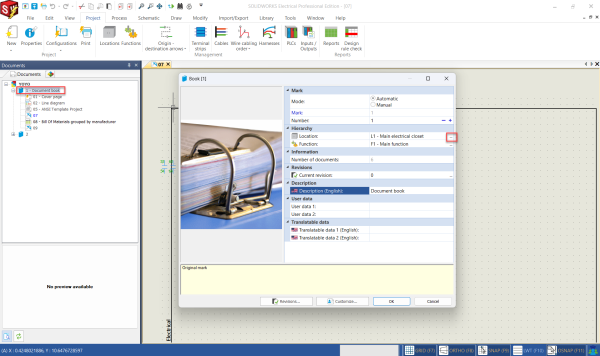
Viewing the location of a SOLIDWORKS Electrical book
A list of existing locations will appear. If the location you need is not listed, you can easily create a new one.
To create a new location in SOLIDWORKS Electrical:
- Click New Location in the upper left corner of the window.
- Name the location appropriately.
- Select the new location in the left panel
- Click select to assign it to the document book.
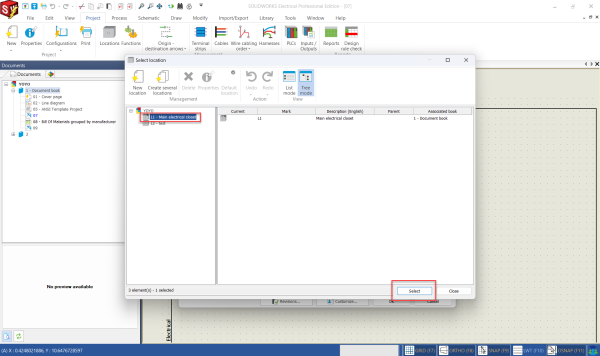
Assigning a new location
Repeat this process for each document book in your project. If your goal is to filter reports by book, ensure that each book is assigned to a different location.
Filter Reports by Location
Once your document books are assigned to locations, the next step is to apply filters to your reports.
To apply a filter to the report:
- Go to the Project tab and select Reports to open the Report Manager
- Choose the report you want to filter (e.g., BOM, wire list, component list)
- Click Properties.
- Navigate to the Filters tab.
- Click Add Filter.
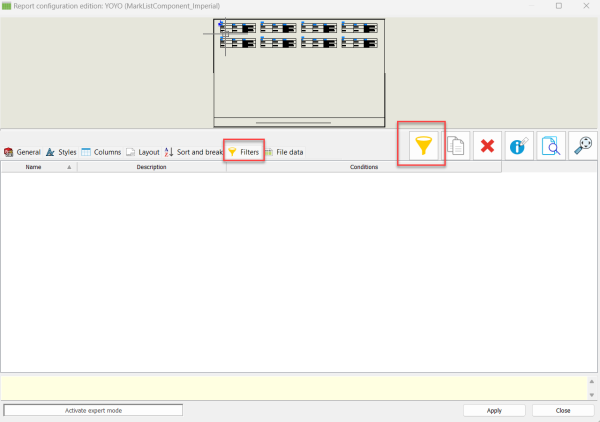
Filtering reports in SOLIDWORKS Electrical
A filter window will appear. This is where you define the condition that limits the report to a specific location. To filter by location, use the loc_text field and specify the value, or name, for the location.
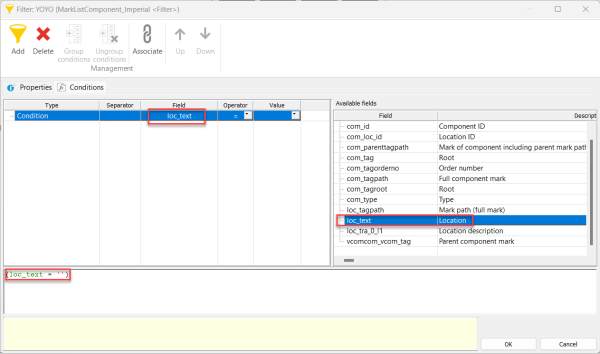
Defining the location filter
You will now see the new filter listed in the Filters tab. Repeat this process for each location or document book you want to filter individually. In many cases, you may only need two or three filters, but larger projects may require more.
Generating the Reports
With your filters created, the last step is to generate reports showing only the information you desire.
To generate reports by book:
- In the Report Manager, locate the Filter description drop‑down menu for your report.
- Select the filter corresponding to the location (book) you want to generate.

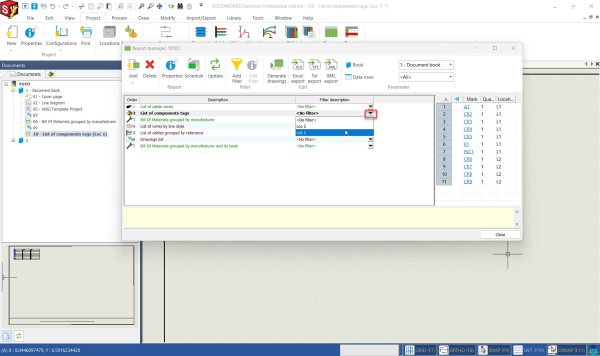 Using the location filter dropdown
 - Select Generate drawings.
SOLIDWORKS Electrical will now produce a report containing only the data associated with that specific document book. By assigning document books to locations and filtering reports based on those locations, you can keep your data organized, accessible, and easy to manage.
Expanding SOLIDWORKS Electrical Capabilities
SOLIDWORKS Electrical simplifies electrical schematics, making the design of electrical systems more efficient by doing more than just report filtering. With SOLIDWORKS Electrical, you can create templates or automate additional reporting tasks to reduce mistakes, increase efficiency, and save money.
Liens connexes
Obtenez la certification SOLIDWORKS Electrical Services
Nos électriciens certifiés peuvent vous aider à :
Posts related to 'How to Filter Reports in SOLIDWORKS Electrical'
