


How to Use the License Order Tab in The SOLIDWORKS SolidNetWork License Manager

Article by Alaa Hosn updated June 12, 2026
Article
The SOLIDWORKS SolidNetWork License Manager is a tool to manage licenses and control SOLIDWORKS Network licenses. It enables teams to effectively share SOLIDWORKS licenses when users may not need access at all times.
Modifying the license order in the SOLIDWORKS SolidNetWork License Manager is a quick way to eliminate the issue of pulling the wrong license and avoid frustration.
What is the SOLIDWORKS SolidNetWork License Manager?
The SolidNetWork License Manager is a great way to allow organizations to pool SOLIDWORKS licenses and share them between multiple users on different machines. This is done by setting up a server machine to distribute the licenses to the clients as needed.
Effective management of the SolidNetWork License Manager may determine how efficiently design teams operate, which is critical as organizations scale and license usage becomes tied to a workflow or add-ins.
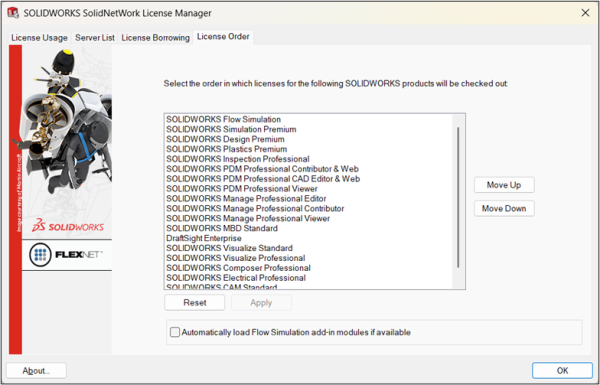
The SolidNetWork License Manager License Order tab
Instead of assigning a fixed license to a single machine in standalone installations, in a network licensing environment, licenses are pooled and distributed dynamically to users as needed. This floating model allows multiple users to share a limited number of licenses. License ordering is a strategic way to help ensure that users are aligned with the appropriate level of functionality while preserving higher-tier resources for more complex tasks.
Viewing License Count in the SNL Manager
When a seat of SOLIDWORKS Professional or SOLIDWORKS Premium is added to a license manager, there will be an additional Standard license bundled within. This does not mean one user can be using SOLIDWORKS Standard while another user works in Professional or Premium.
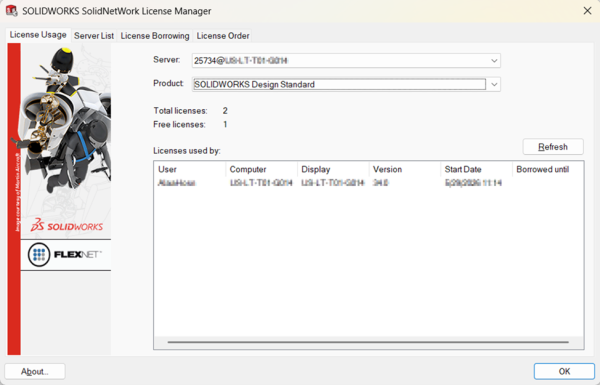
SOLIDWORKS SolidNetWork License Manager License Usage tab
When SOLIDWORKS first starts with all add-ins turned off, the software should pull a Standard license. Then, if a higher tiered feature is used, like the routing, surface flatten or finite element analysis tools, the user will also grab the Premium license automatically.
This mechanism is how SOLIDWORKS makes sure that the high value tasks in the higher packages are available when needed, instead of being applied by users not utilizing any Professional or Premium features.
How Does the License Order Tab Work?
The license order tab in the license manager gives users the ability to define which licenses are pulled first when SOLIDWORKS is launched or when add-ins are activated. A Standard license forms the base, and when additional capabilities are required, such as the SOLIDWORKS Toolbox or Simulation, Professional or Premium licenses are layered on top.
The same concept holds true for SOLIDWORKS Simulation Standard, Professional, and Premium. Users will want to make sure the order of SOLIDWORKS Premium and Simulation packages are set properly so that a user running a linear static analysis does not unintentionally use a higher end SOLIDWORKS Simulation package that is not necessary.
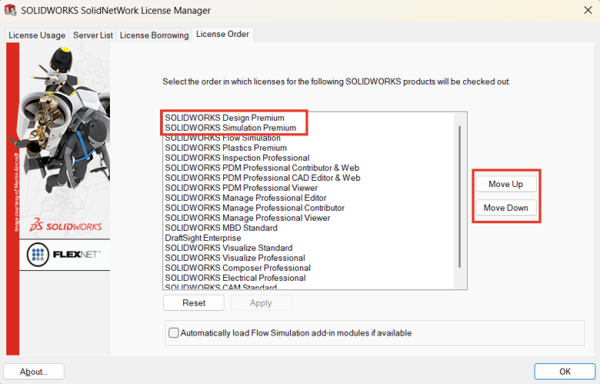
Putting the products you want to pull first at the top
Moving licenses up and down the list can be done quickly with the move up and move down selections. The license order tab in the SOLIDWORKS license manager plays a critical role in maximizing efficiency and value in a shared licensing environment.
By intentionally defining the order in which licenses are pulled, organizations can ensure that each user receives the functionality required without unnecessarily consuming higher-tier licenses.
Using Additional SOLIDWORKS Functionality
The SOLIDWORKS SolidNetWork License Manager allows teams to share licenses and distribute them from a central location on their network. The License Order tab enables administrators to determine what order licenses are being used to ensure that higher-tiered functionality is reserved for those who need it.
However, the license manager only grants you access to the tools included in your subscription. In order to gain access to more functionality, like SOLIDWORKS Simulation or SOLIDWORKS Inspection, you need to add them to your license pool.
To learn more about adding additional seats of SOLIDWORKS tools, contact us here.
Liens connexes
Services SOLIDWORKS certifiés proposés par Javelin
Javelin peut vous aider à :
Posts related to 'How to Use the License Order Tab in The SOLIDWORKS SolidNetWork License Manager'
