


How Feature Ordering in SOLIDWORKS Affects Your Design

Article by Lily Bar updated June 24, 2026
Article
Modeling is more than just taking a 2D sketch to a 3D body; it involves intentional feature ordering in SOLIDWORKS. Feature ordering, a key way experts save time during the design process, involves analyzing the design’s intent and determining how modeling should begin.
By understanding how feature ordering in SOLIDWORKS affects design intent and the ease of making changes down the line, you can quickly improve the robustness of your parts and assemblies.
Why Feature Ordering in SOLIDWORKS Matters
Feature ordering is the act of placing features before or after one another to form a part correctly. This can involve ensuring that a hole goes through the entire part, that a fillet does not conflict with an edge, or that a shell stays confined to a section of the part.
Considering the order of features is a strategy that is proven to:
- Gagner du temps
- Prevent repetitive features
- Avoid errors
- Preserve design intent
Thinking through the order of features in advance can prove useful when edits need to be made in the future.
Mindful Extrudes and Cuts
When merging two bodies, it is important to consider whether or not extra unintended material will be created. Extruding into a part that already contains a shell can cause the problem of extra material sticking out of the shell.
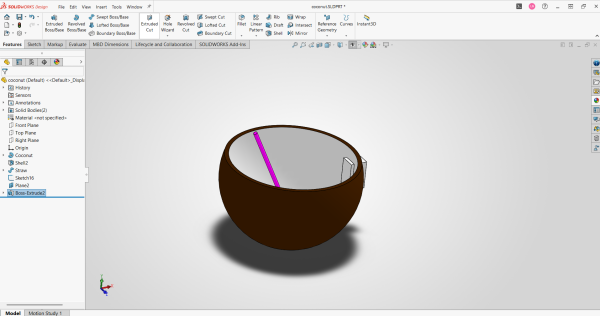
A model with extra material showing through a shell
In this case, creating the shell before extruding another part of the model was not the best practice. The shell could have been preserved by creating the extrude first or using different end conditions.
You must also consider where you place extruded cuts or holes. If a hole is not intended to go through the entire part and is created last, material will be missing from the part.
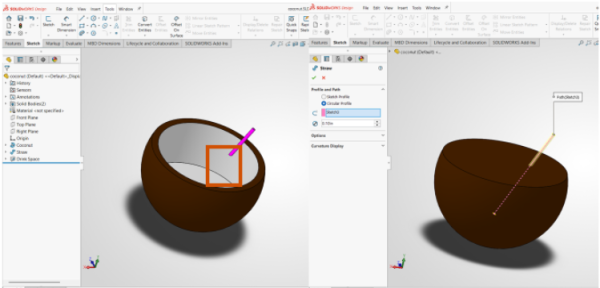
Missing piece of the straw due to incorrect feature ordering in SOLIDWORKS
The coconut is missing a part of the straw, as it was created before the extrude to make space for the drink was made. If reordering parts was not possible, you would have to recreate the straw feature to be the correct length, wasting time and creating a repetitive feature.
Shelling Issues
Issues with shells can arise when merging parts and shelling afterward. Sometimes, the intended shell is not created due to the added body. This gives way to incorrect volume, sharp edges, and changed design intent.
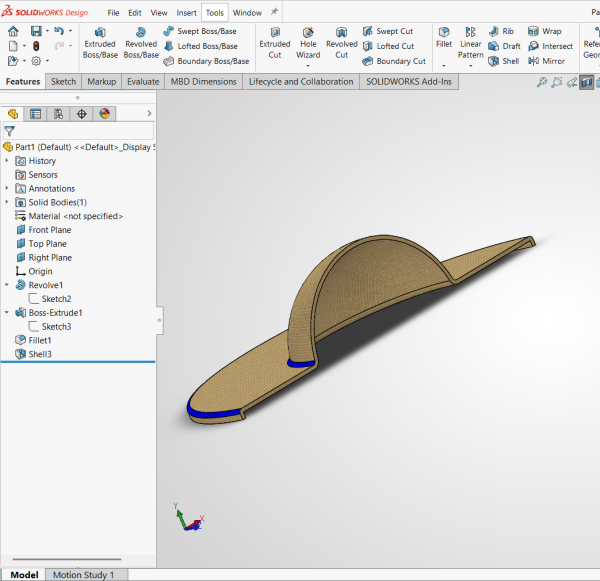
Using the Shell command after merging the parts
With this sun hat, the brim and the crown are merged together before the shell is used. This gives a strange and unwanted ledge on the brim of the hat. The shell should have been created before the brim was sketched and extruded to ensure that only the crown was shelled.
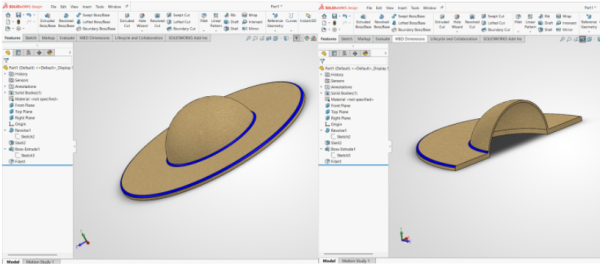
Changing the position of the shell in the FeatureManager
With the shell being moved before the brim, you have successfully eliminated the ledge; however, you must change the extrude to have a hole in the middle to prevent covering the shell entirely.
Before beginning the model, it can be helpful to categorize which parts need a shell and which do not. Only merge bodies when you are certain that they will share the shell geometry later on.
Parent and Child Feature Order
Planning out feature ordering in SOLIDWORKS is important to prevent running into errors regarding parent and child relationships. SOLIDWORKS will not allow you to put a child feature above a parent, so be careful where you base the sketches and features from.
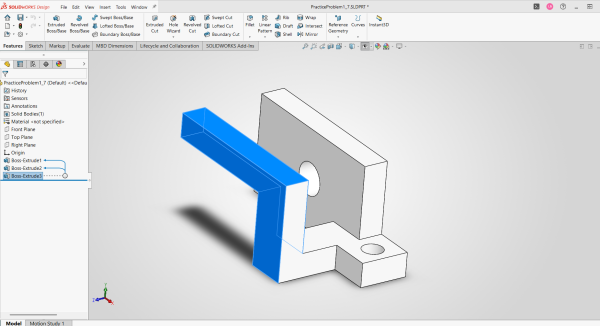
Dynamic Reference Visualization shows parent and child relationships
If you have it enabled, SOLIDWORKS will show you the relationships between features with blue arrows through Dynamic Reference Visualization.
You can turn on Dynamic Reference Visualization by:
- Right-click at the top of the SOLIDWORKS FeatureManager.
- Navigate to the pop-up toolbar above the menu that shows.
- Select the icon with boxes and arrows for Dynamic Reference Visualization.
To make sure that you can reorder features, practice basing them on the given planes. If you sketch on the face of a feature, you will not be able to move that sketch backwards.
Filleting Best Practices
Prioritizing fillets at the end of your modeling process is the best practice to ensure geometry and volume remain as designed.
Creating feature fillets can:
- Consume system resources, leading to poor performance.
- Impede the creation of other features due to the removal of edges that are needed to create or dimension new geometry.
Due to these possible downsides, creating fillets last will increase efficiency. All fillets of the same size can be grouped into a single feature, making it easier to edit these fillets as well as add additional edges to be filleted.
Learning SOLIDWORKS
If you are interested in learning about additional features of SOLIDWORKS, consider taking a look at training courses where our certified instructors will teach more than just feature ordering and design intent. Our team walks through step-by-step examples with real-world applications.
Course offerings include SOLIDWORKS Essentials, where you can learn basic part modeling, sketching, assemblies, and working through errors, through advanced data management and simulation topics.
To learn more about our training offerings and to register for an upcoming class, click here.
Liens connexes
Services SOLIDWORKS certifiés proposés par Javelin
Javelin peut vous aider à :
Posts related to 'How Feature Ordering in SOLIDWORKS Affects Your Design'
