


Comment améliorer les performances graphiques de SOLIDWORKS sur les ordinateurs portables

Article de Griffin Pacey, mis à jour le 5 juillet 2024
Article
Constatez-vous un ralentissement des performances graphiques de SOLIDWORKS sur votre nouvel ordinateur portable ? Voici trois façons d'améliorer les performances graphiques de SOLIDWORKS.
- Votre pilote GPU est obsolète ou n'est pas certifié pour SOLIDWORKS
- Windows indique à SOLIDWORKS d'utiliser votre carte graphique intégrée, et non la puissante carte graphique dédiée.
- Le panneau de configuration NVIDIA n'est pas configuré correctement
Améliorez les performances graphiques de SOLIDWORKS grâce au pilote de votre carte graphique :
- Pour connaître la version de votre pilote GPU, lancez SolidWorks RX 20xx. L'année indiquée doit correspondre à la version la plus récente de SOLIDWORKS que vous avez installée ; dans mon cas, il s'agit de SOLIDWORKS RX 2024.

SOLIDWORKS Rx
- Une fois dans SOLIDWORKS RX, accédez au deuxième onglet intitulé «Diagnostics». Une fois là-bas, l'écran pourrait ressembler à celui ci-dessous, avec un X rouge dans le coin supérieur gauche. Laissez simplement RX ouvert pendant quelques minutes le temps qu'il recueille les informations nécessaires concernant votre machine.

- Une fois l'opération terminée, vous devriez voir une coche verte dans le coin supérieur gauche, puis de nombreuses informations système et vérifications. Ce qui nous intéresse le plus, ce sont le modèle du GPU et le pilote.

Mannequin et pilote
- À partir de là, rendez-vous sur le site Web de SOLIDWORKS et saisissez vos informations pour obtenir le lien vers le pilote approprié
- Une fois vos informations saisies, si l'appareil est certifié, le pilote approprié s'affichera. S'il ne s'agit pas d'un appareil certifié, recherchez l'option la plus proche disponible.

Configuration requise
- Une fois que vous avez trouvé le lien de téléchargement du pilote GPU approprié, téléchargez le nouveau pilote, mais ne l'installez pas tout de suite.
- Vous devrez ensuite désinstaller l'ancien pilote de carte graphique. Pour ce faire, rendez-vous dans la section «Ajouter ou supprimer des programmes »de Windows et faites défiler la liste jusqu'à ce que vous trouviez une entrée similaire à celle illustrée ci-dessous.

- Cliquez maintenant sur les trois points (« … »)à droite et désinstallez l'ancien pilote à l'aide de l'assistant d'installation NVIDIA.
- Une fois la désinstallation terminée, redémarrez l'ordinateur.
- Une fois que votre PC a redémarré, lancez l'installation du nouveau pilote de carte graphique.
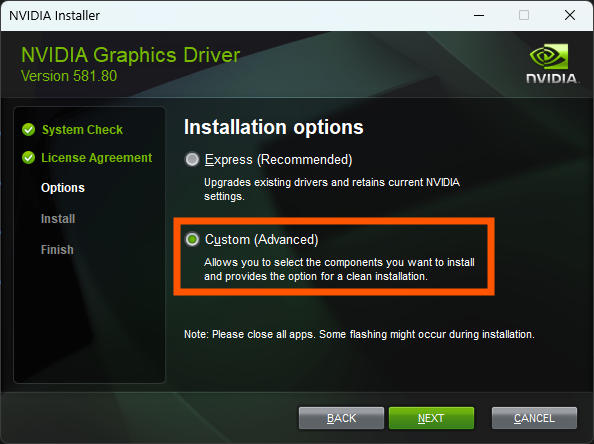
- Dans le nouvel assistant d'installation NVIDIA, sélectionnez l'option «Personnalisée (avancée)», puis cliquez sur «Suivant».
- À la page suivante, veillez à sélectionner l'option «Effectuer une installation propre».
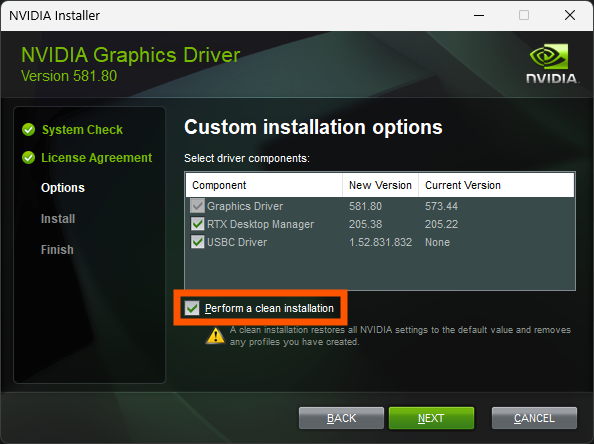
- Laissez maintenant l'assistant d'installation terminer l'installation du nouveau pilote, et le tour est joué !
Améliorer les performances graphiques de SOLIDWORKS via les paramètres Windows :
Si vous avez vérifié vos pilotes vidéo et que le problème persiste, il s'agit peut-être d'un problème lié aux paramètres Windows.
- Commençons par ouvrir les options «Affichage » dans Windows, puis faisons défiler jusqu'auxoptions « Carte graphique ».

Paramètres d'affichage
- Dans la page d'options « Graphiques », sélectionnez « Parcourir » sous « Ajouter une application ».

Ajouter une application
- Dans la fenêtre de navigation, accédez au répertoire C:\Program Files\SOLIDWORKS Corp\SOLIDWORKS. Le chemin d'accès de votre fichier peut être différent et comporter une mention telle que « SOLIDWORKS Corp (2) » ou « SOLIDWORKS Corp 2024 ».
- Une fois sur cette page, recherchez le fichier SLDWORKS.EXE et cliquez sur «Ajouter».

Fichier exécutable SOLIDWORKS
- Une fois que vous avez ajouté SolidWorks à la liste des options personnalisées, cliquez sur SOLIDWORKS et sélectionnez Options.

Options personnalisées
- Dans la fenêtre qui s'affiche, sélectionnez «Haute performance », puis cliquez sur Enregistrer.

Haute performance
- Windows est désormais configuré pour utiliser le GPU haute performance dans SOLIDWORKS.
Optimiser les performances graphiques de SOLIDWORKS via le panneau de configuration NVIDIA
- Si vous disposez d'un GPU NVIDIA, il existe également un panneau de configuration secondaire qui permet de choisir le GPU à utiliser.
- Pour accéder à ce panneau de configuration, il suffit de cliquer avec le bouton droit de la souris sur un espace libre du bureau et de sélectionner «Panneau de configuration NVIDIA ».

Panneau de configuration NVIDIA
- Dans le Panneau de configuration NVIDIA :
- Sélectionnez «Gérer les paramètres 3D».
- Sélectionnez «Paramètres du programme».
- Ouvrez le menu déroulant des programmes et sélectionnez «SOLIDWORKS».
- Sélectionnez «Processeur NVIDIA haute performance».

- Une fois que vous avez sélectionné le processeur NVIDIA haute performance, cliquez sur « Appliquer » dans le coin inférieur droit.
Si vous rencontrez toujours des problèmes graphiques, pensez à utiliser OpenGL, comme indiqué dans notre article « Utilisation de SOLIDWORKS avec OpenGL », ou contactez votre revendeur agréé pour obtenir de l'aide et une assistance.
Liens connexes
Services SOLIDWORKS certifiés proposés par Javelin
Javelin peut vous aider à :
Articles liés à « Comment améliorer les performances graphiques de SOLIDWORKS sur les ordinateurs portables »
