


How To Improve SOLIDWORKS Graphics Performance on Laptops

Article by Griffin Pacey updated July 5, 2024
Article
Are you noticing slow graphics performance in SOLIDWORKS on your new laptop? Here are 3 ways to improve SOLIDWORKS Graphics Performance.
- Your GPU driver is outdated or not certified for SOLIDWORKS
- Windows is telling SOLIDWORKS to use your integrated graphics card, not the powerful discrete one.
- The NVIDIA Control Panel is not configured correctly
Improve SOLIDWORKS Graphics Performance via your GPU Driver:
- To see what your GPU Driver is, launch SolidWorks RX 20xx. The year should match the newest version of SOLIDWORKS you have installed, which in my case is SOLIDWORKS RX 2024.

SOLIDWORKS Rx
- Once you’re in SOLIDWORKS RX, navigate to the second tab labeled “Diagnostics“. Once you’re there, the screen might look like it does below, with the red X in the upper left corner. Simply leave RX open for a few minutes as it gathers the necessary information for your machine.

- Once it’s finished, you should see a green check in the upper left corner and then a lot of system data and checks. What we’re most concerned with is the GPU model and driver.

Model and Driver
- From there, check the SOLIDWORKS website and enter your information to get the correct driver link
- Once you enter your information, if it is a certified machine, then you’ll see the correct driver listed. If it’s not a certified machine, see what the closest option available is.

System requirements
- Once you’ve located the correct GPU Driver download link, go ahead and download the new driver, but don’t install it just yet.
- Next, you’ll need to uninstall the old GPU driver. To do this, go to Windows “Add or Remove Programs” and scroll down until you find a listing like the one shown below.

- Now, click the “…” on the right and uninstall the old driver using the NVIDIA Install Wizard.
- After the uninstall is complete, restart the PC.
- Once your PC has restarted, start the installation of the new GPU driver.
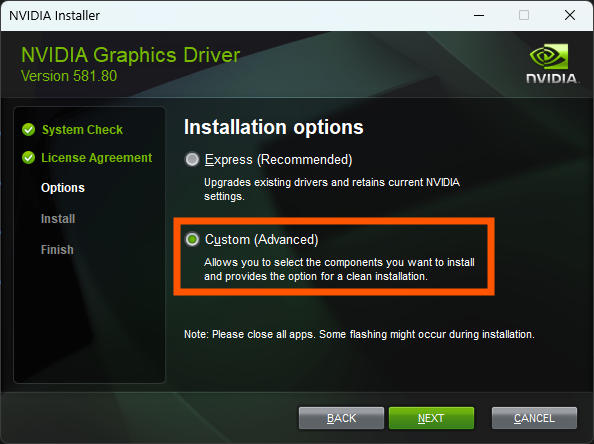
- In the new NVIDIA Installation Wizard, select the option for “Custom (Advanced)” then click “Next“.
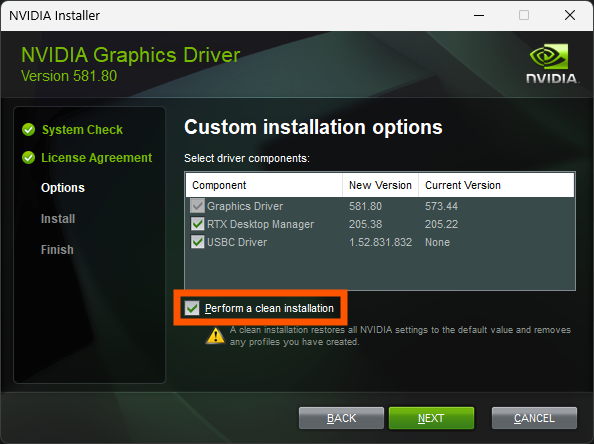
- On the next page, be sure to select the option for “Perform a clean installation“.
- Now, let the installation wizard finish installing the new driver and you’re all set!
Improve SOLIDWORKS Graphics Performance via Windows Settings:
If you’ve verified your video drivers and are still having issues, it might be an issue with Windows Settings.
- Let’s start with opening the “Display” options in Windows and scrolling to the “Graphics” options.

Display settings
- On the Graphics option page, select Browse under “Add an app”.

Add an App
- In the browse window, navigate to C:\Program Files\SOLIDWORKS Corp\SOLIDWORKS. Your file path may look different and have something like SOLIDWORKS Corp (2) or SOLIDWORKS Corp 2024.
- Once you’re there, scroll to the SLDWORKS.EXE and click “Add“.

SOLIDWORKS executable
- Once you’ve added SolidWorks to the Custom Options list, click on SOLIDWORKS and select Options.

Custom options
- In the window that appears, select “High Performance” and click Save.

High Performance
- Windows is now set to use the High-Performance GPU in SOLIDWORKS.
Improve SOLIDWORKS Graphics Performance via NVIDIA Control Panel
- If you have an NVIDIA GPU, there is also a secondary control panel that can control which GPU is being used.
- To access this control panel, simply right-click on any empty space on the desktop and select “NVIDIA Control Panel“

NVIDIA Control Panel
- In the NVIDIA Control Panel:
- Select “Manage 3D Settings“.
- Select “Program Settings“.
- Select the dropdown for programs and select “SOLIDWORKS“.
- Select “High-performance NVIDIA processor“.

- Once you’ve applied the High-performance NVIDIA processor, click Apply in the bottom right corner.
If you’re still having graphical issues, consider using OpenGL, which is outlined in our using SOLIDWORKS in OpenGL article or reach out to your VAR for further assistance and support.
Related Links
Certified SOLIDWORKS Services available from Javelin
Javelin can help you to:
Posts related to 'How To Improve SOLIDWORKS Graphics Performance on Laptops'
