


De SOLIDWORKS à SOLIDWORKS Visualize : tout partir de zéro – Déroulement et conseils

Article de Jamal Bakari, mis à jour le 4 décembre 2024
Article
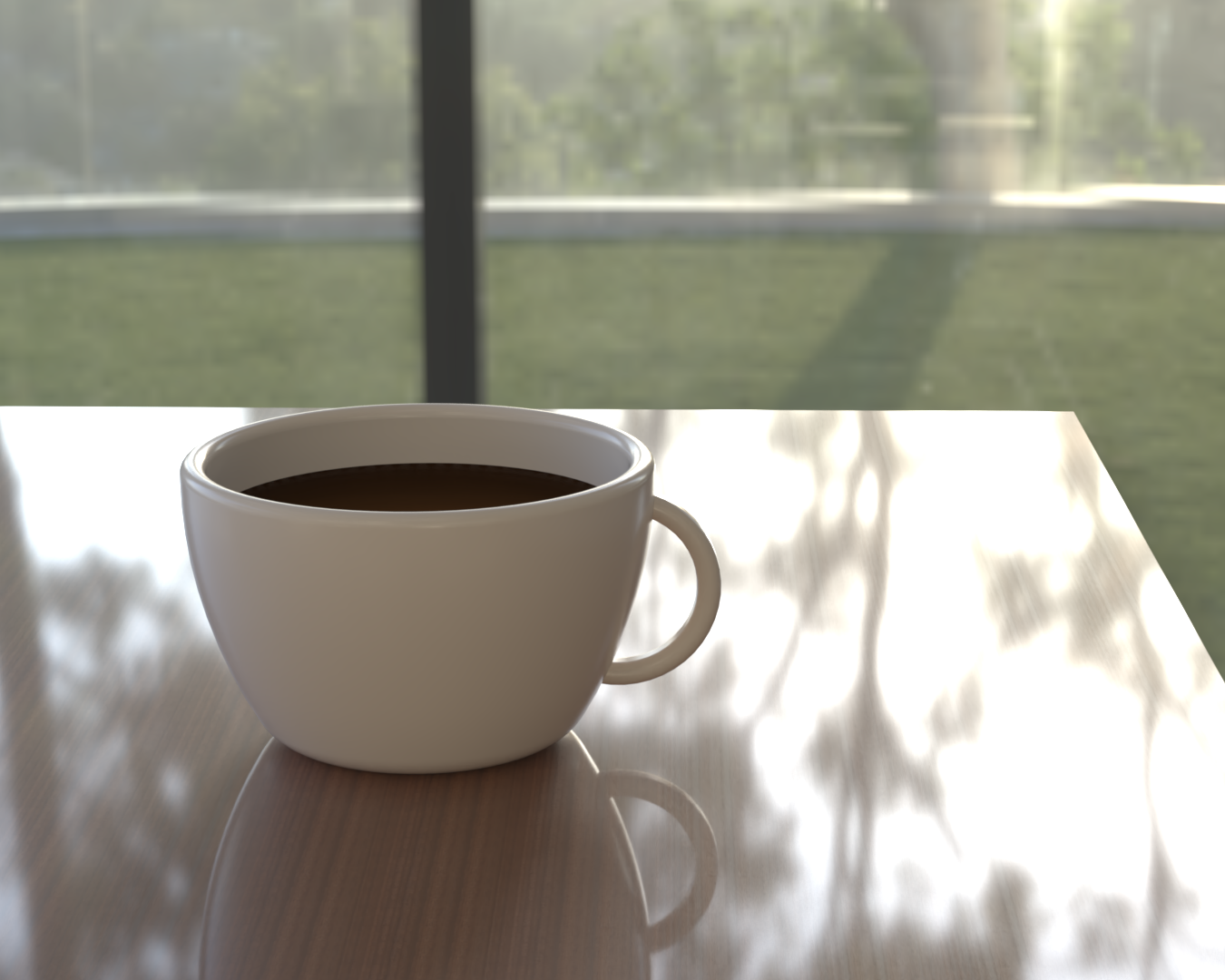
Dans cet article, je vais vous montrer, étape par étape, comment réaliser l'image ci-dessous, de SOLIDWORKS à SOLIDWORKS Visualize, pour le rendu final. Ce processus s'inspire de questions que nos clients nous ont récemment posées. Il s'agit d'un guide détaillé, mais il nécessite une certaine maîtrise des deux logiciels.
La fabrication de la coupe
Nous allons commencer la pièce par une esquisse sur le plan avant. La tasse sera placée au-dessus de l'origine afin que je puisse positionner la table en dessous. Je prévois de créer une pièce à plusieurs corps, mais cela peut également être réalisé sous forme d'assemblage.

Comme il s'agit d'un projet rapide destiné à servir de démonstration, je vais simplement esquisser rapidement le profil de la tasse. Remarquez que je place le profil juste au-dessus de l'origine.

Je vais ajouter des cotes pour que le dessin soit parfaitement défini. C'est une bonne habitude à prendre, surtout si vous devez apporter des modifications par la suite.

L'un des grands avantages de SOLIDWORKS est que l'on peut réutiliser plusieurs fois le même croquis. Je vais également ajouter le profil de l'anse de la tasse. Je l'ai créé à l'aide d'un simple arc, mais j'aurais pu utiliser une spline. Notez que j'ai placé le profil de l'anse à l'intérieur de la tasse plutôt qu'à l'extérieur. C'est un choix délibéré.

Comme l'esquisse présente un profil fermé, je peux la sélectionner pour la rotation.

Pour la poignée, nous pouvons revenir en arrière et utiliser l'outil « Cup Sketch ». Assurez-vous que l'option « Merge result » est sélectionnée afin que la poignée fusionne avec la tasse. Nous utilisons l'option « Thin Feature » pour créer une forme 3D à partir d'un arc extrudé.

J'ai ajouté un congé simple à la poignée.

Préparation du liquide
Je crée ensuite un plan qui servira de niveau supérieur au liquide. Remarquez que ce plan est défini par la distance qui le sépare du plan supérieur ; il n'a besoin d'aucune autre référence.

Il est temps de faire un croquis dans cet avion.
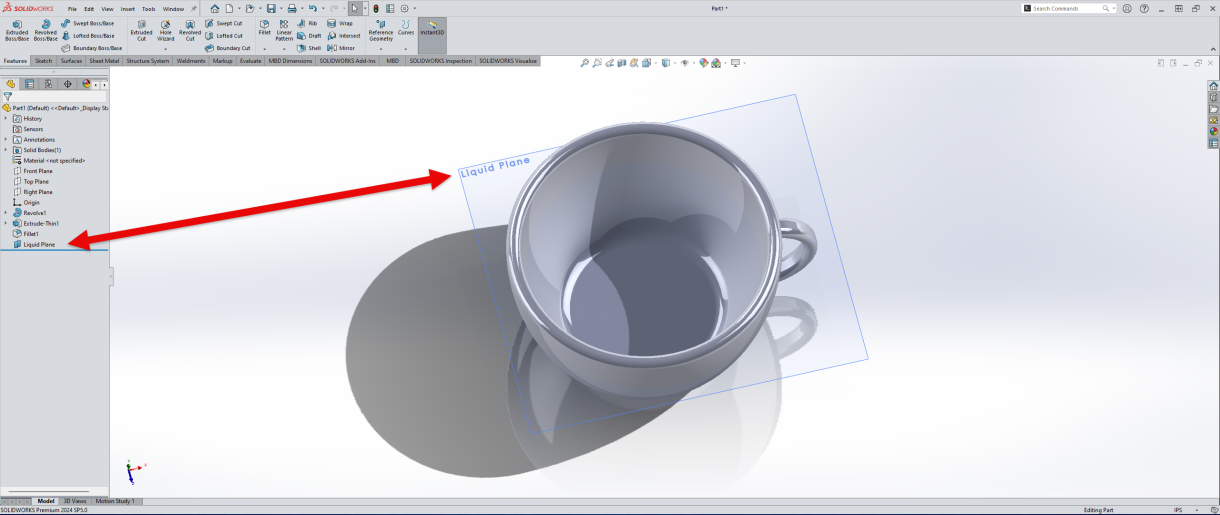
Ajouter un autre croquis
Grâce à la fonction « Courbe d'intersection », SOLIDWORKS utilise l'identifiant de la face de la tasse pour déterminer sa forme à l'intersection avec le plan du liquide.

En utilisant une extrusion Boss, nous pouvons utiliser la direction « Up To Body » pour remplir la coupelle. Notez que nous désactivons l’option « Merge result » afin qu’elle ne devienne pas la coupelle.

J'ajoute un aspect « jus d'orange » à titre provisoire pour le volume de liquide. Il faut s'assurer que les aspects sont uniques pour Visualize.

Comme Instant3D est activé, je peux rapidement ajuster la distance du plan et le volume de liquide dans le récipient.
Pendant que je prépare Visualize, je veille à bien nommer les éléments. Cela permet de revenir plus facilement en arrière pour apporter des modifications, surtout si ce projet doit être confié à quelqu'un d'autre.
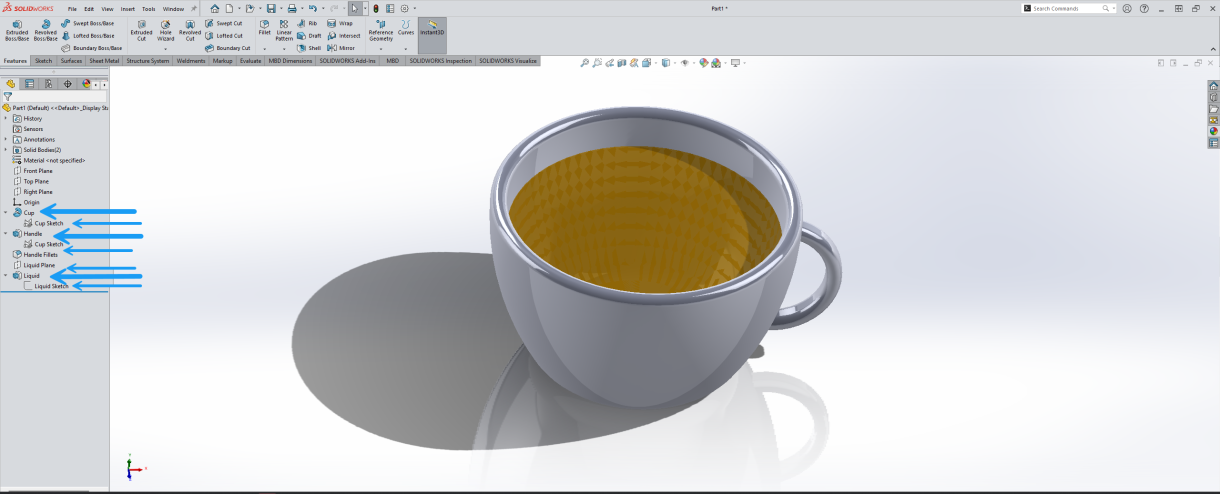
Caractéristiques de l'étiquette
J'utilise la raboteuse pour réaliser un rectangle de base pour la table.

Préparer la table
Comme cela se trouve à l'origine, il me suffit d'extruder vers le bas. Remarquez que l'option « Fusionner le résultat » est activée.
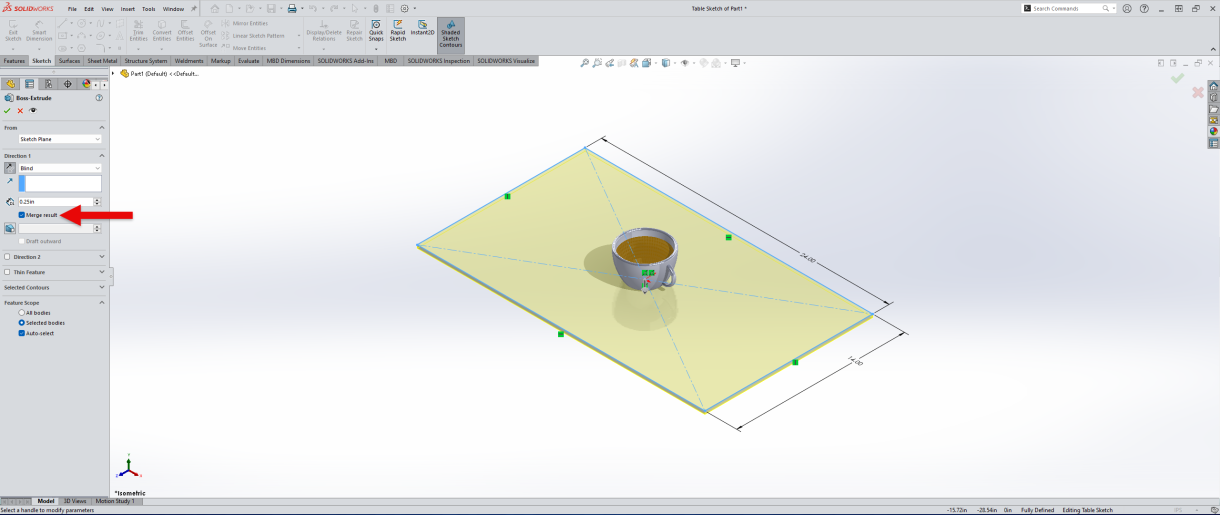
Extruder l'esquisse pour le plateau de table
La table fait partie intégrante de la coupe, ce qui n'est PAS ce que nous voulons. On constate que le nombre de corps pleins est de deux (2), alors qu'il devrait être de trois (3).

Pour régler ce problème, il suffit de remonter dans l'arborescence.
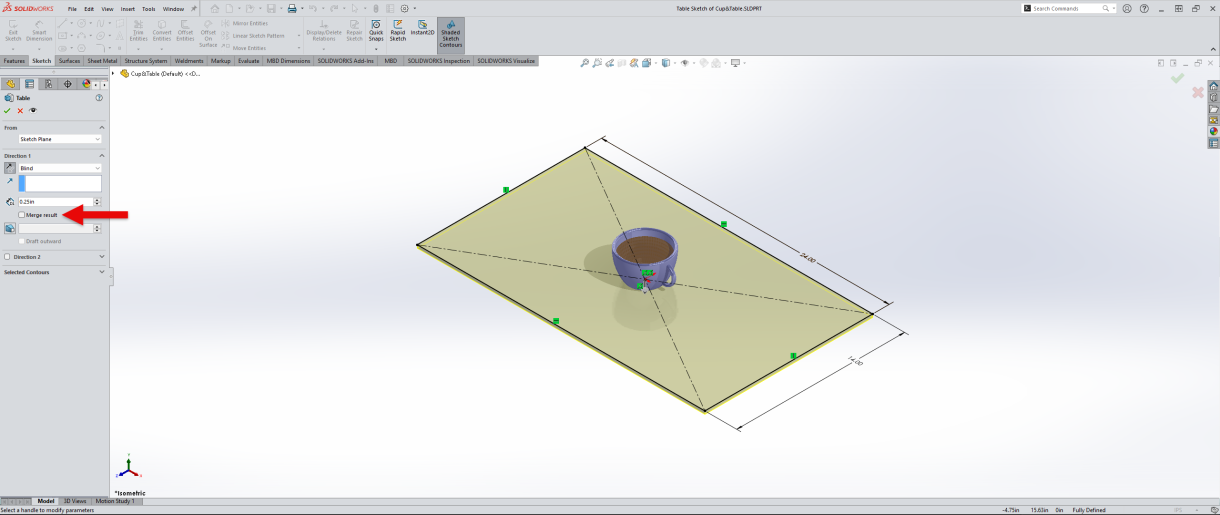
Désactiver la fusion
Bon, le décompte des Solid Body s'annonce bien. On nomme les fonctionnalités, car c'est une bonne habitude.

Enfin, nous avons ajouté un matériau « bois » au corps de la table pour Visualize. Nous souhaitons à nouveau que ces trois matériaux soient distincts, ce qui nous facilitera la tâche à l'avenir.
La fonction « Export Simple » de l'extension Visualize vous permettra de passer rapidement d'un programme à l'autre.

Passage à SOLIDWORKS Visualize
Nous voyons notre projet dans le nouveau programme et pouvons modifier l'environnement à l'aide de l'onglet « Bibliothèques de fichiers ».

Nous allons changer d'environnement pour l'intérieur de la villa.

Dans l'onglet Environnements, nous désactivons l'affichage de la plaque arrière et cochons la case « Aplatir le sol ». Cela permet au projet de refléter correctement l'environnement.

Réglons la caméra pour trouver un bon angle, mais on constate que la poignée n'apparaît pas à l'image.

J'utilise les outils de manipulation d'objets pour faire pivoter la tasse afin que l'anse soit visible.

Assurez-vous que la couleur de sélection correspond bien. Dans ce cas précis, il faut faire correspondre le bleu avec le bleu, car le magenta sélectionnerait TOUS les corps du projet alors que nous voulons uniquement sélectionner la tasse.

Dans l'onglet « Bibliothèques de fichiers », nous pouvons cliquer et faire glisser nos rendus finaux sur les corps. Remarquez à quel point ce nouveau rendu bois s'harmonise mieux avec l'environnement extérieur.

Pour la touche finale, on modifie l'aspect du liquide et de la tasse. Je ne pense pas que ça dérangerait qui que ce soit si j'utilisais de la bière à la place du café…
On peut alors appuyer sur Ctrl + R pour lancer le rendu. J'ai utilisé le préréglage Full HD.

Et voilà, le rendu final ! J'ai utilisé le préréglage Full HD, mais vous pouvez choisir celui qui vous convient.

Rendu final
En savoir plus sur la transition de SOLIDWORKS vers SOLIDWORKS Visualize
Pour en savoir plus sur SOLIDWORKS et SOLIDWORKS Visualize, découvrez nos formations en ligne en direct.
Liens connexes
Services SOLIDWORKS certifiés proposés par Javelin
Javelin peut vous aider à :
Articles liés à « De SOLIDWORKS à SOLIDWORKS Visualize en partant de zéro – Déroulement et conseils »
