


SOLIDWORKS Simulation Reports

Article by Scott Durksen, CSWE updated April 11, 2019
Article
SOLIDWORKS Simulation provides an automatic way to export your results to a Word document. The document is based on a Word template that extracts a large amount of data from your study. Therefore, Microsoft Office must be installed on the computer. The report includes items like Mesh properties, Material properties, Stress plots, etc.
Generating a Report
After the study is completed, you can use the Report tools from the CommandManager.

If you want to capture a specific view/orientation or image file, you can use ‘Include Image for Report’. You can specify where you want this image to be in the report from the ‘Section:’ dropdown.

Report Options
To customize the default sections to publish and any common information to include, this can be done beforehand under Simulation > Simulation Options > Default Options > Reports.

When you proceed to publish the report, you still have the same options to modify as needed but the Default Options can save you time.

Example Report
The first page of the report gives a screenshot of the model with a cross-referenced table of contents. There are numerous pages of data provided, but shown below is one of the Displacement plots and the screenshot image we included.
-
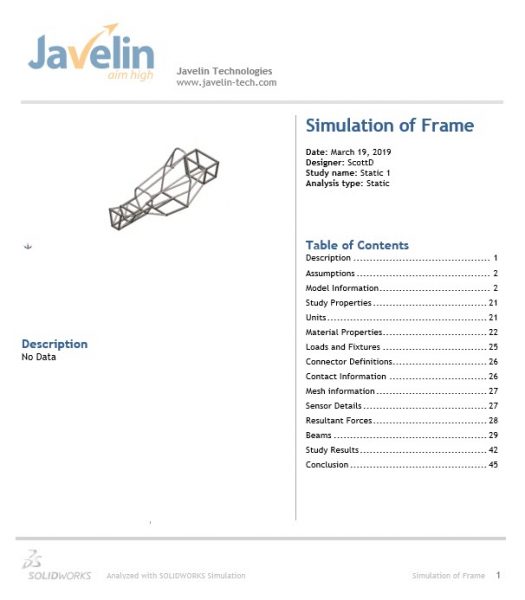
- Report Page 1

-

- Example Page

-

- Example Page
Related Links
Certified SOLIDWORKS Services available from Javelin
Javelin can help you to:
Posts related to 'SOLIDWORKS Simulation Reports'
