


Javelin / TriMech Author

David Arthur, CSWE-S
Understanding SOLIDWORKS BOM Options for Replacing Components
 By David Arthur, CSWE-S on December 3, 2025
When working with a SOLIDWORKS BOM, there are several options that can help us specify how to manage removed or replaced components. The two options we will address here are Keep Missing Item/Row and Do not change item numbers. At first glance, it may seem that…
Solving the “Face is not laying on the boundary between the solid and fluid region” Error
By David Arthur, CSWE-S on November 28, 2025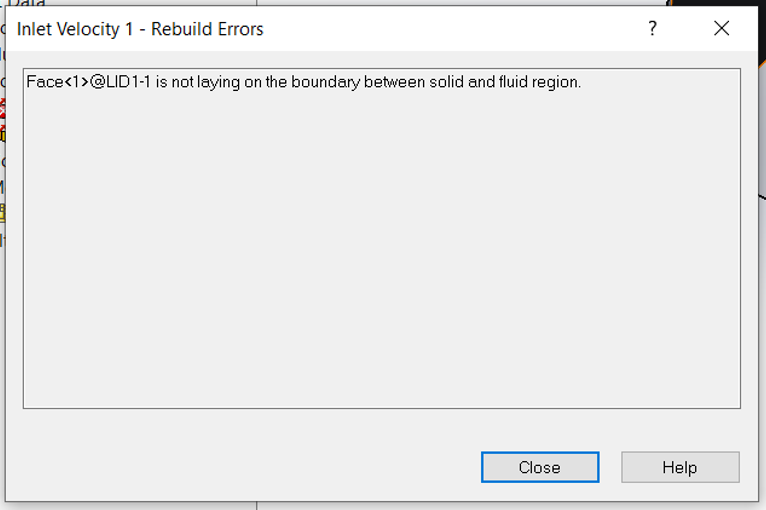
When trying to validate a boundary condition in SOLIDWORKS Flow Simulation, we may get an error stating “Face is not laying on the boundary between the solid and fluid region”. Typically, there are three main reasons the error message will appear, and the solutions are…
Fixing SOLIDWORKS Routing Drag and Drop Failed
By David Arthur, CSWE-S on July 30, 2025
The “Drag and Drop failed” error is a common issue encountered when working with SOLIDWORKS Routing. This error is not caused by a software bug, but rather by a misunderstanding or misapplication of how SOLIDWORKS Routing is intended to function. This issue typically arises when…
Why is my SOLIDWORKS Sheet Metal Flat Pattern Displayed in the Folded State
By David Arthur, CSWE-S on June 30, 2025
Sometimes, you see your SOLIDWORKS Sheet Metal flat pattern displayed in the folded state. This is usually caused by the Default SM-FLAT-PATTERN derived configuration of the part file being in the folded state.
Using Simulation Probes To Ensure Data Is Always Probed At Same Precise Location
By David Arthur, CSWE-S on June 18, 2025
When using SOLIDWORKS Simulation probes in a study, we typically want to take readings from the same location over and over regardless of the mesh or changes to the model. This is easy if a vertex already exists in the location we want to probe,…
Making a Multibody Part from an Assembly
By David Arthur, CSWE-S on February 26, 2025
With the introduction of SOLIDWORKS 2024, we can now convert an entire assembly into a separate multibody part file that stays linked to the parent assembly. This was not possible in the previous versions of SOLIDWORKS. In previous versions, we could save an assembly as…
How to: Managing Redundancies in SOLIDWORKS Motion Analysis
By David Arthur, CSWE-S on August 27, 2024
In a previous article, SOLIDWORKS Motion Analysis: First Steps to Success, we discuss the first steps that should be taken when tasked with creating a motion analysis from an existing SOLIDWORKS assembly. This article provides more detail on the third step in that process, developing a mating scheme that takes DOF into account and managing redundancies.
SOLIDWORKS Motion Analysis: First Steps to Success
By David Arthur, CSWE-S on August 27, 2024
Discover more about the physics type analysis of an assembly using the SOLIDWORKS Motion kinematic solver calculating forces, velocities, accelerations, motor torque, etc. Some of the suggestions in this article may apply to Animation studies and Basic Motion studies as well, but the intended audience of this article is the individual, or team, tasked with performing a kinematic Motion Analysis of an assembly using SOLIDWORKS Motion
Best Practices for Two-resistor Components in SOLIDWORKS Flow Simulation
By David Arthur, CSWE-S on June 19, 2024
What is the purpose of the Two-Resistor Component model in SOLIDWORKS Flow Simulation? The Two-Resistor Component model provides a simplified intuitive method to represent the thermal behavior of small electronics packages like integrated circuits (IC’s) in the context of larger electronic systems. The model is…
How the SOLIDWORKS Delete Face Feature Simplifies Your Workflow
By David Arthur, CSWE-S on June 7, 2024
The SOLIDWORKS Delete Face feature is a versatile tool used to remove unwanted geometry like modeling artifacts, bosses, ribs, fillets, and through holes, and can seamlessly patch and trim the remaining faces, making it especially useful for editing imported geometry without a feature history.
SOLIDWORKS Flow Simulation Mesh – Tools to Evaluate the Mesh Quality
By David Arthur, CSWE-S on May 20, 2024
Evaluating the SOLIDWORKS Flow Simulation mesh is made easy using the Mesh results tool and Cut Plots
Exporting Isosurface Flow Regions Using SOLIDWORKS Flow Simulation
By David Arthur, CSWE-S on March 22, 2024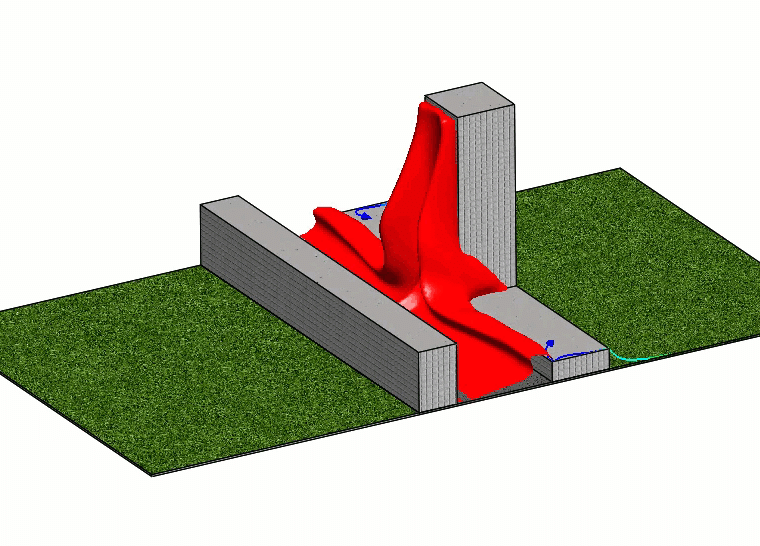
Learn how to export Isosurface flow regions from SOLIDWORKS Flow Simulation for use in downstream modeling.
Mistakes to Avoid with SOLIDWORKS Flow Simulation Fan Setup
By David Arthur, CSWE-S on November 29, 2023
Let’s take a look at a few tips that will help with the SOLIDWORKS Flow Simulation Fan setup. When defining a fan in a SOLIDWORKS Flow Simulation study here are a few of the most common mistakes. These rules apply to External Inlet Fans, External…
SOLIDWORKS Toolbox Setup: Best Practice for Managing User Settings in a Shared Environment
By David Arthur, CSWE-S on November 6, 2023
SOLIDWORKS Toolbox Setup When sharing a SOLIDWORKS toolbox between multiple users in an organization, it’s important to make sure that everyone is using consistent settings. One of the most important SOLIDWORKS Toolbox Setup practices to ensure consistency is choosing whether the Toolbox uses Configurations or…
SolidWorks Sheet Metal – Why is my Flat Pattern Displayed as a Bent Part?
By David Arthur, CSWE-S on March 25, 2014
When the Flat pattern drawing view of a SolidWorks sheet metal part displays the part in the bent condition, this can indicate an issue with the suppression state of the Flat-pattern feature. As shown in the figure below the Flat Pattern view is the same…