


How to Change the Color of Curvature Combs

Article by Alin Vargatu, CSWE updated June 12, 2012
Article

- Fig. 1 – Yellow versus Green on White Background

As you know, I am a big fan of “clean” surfaces and nice flowing curves and, as a direct consequence of that, I am using extensively the curvature combs in order to asses how “nice” those curves are.
In this article I will not discuss the intricacies of the curvature settings, but will concentrate instead on how to set the colors for these tools. Why is this important, you’ll ask?
In my case, since my computer is being used most of the time as a teaching tool, the background color is set to white. By default, the curvature combs are yellow, as you can see on the left side of fig. 1, which creates a poor contrast, especially during a remote session or during a projector based presentation.
I would very much prefer a darker color, like the one shown on the right side of fig. 1.
Trying to find where the color setting is hidden is not an easy task and I found it pretty much by accident. The system option that needs to change is called “Temporary Graphics. Shaded”.
Use the picture shown in fig.2 as a guide on how to get there.
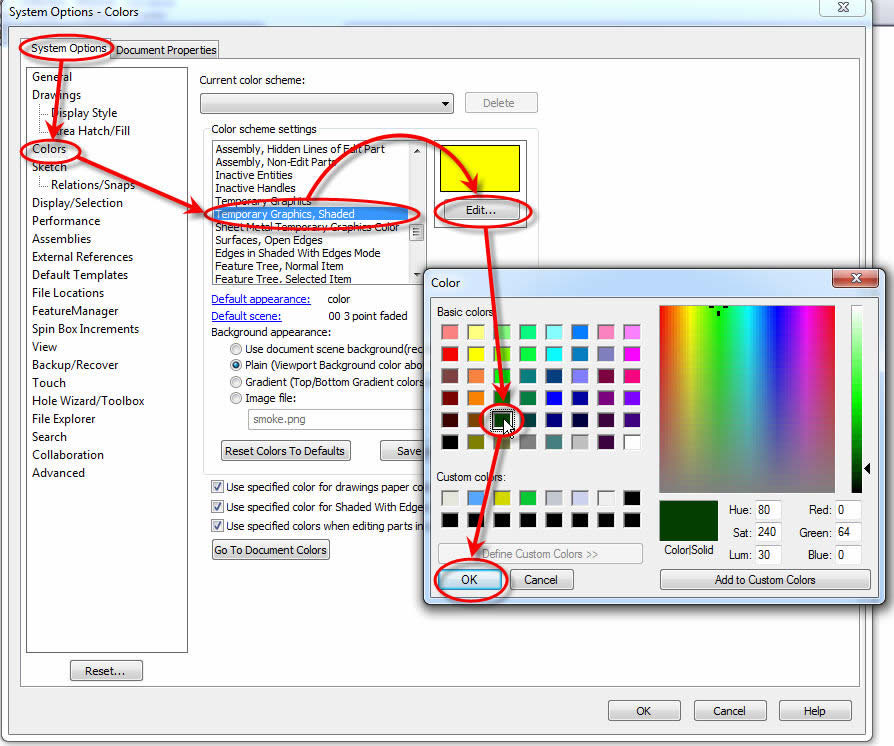
Fig. 2
Related Links
Certified SOLIDWORKS Services available from Javelin
Javelin can help you to:
Posts related to 'How to Change the Color of Curvature Combs'
