


Complete Guide to SOLIDWORKS PDM Folder Permissions

Article by Jay Khajuriwala updated June 29, 2026
Article
SOLIDWORKS PDM folder permissions control what users and groups can do within folders and files in the vault. It is often the culprit of many folders disappearing or hidden files.
Understanding permissions can save time and avoid headaches when troubleshooting file or folder access.
What Are SOLIDWORKS PDM Folder Permissions?
Folder permissions define what users or groups can do with the files stored within a folder. These permissions control actions such as viewing, modifying, deleting, and managing files.
A key concept to understand is that permissions applied at a folder level automatically extend to all subfolders beneath it. This is known as inheritance. Subfolders will continue to inherit permissions from their parent folder unless those permissions are explicitly changed.
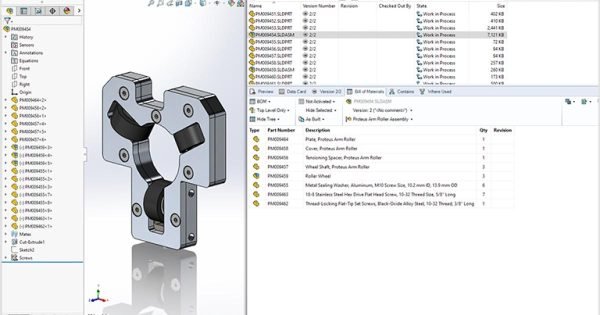
SOLIDWORKS PDM in the SOLIDWORKS Task Pane
Once inheritance is removed at a subfolder level, that subfolder can have unique permissions that differ from the parent folder. This gives administrators flexibility to control access at different levels of the folder structure.
Opening the Administration Tool and Logging into the Vault
To begin managing permissions, you must first access the SOLIDWORKS PDM Administration tool. Once the tool is open, select the appropriate vault you want to manage, and log in using a user account with sufficient privileges.
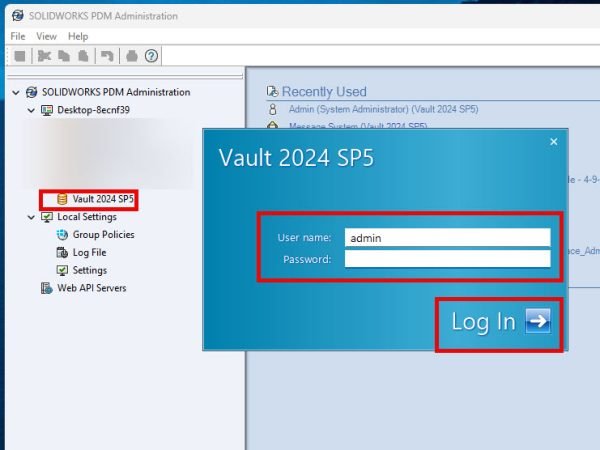
Log in using administrator credentials
Typically, this will be a default SOLIDWORKS PDM administration account, but you may have set up additional credentials during installation.
Accessing User or Group Permissions
After logging into the vault, you can access permissions in multiple ways:
- Navigate to the Groups section and double-click an existing group.
- Navigate to the Users section and double-click an existing user.
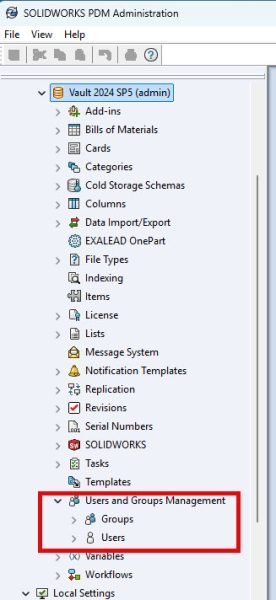
Access SOLIDWORKS PDM folder permissions here
It is recommended to assign permissions at the group level and then assign users to groups rather than managing permissions individually. This helps to avoid confusion later when troubleshooting access rights.
Configuring Folder Permissions
To manage folder permissions, select Folder Permissions from the left-hand panel and use the Permissions per Folder section. This will allow you to assign permissions to selected folders.
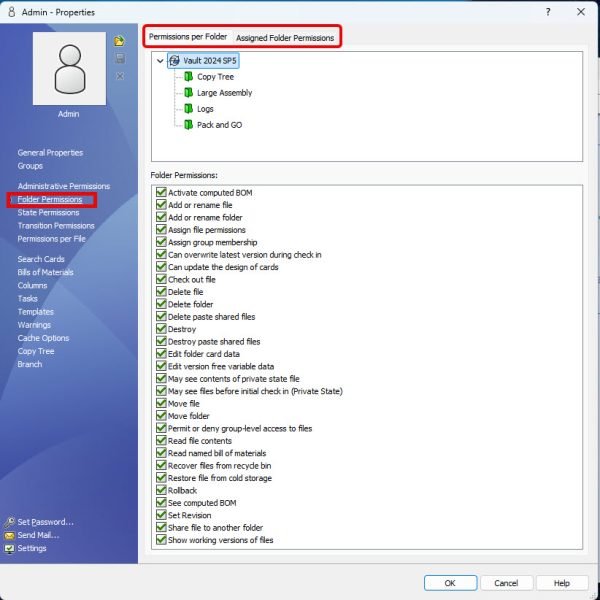
Accessing the Permissions per Folder assignments
Once inside the Folder Permissions section, select a folder in the vault structure, and enable or disable permissions using checkboxes. These permissions will then apply to the selected folder and will be inherited by all subfolders unless the permissions are broken.
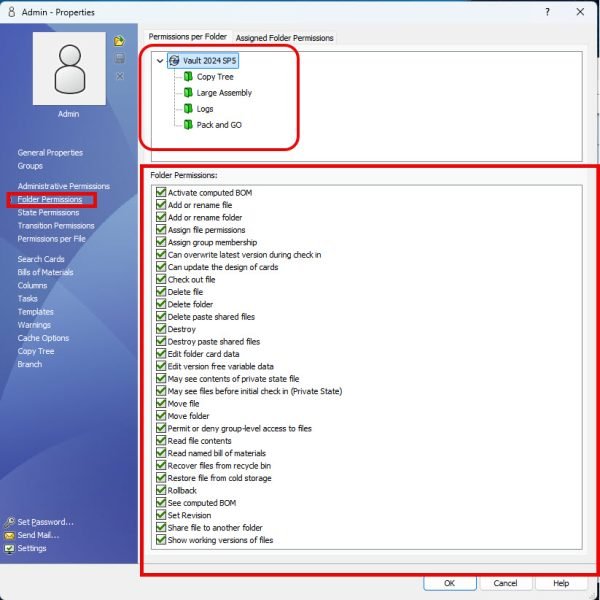
Use the checkmarks to enable or disable permission
Understanding Available Permission Types
When you open a group or user properties window, you will see several permission categories on the left panel.
- Administrative Permissions control administrative capabilities in the vault.
- Folder Permissions control access to files and commands at the folder level.
- State Permissions control access and permissions within workflow states.
- Transition Permissions control movement between workflow states.
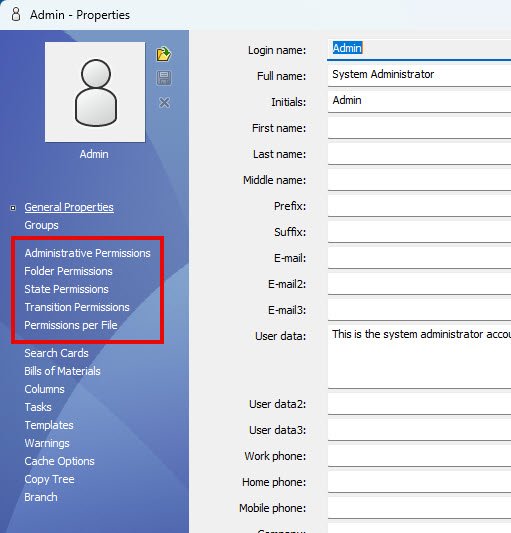
The different categories for folder permissions
An additional option for users is permissions per file, which controls who can see files created by that user.
Best Practices for Managing Folder Permissions
To effectively manage folder permissions, consider the following best practices:
- Use groups instead of individual users to simplify management
- Leverage inheritance to reduce redundancy in permission setup
- Limit breaking inheritance to only when necessary
- Always validate both folder and state permissions when troubleshooting user access issues
- Regularly audit permissions using the Assigned Folder Permissions tab
Beyond SOLIDWORKS PDM Folder Permissions
SOLIDWORKS PDM has additional features for controlling data access beyond traditional folder permissions. Combining workflows, user and group permissions, and custom variables, SOLIDWORKS PDM enables your team to control data to maintain ITAR, CMMC, and CGP standards.
To learn more about our SOLIDWORKS PDM services, click here.
Related Links
Want to do more with SOLIDWORKS PDM?
Our Certified SOLIDWORKS PDM Experts can help you to:
Posts related to 'Complete Guide to SOLIDWORKS PDM Folder Permissions'
