


SolidWorks PDM – How to Reset the “sa” Password in SQL Server Management Studio

Article by Jay Khajuriwala updated May 25, 2013
Article
if you’ve forgotten or lost the “sa” (System Administrator) password for your SQL Server instance, you can reset it using Microsoft SQL Server Management Studio (SSMS). Here’s how you can do that in SQL Server Management Studio (SSMS):
Step 1: Open SQL Server Management Studio (SSMS)
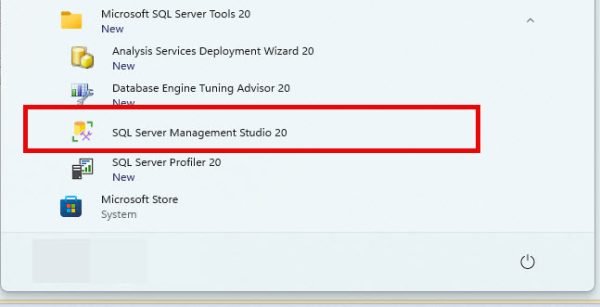
Begin by launching SQL Server Management Studio (SSMS). You can do this by searching for “SQL Server Management Studio” in the Windows Start Menu and clicking on the application.
Step 2: Log In Using Windows Authentication
- Launch SQL Server Management Studio (SSMS).
- In the Connect to Server window, choose Windows Authentication in the Authentication selection dropdown menu.
- Set Encryption to optional, check the Trust server certificate checkbox.
- Click Connect.

Step 3: Check Server Authentication Mode
1. In Object Explorer, right-click your SQL Server instance at the top and select Properties.

2. In the Server Properties dialog, go to the Security tab.

3. Ensure Server authentication is set to SQL Server and Windows Authentication mode.
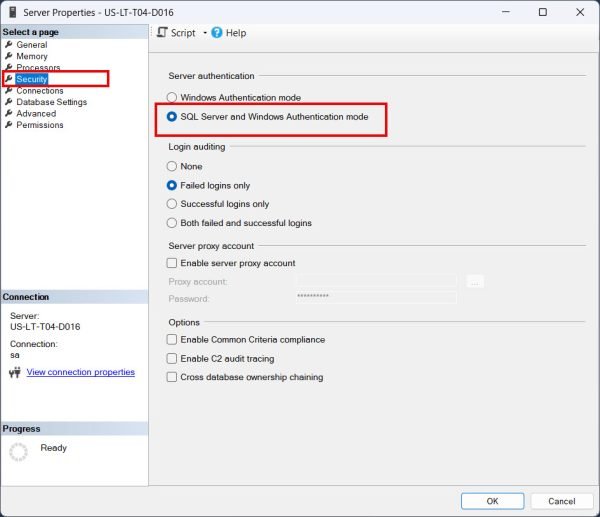
4. If not, select that option, click OK, and then restart the SQL Server service by launching services.

Step 4: Locate and edit the “sa” Login
- Back in Object Explorer, expand:
Security→Logins
- Right-click on the ‘sa’ login and choose Properties.

Step 5: Change the Password
- In the General tab of the Login Properties window.
Note: Clear the password and confirm password fields if prefilled by old password:
Enter the new password
Confirm the password in the Confirm Password field
- Click OK.

Step 6: Test the New Password
- Log out of SSMS.
- Reopen SSMS and this time use:
- Authentication: SQL Server Authentication
- Login:
sa - Password: your new password

Related Information:
After resetting the “sa” password, it is strongly recommended to review any dependencies or services that may be affected by this change. For a detailed overview of potential impacts, please refer to the companion article: What does changing a SOLIDWORKS PDM ‘sa’ password affect?
This will help ensure that all related systems and processes continue to operate without interruption.
Related Links
Want to do more with SOLIDWORKS PDM?
Our Certified SOLIDWORKS PDM Experts can help you to:
Posts related to 'SolidWorks PDM – How to Reset the “sa” Password in SQL Server Management Studio'
