


How to Install Multiple Versions of 3DEXPERIENCE SOLIDWORKS Design

Article by Scott Durksen, CSWE updated June 15, 2026
Article
As organizations continue to adopt the 3DEXPERIENCE platform, it is common for users to ask whether multiple versions of 3DEXPERIENCE SOLIDWORKS can coexist on the same workstation. While it is possible to save SOLIDWORKS files as a previous version, in some instances, it may require working in multiple versions of SOLIDWORKS.
Understanding 3DEXPERIENCE SOLIDWORKS Licensing and Installation
Unlike traditional desktop SOLIDWORKS, 3DEXPERIENCE SOLIDWORKS is installed and managed through the 3DEXPERIENCE platform, using named-user licensing and cloud-connected services.
This means:
- There are no serial numbers or activation steps tied to a machine
- Installation is launched directly from the platform
- Updates and versions are based on the platform release cycle
Due to this architecture, version management behaves differently compared to desktop SOLIDWORKS.
What Changed?
When SOLIDWORKS Design R2026x FD01 was released in February 2026, both SOLIDWORKS Design 2025 and 2026 could be installed on the same system. Starting in R2027x, two previous releases of SOLIDWORKS Design will be supported.
In the past, 3DEXPERIENCE SOLIDWORKS installations were always deployed at the latest release. Major general availability releases required immediate updates upon release, while minor functional deliveries provided a short grace period of a couple of weeks before updates became mandatory.
Since the R2026x FD01 release, new installations provide two options:
- Update with the 3DEXPERIENCE platform
- Choose the version to install and update on demand (requires administrative privileges)
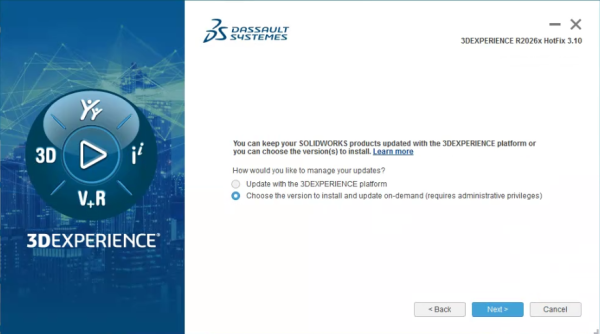
Installing multiple versions of 3DEXPERIENCE SOLIDWORKS
The first option continues to use the previous installation method, with required upgrades to ensure the system stays current with the latest platform updates. The second option introduces the use of an installation manager, allowing you to selectively choose which components to install.
Who Does this Help?
SOLIDWORKS files are only compatible with the major version in which they were last saved. When collaborating with customers or vendors using an older version of SOLIDWORKS, working in the same version helps ensure smoother file sharing and compatibility.
If files are inadvertently updated to a newer version, they can be saved back up to two previous versions. The option for on-demand updates is especially beneficial for organizations operating in controlled environments, where software updates must be planned and deployed in coordination with IT or system administrators.
Installing Multiple Versions of 3DEXPERIENCE SOLIDWORKS
To install multiple versions of 3DEXPERIENCE SOLIDWORKS, you need to use the 3DEXPERIENCE SOLIDWORKS Installation Manager. When you launch the Installation Manager and select the specific version and components you want to install.
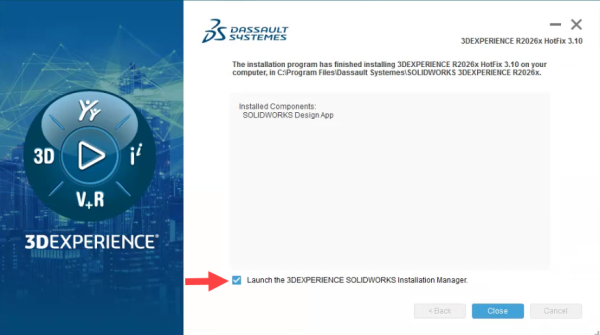
Launching the 3DEXPERIENCE SOLIDWORKS Installation Manager
If this option was not selected initially, or if you need to access it at a later time, it is available through the Windows Start menu under Dassault Systèmes SOLIDWORKS 3DEXPERIENCE R202Xx, and then 3DEXPERIENCE SOLIDWORKS Installation Manager.
The applications available to a user are determined by the roles assigned to them. If any expected apps are missing, contact your system administrator to ensure the appropriate roles have been assigned.
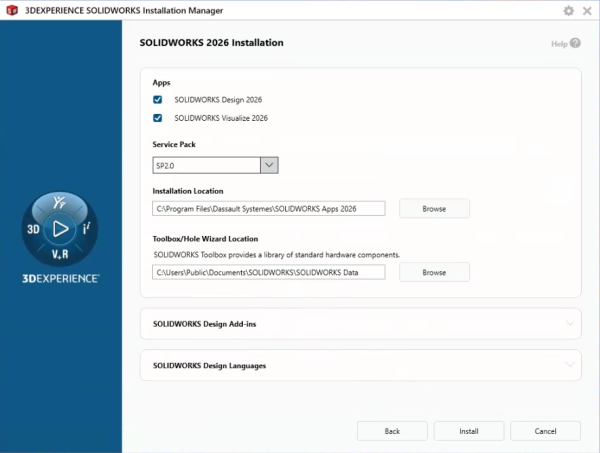
Selecting installation options in the Installation Manager
You now have control over whichever service pack is installed; however, it is recommended to remain on the latest available version. Since this installation method uses on-demand updates, the software will not automatically update when new functional deliveries are released.
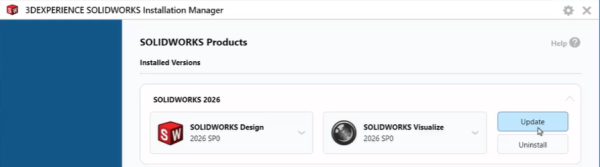
Updating to a newer service pack
To install a newer service pack, you will need to open the 3DEXPERIENCE SOLIDWORKS Installation Manager manually from the Start menu and perform the update.
Some installation tips to keep in mind:
- In terms of the installation location, the default path is recommended as it adds a version-specific folder.
- Defining customized Toolbox/Hole Wizard folders will help differentiate multiple versions.
- For SOLIDWORKS Design add-ins, if additional standalone serial numbers were purchased for add-ins, these can be added under the add-ins section.
Launching a Specific Version of 3DEXPERIENCE SOLIDWORKS
After installing multiple versions of 3DEXPERIENCE SOLIDWORKS, launching SOLIDWORKS Design from the browser will always open the most recent version installed on the system.
To access earlier versions, you can launch them directly from the 3DEXPERIENCE SOLIDWORKS Installation Manager available in the Windows Start menu. The Installation Manager also provides an option to create desktop shortcuts for each installed version, making it easy to open specific versions as needed.
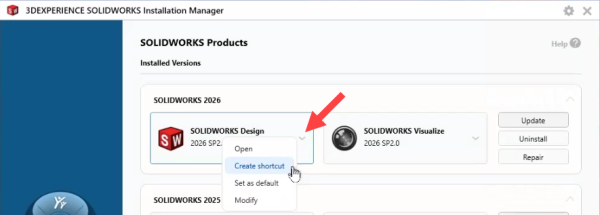
Creating a shortcut to specific versions
This new functionality provides better alignment between 3DEXPERIENCE SOLIDWORKS Design and traditional SOLIDWORKS Desktop installations, giving users greater flexibility to choose which version to run and when to apply updates.
3DEXPERIENCE SOLIDWORKS Installation Assistance
While installing multiple versions of 3DEXPERIENCE SOLIDWORKS has been streamlined by the Installation Manager, there is still room for error and uncertainty. Our team of certified technical support analysts is ready to help with SOLIDWORKS installation or other problems you may face
To contact our Technical Support team, report a problem here.
Related Links
Discover SOLIDWORKS & 3DEXPERIENCE Works
Learn more about SOLIDWORKS cloud-based collaboration:
Posts related to 'How to Install Multiple Versions of 3DEXPERIENCE SOLIDWORKS Design'
