


How to Use Cable Connectors in SOLIDWORKS Simulation

Article by Suman Sudhakaran updated June 17, 2026
Article
Cable connectors in SOLIDWORKS Simulation are a powerful feature for virtually representing cables, ropes, and chains. These are important supporting members in load-lifting operations, connecting components in a multibody part or assembly model.
Using cable connectors in a simulation study avoids oversimplification and design inaccuracies in cables or chains, given their nonlinear, tension-only behavior.
What is a Cable Connector?
Cable connectors in SOLIDWORKS Simulation Professional and Premium are specialized elements used to represent cables, ropes, or chains between components in a part or assembly. Rather than modeling the full geometry of a cable, the connector captures its essential behavior in a simplified and computationally efficient way.
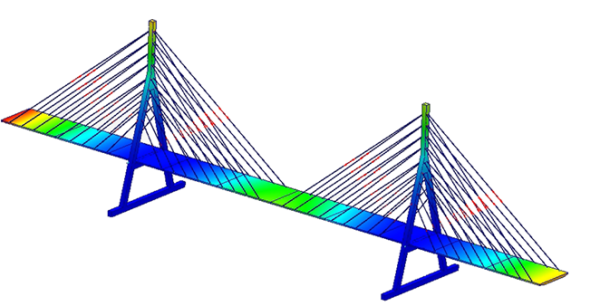
An example study using cable connectors
Unlike traditional structural elements, a cable connector is a tension-only element, meaning it only carries load when subjected to tensile forces. This distinction is critical because real cables cannot support compression or bending.
Cable connectors operate using a distributed coupling formulation, connecting a reference node at the end joints of a cable to a group of surrounding coupling nodes of the selected face or edge. This ensures realistic load transfer without requiring detailed mesh refinement around the connection regions.
Defining Cable Connectors in SOLIDWORKS Simulation
A cable connector can be defined between solid surfaces, circular shell edges, vertices, a combination of vertices to faces, vertices to circular edges, or circular edges to faces.
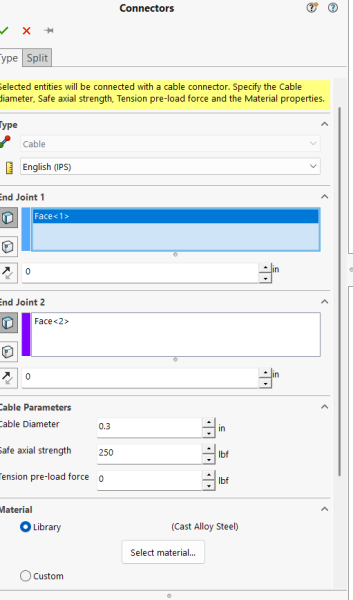
Cable Connectors Property Manager
The behavior of the cable can be modeled by connecting the following types of geometric entities: circular or planar faces, edges, and vertices.
Circular or Planar Faces
Cylindrical, planar, or split faces can be used for support. The selection of split faces allows you to define the cable’s connection areas without including the physical models of gusset plates or anchor boxes.
For example, instead of modeling a hook or a bracket to attach a cable, you can create a split face where the hook or bracket would attach to the component. This split face is then used as the support, and an offset distance is entered to position the end joint of the connector.
Edges
You can define a cable connector between the circular edges of shell bodies, edges, and selected faces, or the vertices of a solid body. For circular edges, the connector places the reference node at the centroid of the circular edge, similar to cylindrical faces.
Vertices
Cable connectors can be defined between the vertices of solid or shell bodies. Unlike the selection of edges or faces, enforcement of coupling formulation does not spread across a face or along an edge, but it applies locally around the area of influence of the vertex.
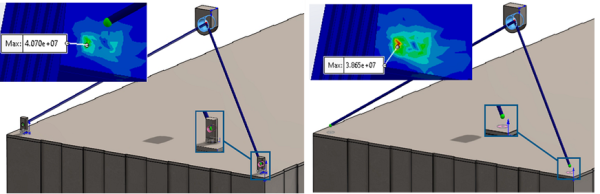
A cable connection between two nodes
You can select a vertex at one or both ends of the cable or select a vertex at one end and a face or an edge at the other end. The cable forms a straight connection between the two reference nodes.
An Example of Using Cable Connectors
As an example, cable connectors can be used to connect the four corners of a base to a fixed block. The cable connectors are defined using an arbitrary tension-preload value and an allowable safe axial strength value.
Maximizing the effectiveness of cable connectors comes down to using realistic pretension values and validating load cases to ensure simplification of physical behavior using the connector is still matching real physical conditions.
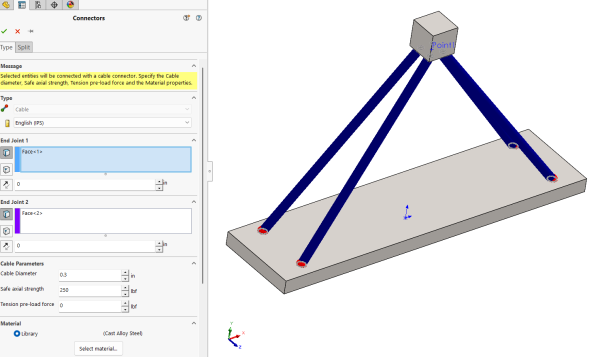
Connections between four corners and a block
Simulation Results
After simulating with cable connectors, you can list the connectors’ forces, such as axial force and torque. Shear force and bending moment are not valid results, as the cable is designed for tension and does not have bending stiffness.
If a cable experiences compressive loads, the cable becomes slack and reports the axial force as zero. SOLIDWORKS Simulation provides intuitive visualization tools for cable connectors.
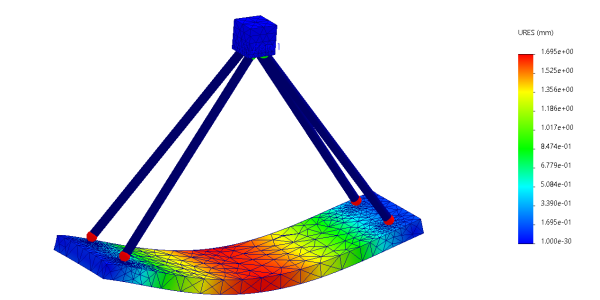
Displacement plot from a simulation study
Simulation results are typically color-coded to reflect:
- Safe operation (within allowable strength)
- Overstressed conditions
- Inactive (slack cables)
This makes it easy to quickly identify whether the cable connector is overstressed, within safe limits, contributing to load paths, or remaining inactive due to compression. This insight allows engineers to optimize cable placement, material selection, and pretension levels without costly physical prototyping.
What’s New in SOLIDWORKS Simulation
Cable connectors were added to SOLIDWORKS Simulation in SOLIDWORKS 2026 SP1 alongside other capabilities and enhancements. Staying up to date with the latest software changes can keep your team effective and efficient.
To schedule a complimentary What’s New in SOLIDWORKS session, click here.
Related Links
Certified SOLIDWORKS Services available from Javelin
Javelin can help you to:
Posts related to 'How to Use Cable Connectors in SOLIDWORKS Simulation'
