


SolidWorks 2014: Performance Increases (Believe it or Not)

Article by Jim Peltier, CSWE updated November 28, 2013
Article
Okay, I know what you’re thinking: “Performance increases? I’ve heard that before!” or “Yeah, right: what used to take 30 seconds now takes 29!” I know because I thought the same thing when I was hearing about what’s new with SolidWorks 2014. One of the claims that was made is that opening times would be reduced. I decided to put that one to the test this afternoon.
My assembly had just over 1300 parts (not the largest assembly I’ve seen here at Javelin, but large enough that a performance increase would be measurable). So, I opened it up in SolidWorks 2013. The files are stored locally, and I opened the assembly in lightweight mode. Result: 36.5 seconds to open and rebuild.
Then I tested the same fileset in SolidWorks 2014. The initial result: 32.2 seconds. “HA!” I exclaimed sarcastically until I noticed the yellow exclamation mark over the Save icon telling me it’s an older version. Realizing that it wasn’t a fair test under those circumstances, I saved the assembly in 2014 and restarted SolidWorks to redo the test. I was in disbelief! After 15 seconds, I realized it was long done and I hadn’t stopped the timer. I tried again. Result: 11.5 seconds!
Let me repeat that: 11.5 seconds to open and rebuild an assembly with 1300 parts, which took 36.5 seconds in SolidWorks 2013.
At first I thought it was something different in the settings, so I checked:
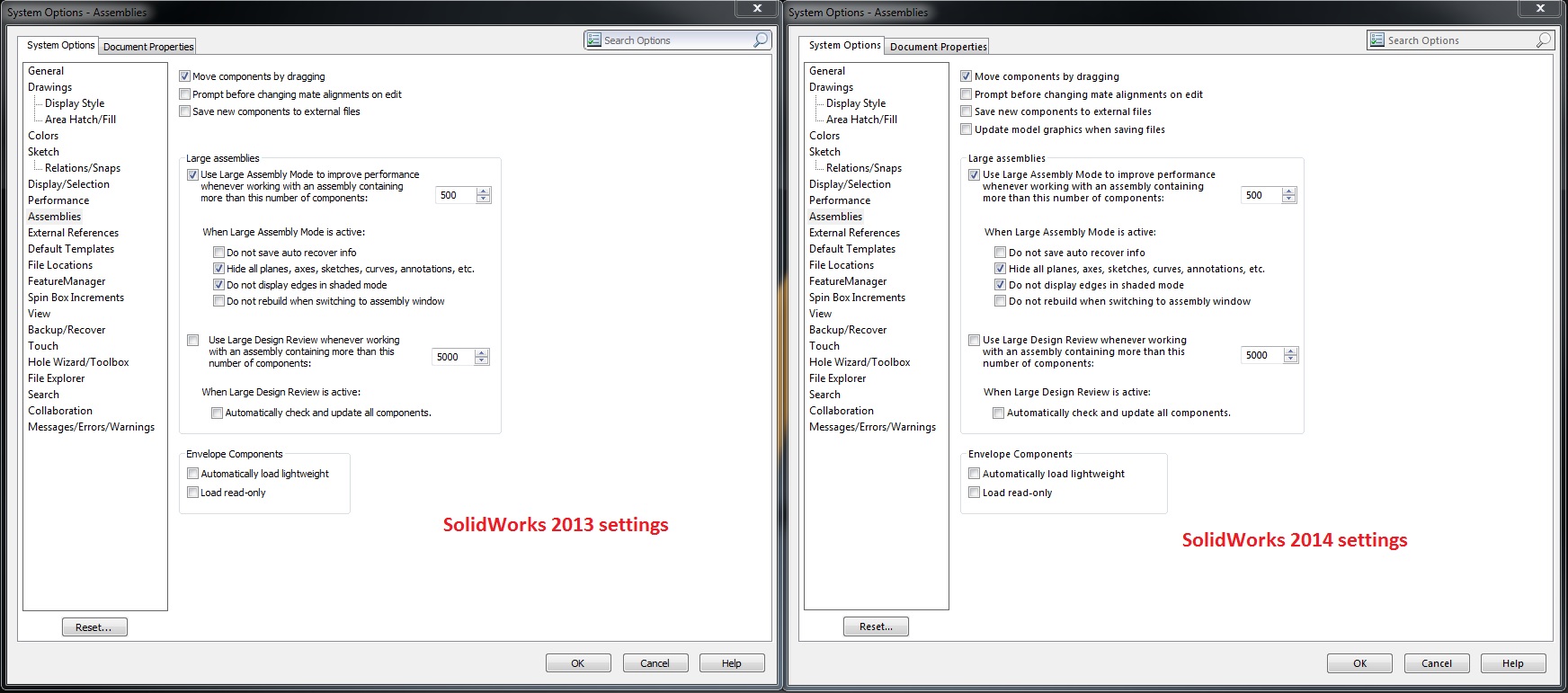
The key to this seems to be Lightweight mode because when I opened the assemblies in Resolved mode, the results were pretty much the same. I decided to dig a bit deeper to try and find out what has changed in Lightweight mode. It’s pretty convenient that just the other week I wrote an article on Lightweight mode, so I decided to revisit that using SolidWorks 2014.
I can still see the same things in the feature tree as I could before (no features – just planes and mates). I can still take a section view, run an interference detection, check the mass, take a measurement, and all the other things I could do before. In fact, Curvature check now works in lightweight mode (although it does not display graphically, it does show me the curvature when I hover over a face)! I’ve GAINED functionality! Wow!
Still looking for the catch, I looked to the next obvious spot: rebuild time! It does no good to open quickly if the rebuild time is unchanged, right? I mean, I open the assembly once when I start, but I will rebuild every time I edit something. I tested this next.

That’s a bit hard to see, but the difference is 828ms in SolidWorks 2013 and 581ms. It looks far more impressive in the screenshot, but that’s largely due to the different units (SolidWorks 2014 now reports the output in seconds rather than milliseconds). Still, I’ll take a 25% reduction in rebuild time any day! But don’t take my word for it. Your results may vary (different computer, different system configuration, different fileset), but should lead you to the same conclusion: SolidWorks 2014 is noticably faster than previous releases in terms of opening times and rebuild times.
Related Links
Certified SOLIDWORKS Services available from Javelin
Javelin can help you to:
Posts related to 'SolidWorks 2014: Performance Increases (Believe it or Not)'
