


Adding the SOLIDWORKS Manage Add-in to SOLIDWORKS PDM Professional

Article by Michael Nwachukwu updated October 21, 2019
Article
Once SOLIDWORKS Manage has been installed, SOLIDWORKS Manage can be connected to SOLIDWORKS PDM Professional. The first step in in doing this, is by adding the SOLIDWORKS Manage Add-in, in SOLIDWORKS PDM Professional Administration.
To do this, launch SOLIDWORKS PDM Professional Administration and log into the vault that will be connected to SOLIDWORKS Manage. This can be done by double clicking the PDM vault or right-clicking on the vault and selecting Connect.

Connecting to PDM Vault
You will asked to enter the password for a user, who has permissions to administer that Vault.

Logging into PDM Vault
Next right-click Add-ins Node and select New Add-in. If you do not have a local view for that vault, on the computer you are working, you will have to do this first.

New Add-in
The SOLIDWORKS Manage Add-in is located by default, in C:\Program Files\SOLIDWORKS Corp\SOLIDWORKS Manage. The actual location, is dependent on the choices that were made during the installation of SOLIDWORKS Manage.

Selecting Add-in
New steps for SOLIDWORKS Manage Add-in with the release of 2019 SP5
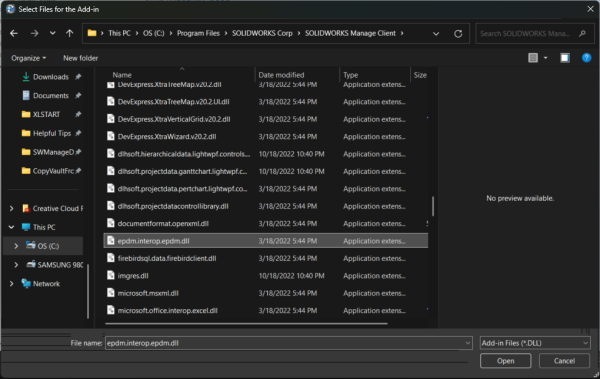
Effective with the release of SOLIDWORKS® Manage 2019 SP5, it is a requirement to load both the add-in (swm.swpdm.dll) and the PDM interop DLL file (EPDM.Interop.epdm.dll). (QA00000124641). You will also add the SWMC file in here as well. I have seen the add-in properly work with only the two DLLs added, but the SWMC file is environment specific.
To add the epdm.interop.epdm.dll, go to the Files page and select Add File. It will be in the same location as the swm.swpdm.dll.

After the Add-in has been added, the Add-in’s Properties will be displayed. Once this information has been reviewed, click on OK to close it.

SOLIDWORKS Manage PDM Add-in Properties
You may receive a message regarding the need to restart the client machines, if this add-in is a newer version then one that is already installed. Click on OK to complete the installation of the add-in.

Add-in Warning
The SOLIDWORKS Manage Add-in, will now appear in SOLIDWORKS PDM Add-ins Node.

SOLIDWORKS Manage Add-in in PDM Add-ins Node
If the Add-in is configured properly, you should notice the SOLIDWORKS Manage tab in the vault view after the next restart of the machine.

Upgrading the add-in
To upgrade the add-in, delete the current one and then perform the steps in this blog again.
Related Links
Certified SOLIDWORKS Services available from Javelin
Javelin can help you to:
Posts related to 'Adding the SOLIDWORKS Manage Add-in to SOLIDWORKS PDM Professional'
