


PDM – Safely Deleting and Recreating a Local Vault View

Article by Michael Nwachukwu updated June 13, 2011
Article
Checking in Checked out Files
Below are steps to safely delete and recreate a Local Vault View, sometimes abbreviated as a “LVV“. These steps should be performed by a user with PDM Administrative permissions.
Before deleing the LVV, it should first be determined which files are checked out by the PDM user(s), whose LVV is to be deleted. The default Complete Search card can be used to find which files a user has checked out.
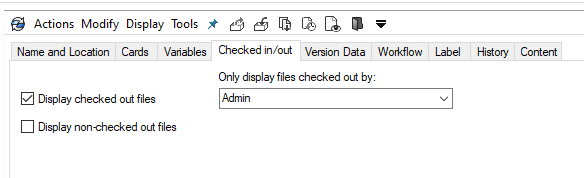
Searching for Files Checked Out by User
The search results can be opened and saved for later use. The option to open the search results is in the menu bar, at the top-right of the search Window.
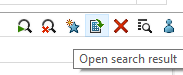
Opening Search Results
Deleting Local Vault View
If there are no checked out files or if all files can be checked in, the process to delete a local vault view is a matter of right-clicking on the local vault view, and selecting ‘Delete File Vault View.’

Delete File Vault View
If all not all files can be checked in, an ‘undo check out’ can be performed, by a user with the PDM Administration permission ‘Can undo check out files checked out by other users.’ Please note that when performing an ‘undo check out,’ the local copy will be overwritten with the version in the PDM Archive. Any changes to the local copy will be lost.
To perform an ‘undo check out, right-click on a file or folder and select ‘undo check out.’

Undo Check Out
When deleting a Local Vault, if the Vault contains checked-out files, a warning will inform the user of this.
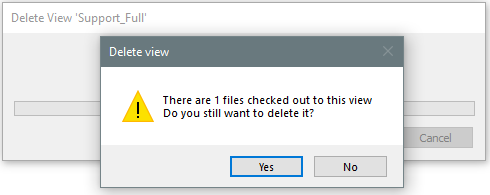
Warning that Local Vault View Contains Check-out Files
Solidworks PDM will then prompt the user to login into the Local Vault View, after which the checked-out files can be checked in.
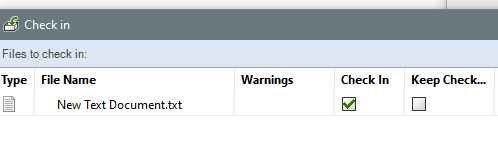
Check-in Dialogue Box
If all files cannot be checked in, and overwriting the local versions is to be avoided, the LVV can be manually deleted. Manually deleting a LVV requires editing some sensitive areas of Windows, and it may be faster and safer to use the results of the previously mentioned PDM search. The files listed in the search can be copied to a folder outside the LVV, and with a copy of these files, an ‘undo check-out can be performed on the vaulted. At this point, the LVV can be deleted.
Once a new LVV is created, check out the files from the PDM Search. Next copy the files that are outside of the LVV, into the new LVV, overwriting the vaulted files. Now these files can be checked in as needed.
Related Links
Want to do more with SOLIDWORKS PDM?
Our Certified SOLIDWORKS PDM Experts can help you to:
Posts related to 'PDM – Safely Deleting and Recreating a Local Vault View'
