


How to Use Multiple Parts in SOLIDWORKS

Article by Aleksandar Tepsic updated July 20, 2026
Article
Multibody modeling is a technique to combine multiple parts into a single SOLIDWORKS part file.
This is a more advanced technique that has very powerful use cases. Understanding the basics of multibody modeling behavior will help you elevate your 3D projects in SOLIDWORKS.
What Does Multiple Parts Mean in SOLIDWORKS?
When speaking about multiple parts, it is generally meant to be interpreted as a multibody part where a single SOLIDWORKS part file contains two or more solid bodies. A solid body is a separate volume of material in the model, something that has its own enclosed shape and could exist as its own physical piece.
You can see these bodies listed in the Solid Bodies folder in the FeatureManager design tree. They may be separate from each other, touch each other, or overlap, depending on how the features were created.
Understanding that each body is its own piece of geometry is the foundation of working with multibody parts.
Controlling Body Creation and Merging
A single extrusion can generate two solid bodies if there are two or more closed sketch regions. In the example below, there are two solid bodies in the Solid Bodies folder.
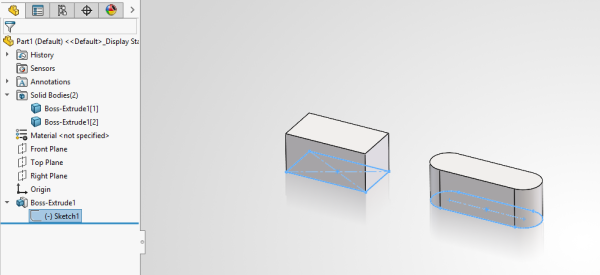
Multiple parts from one extrusion
When extruding a circle that touches both solid bodies, SOLIDWORKS will merge them together by default. Exercise caution since each subsequent additive feature will try to merge bodies that it is touching, as the Merge result checkbox is a per-feature setting.
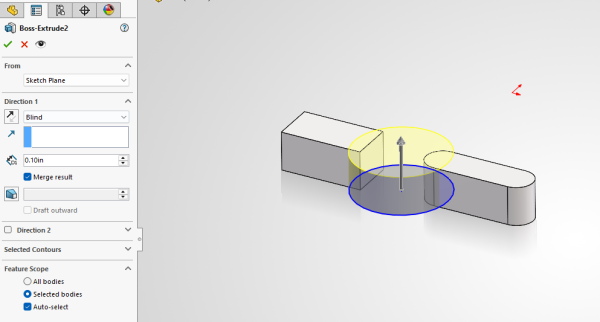
Combining different bodies with an Extrude
By default, Merge result selects all intersecting bodies unless you uncheck Auto-select under Feature Scope. You can manually select bodies inside the Feature Scope, but this is also a per-feature setting.
Working With SOLIDWORKS Bodies
Once bodies exist, you can interact with them in many ways to customize, reuse, and control them. Solid bodies can be renamed in the SOLIDWORKS Feature Tree, used in patterns, or divided using the Split command.
To use bodies in mirrors or patterns, ensure you select them in the Bodies to Mirror section. Otherwise, the operation will select features or faces and not the body.
Using Multibody Modeling to Produce Deliverables
With multibody modeling, the bodies are not individual files, so they do not appear in the SOLIDWORKS File Explorer tab. However, they can be used downstream for assemblies, drawings, and other documentation.
Saving Multibody Parts to Separate Files
The Save Bodies command allows you to save multibody parts into their own distinct files. The new files can be renamed while maintaining a link back to the original multibody part, so updates in the original file can be pushed downstream.
This is useful for mold-making applications, when you need the bodies to have their own part numbers, or you are managing them individually in SOLIDWORKS PDM.
Save Bodies is comparable to a one-way snapshot in time. Any modifications to the resulting part files will not propagate back to the bodies, as it is a one-way communication stream.
Collecting Identical Bodies in a Cut List
SOLIDWORKS weldment modeling heavily relies on multibody techniques to combine identical bodies into a single cut list item for manufacturing. For example, when designing a wooden crate, there are often repeated pieces used in the design.
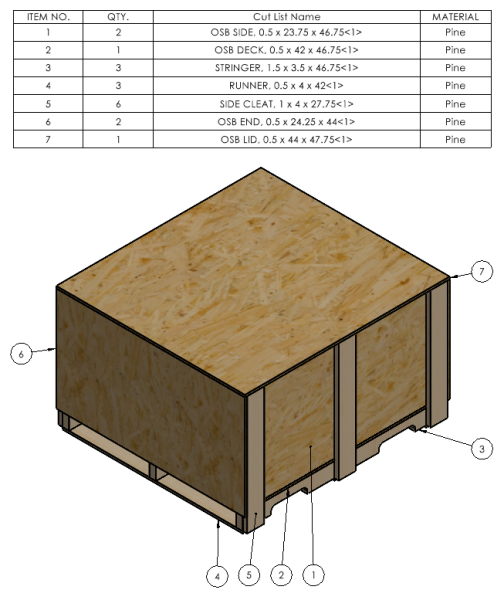
Cut list automatically from identical bodies
It can be helpful to group identical body sizes to understand how many of each piece are needed for manufacturing. Turning on weldment features lets SOLIDWORKS automatically group identical bodies into folders, making it easier to organize and generate manufacturing information such as cut lists.
When to Use Multibody Modeling vs Assembly Modeling
The distinction between multibody modeling and using assemblies ultimately depends on your workflows and required downstream exports.
Multibody modeling is advantageous when:
- Creating references between solid bodies
- Iterating on design changes without managing assembly references
- Combining or separating geometry
However, it becomes less practical as models grow in size and part count, or when you need capabilities such as BOMs or motion studies. Without mates, multibody models are inherently static and don’t always show real-world interaction when everything is fixed in place.
Learning Advanced SOLIDWORKS Techniques
Multibody modeling is often a technique that SOLIDWORKS users stumble into by accident, by not merging bodies. Without proper training, you can be left with a mess of a part model that doesn’t properly support downstream applications.
Related Links
Certified SOLIDWORKS Services available from Javelin
Javelin can help you to:
Posts related to 'How to Use Multiple Parts in SOLIDWORKS'
