


PDM — Recreate Local Vault View with Checked Out Files

Article by Karanvir Singh updated September 6, 2011
Article
In situations where files cannot be checked back in, deleting the local vault view for troubleshooting can risk losing all progress made on those files; therefore, it is essential first to create a backup of the current vault view to preserve any local work. This backup acts as a safeguard, allowing you to restore and check in your changes once the issue preventing check in is resolved, ensuring that no valuable work is lost during troubleshooting.
1. Why Recreate a Local Vault View?
The following could be the possible reasons for recreating a local vault view:
- System restore operations.
- Troubleshooting a faulty install.
- The local vault view can become corrupt due to missing or damaged registry information.
- Other scenarios where the PDM local vault view must be recreated from scratch.
2. How to Recreate a Vault View With Checked Out Files?
The best way to release the check out state of these is to sign in as Admin and perform an undo check out, making sure to mark the appropriate checkbox in the undo dialogue. However, performing an undo check out operation carries the risk of permanently discarding any local changes or progress that have not yet been checked in, making it a potentially destructive action if not carefully considered.
In SOLIDWORKS PDM, each local view must be unique—a file checked out from one view (defined by computer, folder, and user) must be checked back in from that same view, or you’ll hit the warning “The file is checked out on another computer.” If you recreate a vault view that contained checked out files, the new view is assigned a unique ViewID that no longer matches the older ViewID stored in the database, triggering the error on check in.
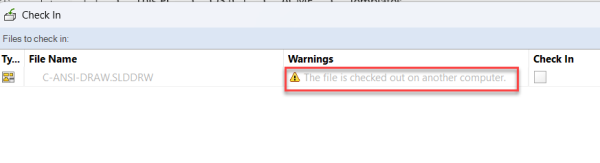
If you’ve got a backup of the old view and want to preserve your checked out work, you can give the new view the old ViewID so the database recognizes it again. Here’s how:
- Turn the old view into a regular folder and rename it to create a backup (see section 2.1).
- Remove the information of the vault view from the registry.
- Open the dektop.bak file and copy the old VaultID.
- Create a new view in the original spot. PDM will assign it a brand-new ViewID.
- Convert that new view back into a regular folder (see section 2.1), since your files still expect the old ViewID.
- Copy everything from your backup view into this folder, keeping the same folder structure.
- Open the new desktop.ini and replace its ViewID with the one from the old desktop.ini.
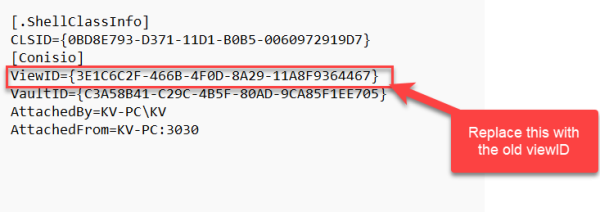
8. Turn the normal folder back into a PDM vault view (see section 2.2).
9. Restart the machine.
2.1 How to Turn a PDM Vault View into a Normal Folder?
- Quit PDM. Right-click the SOLIDWORKS PDM icon in your system tray and exit, then close any open Explorer windows.
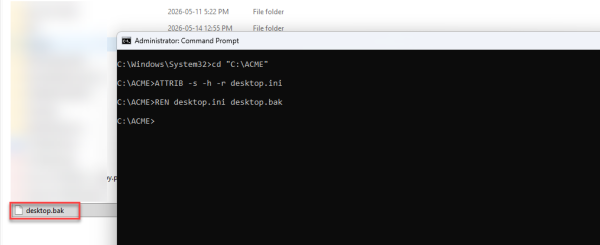
- Open Command Prompt and go to the view. Navigate to your old file vault view with
CD vaultname. - Unlock the desktop.ini file. Type
ATTRIB -s -h -r desktop.inito strip off its system, hidden, and read-only attributes. - Rename it. Type
REN desktop.ini desktop.bak. - Done. The vault view now behaves like an ordinary folder in Explorer. From here, you can copy the whole folder or rename it to keep as a backup.
2.2 How to Turn the Normal Folder Back to the PDM Vault View?
- Restore the file name. Close Explorer, return to your Command Prompt, go into the folder, and type
REN desktop.bak desktop.ini. - Type
ATTRIB +s +h +r desktop.inito put back the system, hidden, and read-only attributes. - Close the Command Prompt.
In conclusion, this is more of a recovery strategy for when the PDM client loses sync with the vault database—not something you’ll need every day. But when a system restore or view mishap leaves your files stuck with the dreaded “checked out on another computer” error, knowing these steps can save you from losing work or scrambling for support. Keep them handy.
Related Links
Want to do more with SOLIDWORKS PDM?
Our Certified SOLIDWORKS PDM Experts can help you to:
Posts related to 'PDM — Recreate Local Vault View with Checked Out Files'
