


How to Manually Delete a SOLIDWORKS PDM Local Vault View

Article by Cody Foley updated January 10, 2019
Article
Rarely, it may not be possible to delete SOLIDWORKS PDM Local Vault by the standard method of right-clicking on it and selecting Delete File Vault View.

Normal Method of Deleting Vault View
Typically, you will encounter an error that the vault is created by a different Windows login.

Delete Vault Error Message
If the other login or an administrator account is available, logging into one of these accounts may resolve the issue. If not, it is possible to modify the desktop.ini file that stores the creator of the vault view.
Caution should be taken to ensure all files are checked in first, if possible. After the below processes are completed, files in the Local Vault View will be deleted.
Manual Deletion SOLIDWORKS PDM Process
The Manual delete SOLIDWORKS PDM Local Vault process involves modifying the Windows Registry,
If you are not familiar with working within the Registry, you should not attempt this manual deletion process. Irreparable damage to the operating system or installed software can occur, if some areas are edited or deleted.
Because of this, I have purposely omitted the steps, to access the areas mentioned in this article.
The first step is to delete the following keys depending on what “Attach Type” the vault was as. Typically this depends on level of Administrator rights a user has to the machine when setting up the Vault View. However if you are unsure of the Vault Setup history and typically an Administrator runs the View Setup I would go through both the User and Admin’s registry on that machine to ensure these locations are cleaned up.
- Only for me
- “HKEY_CURRENT_USER\Software\SolidWorks\Applications\PDMWorks Enterprise\Vaults\[VAULTNAME]”
- “HKEY_CURRENT_USER\Software\SolidWorks\Applications\PDMWorks Enterprise\ConisioAdmin\Servers\[COMPUTERNAME]\FileVaults\[VAULTNAME]”
- For all users on this computer
- “HKEY_LOCAL_MACHINE\SOFTWARE\SolidWorks\Applications\PDMWorks Enterprise\Databases\[VAULTNAME]”
- “HKEY_LOCAL_MACHINE\SOFTWARE\WOW6432Node\SolidWorks\Applications\PDMWorks Enterprise\Databases\[VAULTNAME]”
Note – [Vault Name] refers to the name of the Vault that is to be deleted. In my example, the Vault is called “Javelin Vault”.

Deleting Reg Key
After deleting these keys, close all Windows Explorer Windows and start a Windows Command Prompt. In the Command prompt enter “RD “c:\path_to_vault_view” /s” hit enter and then confirm with “Y” then enter.

Remove Directory through Command Prompt
Alternatively, in Windows Command Prompt, navigate to the Local View: CD “c:\path_to_vault_view”

Navigating to Local View
and change the attributes of desktop.ini using: “attrib –s –h –r desktop.ini”, then type “Del desktop.ini” and hit enter.
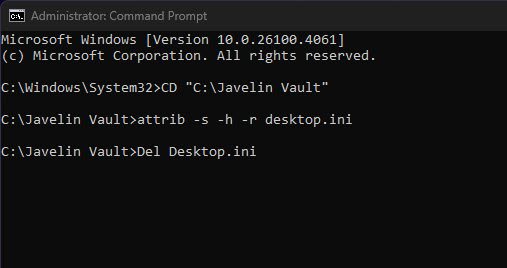
Changing Attribute for Desktop.ini
Now when you navigate to the vault view, you will now see that the vault folder now appears as a normal Explorer Folder (that you can now delete). In some cases, you may need to restart Windows Explorer, in the Windows Task Manager, in order to delete the Local View.

Restarting Windows Explorer In Windows TasK Manager
Editing Vault Creator to gain ownership of the “Desktop.ini” file
If the above didn’t work, we can edit the “desktop.ini” file to give you ownership of the vault view. Inside every vault is a Desktop.ini file, a system configuration file that is used to create the unique folder interface inside of PDM. It stores information about the vault view, including the Windows user that created it.
Improperly editing these files can damage your local vault view, please read carefully before making any changes.
This is a hidden file that is not typically visible through File Explorer/Vault View, even with hidden items visible. This can be accessed through the command prompt by entering the full folder path for the root of the vault followed by desktop.ini or uninstalling PDM and then viewing the folder.

Accessing a Desktop.ini
This should open the Desktop.ini in Notepad. After updating the desktop.ini, save and try to delete the vault view again.

Correcting AttachedBy User
When deleting a vault view, the AttachedBy value from the Desktop.ini is queried against the currently logged-in Windows user. This value can be manually updated to the currently logged-in user. If you are unsure of your full login name, whoami in the command prompt can be used to find your Windows login and domain.
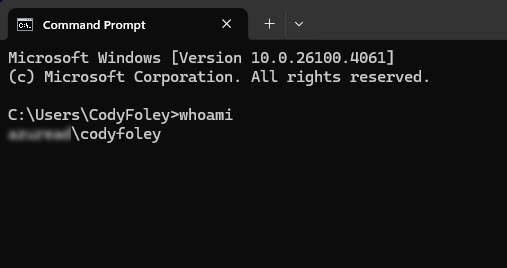
Finding Windows Login
Related Links
Want to do more with SOLIDWORKS PDM?
Our Certified SOLIDWORKS PDM Experts can help you to:
Posts related to 'How to Manually Delete a SOLIDWORKS PDM Local Vault View'
