


SOLIDWORKS PDM Professional: Write Drawing Card With Part Card Variables [VIDEO]

Article by Karanvir Singh updated October 31, 2013
Article
SOLIDWORKS PDM Professional is capable of copying values from a part or assembly card and writing them to a Drawing card. The setup to do this is actually quite easy (see video). Given below is a schematic to understand the flow of data between the model and the drawing.

- The bidirectional arrows imply a two-way communication.
- Unlike models, which support both custom and configuration-specific properties, drawings contain only custom file properties.
Why?
- Eliminate Redundant Data Entry – Linking ensures the automatic propagation of variable values from the part Data Card to the drawing and its data card, promoting data integrity and saving valuable time.
- Easy Updates – While making updates, only the part card variables has to be updated, which updates the model properties (custom/configuration) and which in turn further updates the drawing properties.
- Information Travels – The drawing title block can be automatically populated with values derived from the model’s custom or configuration-specific properties.
How to?
To set up this link do the following:
- Open the drawing card in the card editor.
- Select the control with the variable you want to modify and click variables.
- Add a new block attribute block named $PRPSHEET (all uppercase).
- Set the attribute name to be the same as the block attribute for the part/assembly custom property (“Number” as used in the video).
- If a drawing is created from a model that contains the custom property “Number,” that property will automatically be added to the drawing’s custom properties only when the file is added to the vault. However, the recommended best practice is to predefine such custom properties within the drawing template to ensure consistency and reduce dependency on model-driven property propagation.
- Set the extensions to slddrw.
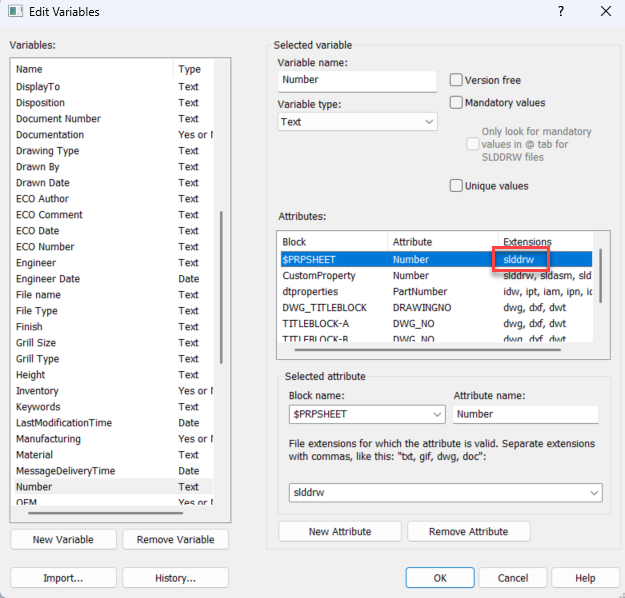
To test this link:
- Open a part with the custom property added (123456789 in this example).
- Create a new drawing, reference the part and save it (it should have the same property in the drawing’s custom properties).
- Change the property in the part, rebuild it, save it and check it in.
- Return to the drawing and the drawing card will be updated.
Confusion Among Configurations
After you have set up the data cards and have created the link between the part data card and the drawing data card, confusion arises among configurations. As mentioned above, that the drawings in SOLIDWORKS do not have configurations, so, the question arises, which configuration variable will go into the drawing data card? Given below is an example of a part/assembly data card in PDM with multiple configurations.
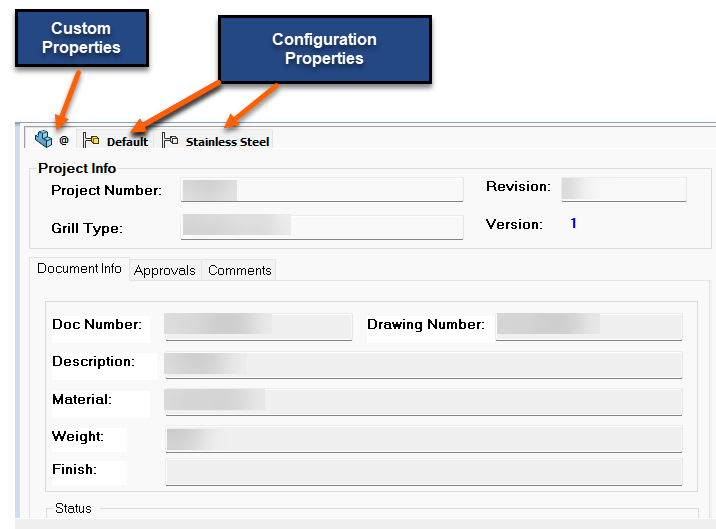
As shown in the video, the value from the “@” configuration for the field “Number” went from the model data card to the drawing data card while value in the default Configuration tab was blank.
However, the question arises: if you enter a different value in the default configuration tab, which value will go to the drawing’s data card?
As tested in the latest version of PDM (2025), if you overwrite the value in the configuration properties, that value will be shown in the data card for the drawing. The drawings reference to the current active configuration when they are referenced to a part.
If you have multiple configurations—as shown in the image above—then the configuration with which the model was last saved (i.e., the current active configuration) will dominate.
Simply put:
- If the current active configuration has a value in the model’s data card, that value will be linked.
- However, if it is blank, the value from the “@” configuration in the card will be shown.
To learn more about how to map variables to file properties and custom variables, click here
Do you have additional customizations needed for SOLIDWORKS PDM? Take a look at our Data Management Services here.
Related Links
Want to do more with SOLIDWORKS PDM?
Our Certified SOLIDWORKS PDM Experts can help you to:
Posts related to 'SOLIDWORKS PDM Professional: Write Drawing Card With Part Card Variables [VIDEO]'
