


SolidWorks PDM – How to use Conditions in Categories & Workflows

Article by Karanvir Singh updated August 22, 2014
Article
This is another area where I find people often get confused, so I will attempt to demystify this topic. Having control over the concepts of Conditions within Categories & Workflows saves a lot of time for data categorizations as well as data routing.
Conditions within Categories
The OR statement allows a file to meet one or more conditions, but it does not have to meet all conditions. For instance a file can meet a condition, if it as a SolidWorks file or an AutoCAD file. In order to use the OR statement, it must be selected first, before any other conditions are added.

Category Dialog – Selecting “Or”
As long as the OR condition is highlighted, any new conditions will be grouped under it.

Or Conditions Added
If the OR condition is not highlighted then the new condition will be an AND condition.

An And Condition
In the above example, any file that is a SolidWorks file, a dwg file, or a dxf file and is in a folder called Projects, will meet the conditions of the CAD Files category.
Conditions within Workflows
Conditions within Workflows can be used in more intriguing sense for achieving control over transitions with certain constraints. The concept stays the same for the keywords “OR” & “AND” as we described for Categories in PDM Admin.
The Transition Conditions allows us to introduce conditions within the workflow. They have four columns – Variable, Comparison, Value, and Configuration/Path
- Variable – Select a Variable or condition type such as OR (to group multiple conditions with only one being true), Category, Filepath, Object type, Child Reference State, Revision, or Remove to delete an existing condition.
- Comparison – Operators depending upon the selected variable to make a value comparison.
- Value – Defines the value used to determine which files match the condition.
- Configuration/Path – Specifies the data card configuration tab to search for the value. This option is available only when the condition is a variable.
NOTE: By default all conditions defined in Transition Conditions must be true (AND) unless they are defined below an OR block.
For example, if we have two categories and we want them to go through the same state changes but with a different transition, we will use transition conditions for achieving the same.
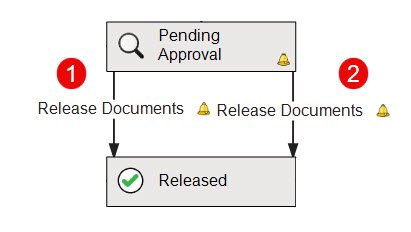
Example Workflow
Given above is an example Workflow having two transitions with the same name – Release Documents. We will define conditions within every transition to trigger a specific transition. For the first transition we define the Category as CAD Files as part of a condition.
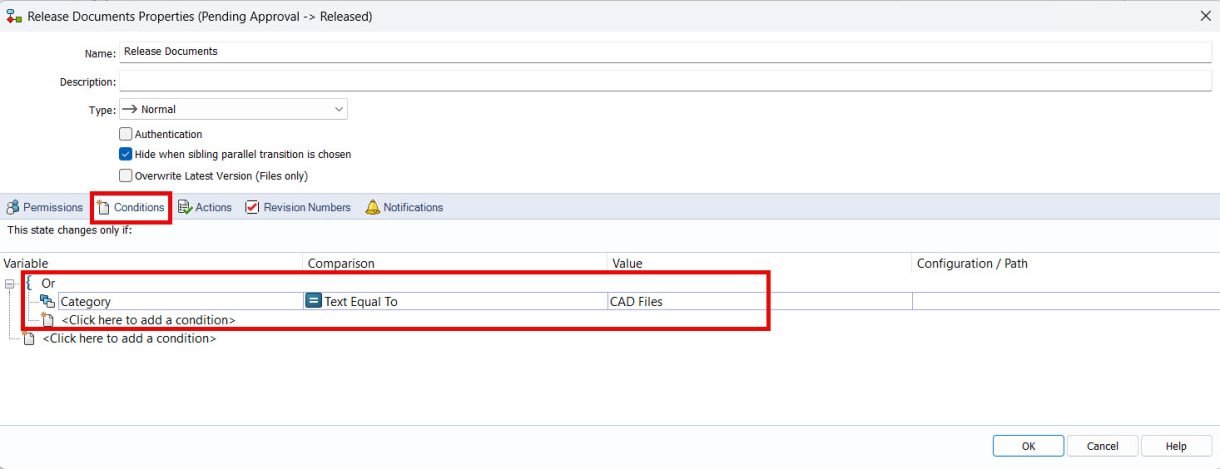
Conditions for the First Transition – 1

Conditions for the Second Transition – 2
Since the two transitions have the same names, they will appear as a single transition when viewed in the Vault—whether accessed through the File Explorer Vault View or the SOLIDWORKS PDM Add-in.

Making the Transition From the Vault
Based upon the satisfied condition, a specific Transition (1 or 2) will be triggered.
In the above example, the condition was just defined based upon the Category of a file being either a CAD File or an Office Document. However, for further applications, more complexity can be added to the Workflow.
To Learn More About Managing Multiple Workflows and Categories in SOLIDWORKS PDM
https://www.javelin-tech.com/blog/2021/01/solidworks-pdm-managing-multiple-workflows-and-categories/
Related Links
Want to do more with SOLIDWORKS PDM?
Our Certified SOLIDWORKS PDM Experts can help you to:
Posts related to 'SolidWorks PDM – How to use Conditions in Categories & Workflows'
