


SolidWorks EPDM – Desktop Shortcut to Local Vault View

Article by Joe Medeiros, CSWE updated September 2, 2014
Article
Below are two methods for creating a SolidWorks EPDM desktop shortcut to local vault view.
Method 1:
From the Navigation Pane in Windows Explorer, drag the vault icon onto the Windows Desktop.

Please note, Method 1 will not work on Windows 10, please use Method 2. If you attempt to drag the vault icon onto the Windows Desktop, you will get the below message.

Method 2:
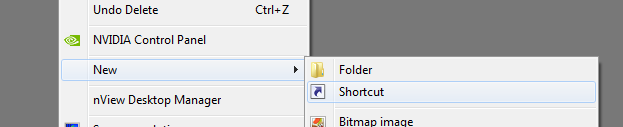
Right click on a blank area of the Windows Desktop and select New > Shortcut.
Browse to the vault, select the vault icon and click on Next. To complete the shortcut, enter the name for the shortcut and click on Finish.

Selecting the vault shortcut and pressing the keyboard Delete key, will delete the local vault view. Right clicking on shortcut does not give the option to only delete the shortcut.

To delete the shortcut drag it into the Windows Recycle Bin.

Related Links
Want to do more with SOLIDWORKS PDM?
Our Certified SOLIDWORKS PDM Experts can help you to:
Posts related to 'SolidWorks EPDM – Desktop Shortcut to Local Vault View'
