


Adding Languages in SOLIDWORKS Inspection [VIDEO]

Article by Scott Lidgey updated March 20, 2015
Article
If you work with customers, suppliers or partners overseas, then you probably have received drawings that include notes in a foreign language. SOLIDWORKS Inspection allows you to extract your notes in multiple languages. To do so, you may need to modify the settings of the Optical Character Recognition (OCR) tool to enable the required language. Go to Options > Project Options > Imaging/OCR and select your desired language in the “Notes” section as shown below:

How to add a new language
But what if the language that you are working with is not provided by default? You can always add a language to your dictionary in SOLIDWORKS Inspection. This is done by creating a “.traineddata” file. You can use the Tesseract software to create a “.traineddata” file based on a font. HP® and Google® developed this open source tool. Use the Tesseract webpage as a starting point for this process.
The following steps describe how to add a language file to SOLIDWORKS Inspection software:
- Download or buy OCR dictionaries that are compatible with the language of the documents you are working with. The following website has a selection of dictionaries for Chinese (Simplified), Chinese (Traditional), Japanese, Turkish, etc. These dictionaries have been tested and offer great results.
Note: While many OCR dictionaries are free and open source, some might be copyrighted. You should ensure that you have the right to use those dictionaries and are not committing copyright infringement.
- Go to your SOLIDWORKS Inspection dictionary location, typically found in “C:\ProgramData\SolidWorks\SolidWorks Inspection Standalone\Dictionary\Notes”

- Add a new folder in the Notes folder
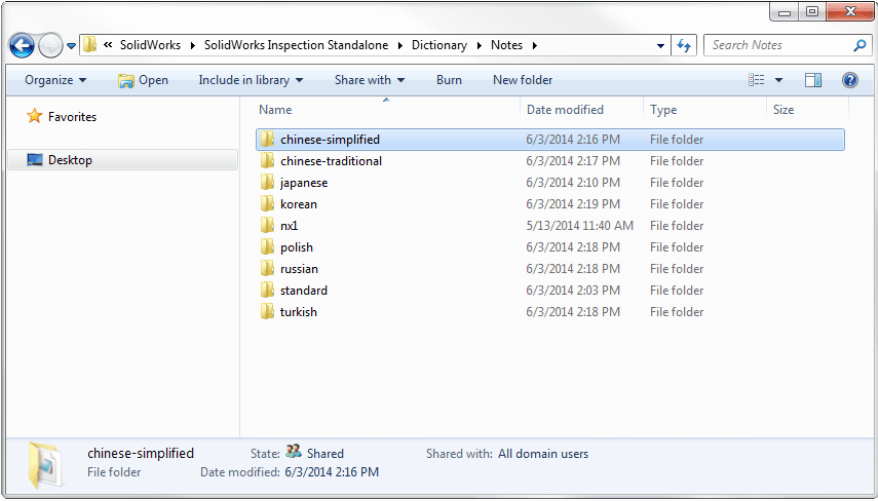
- Move the downloaded .traineddata file to the folder you just created and rename it to “eng.traineddata”
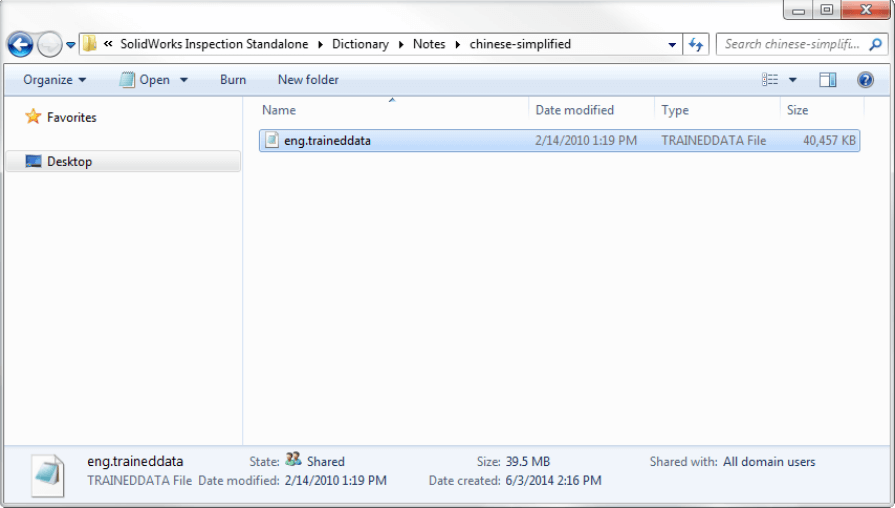
- Close and re-open SOLIDWORKS Inspection, then go to Options > Project options > Imaging/OCR and your new language will now be included in the “Notes” section.
Demonstration
You can also check out our YouTube channel to watch a short tech tip video for adding languages in SOLIDWORKS Inspection:
Related Links
Certified SOLIDWORKS Services available from Javelin
Javelin can help you to:
Posts related to 'Adding Languages in SOLIDWORKS Inspection [VIDEO]'
