Opening a Drawing with SOLIDWORKS Detailing Mode

Video by Mike Walloch, CSWE updated March 31, 2025

Like this Video? Get Live Online Training from Javelin
Take a live online training course with a Certified Instructor and become a SOLIDWORKS Expert.
About the Video
One of the biggest benefits of taking certified, instructor-led SOLIDWORKS training is the knowledge shared by our team to help avoid common pitfalls or committing a SOLIDWORKS rookie mistake. While trying to learn on your own has the potential to go smoothly, it often leads to gaps in fundamental knowledge that could make you a more efficient SOLIDWORKS user. Formal training is jam-packed with useful SOLIDWORKS Tips and Tricks to help you quickly go from SOLIDWORKS novice to pro in no time.
A tool not many clients are aware of is SOLIDWORKS Detailing mode. Detailing mode is similar to SOLIDWORKS Lightweight mode in that only loads the immediate data needed for the drawing. For drawings, it does not load the part or assembly data. By only loading in precisely what it needs right away means that the drawings open incredibly fast while still allowing basic drawing functionality such as creating notes or symbols. If you work with large drawings, you may want to open them in detailing mode more often than not.
What is SOLIDWORKS Detailing Mode?
Detailing mode is incredibly useful if you want to make minor edits to a complex drawing that contains many sheets or is created from a large assembly. Detailing mode is a logical next step when working with large assemblies that require SOLIDWORKS Lightweight or Large Assembly modes. Typically these drawings contain multiple configurations as well as heavily resource-intensive views. What’s even better is that Detailing mode is available for all SOLIDWORKS drawings including drawings saved in previous versions, albeit with limited functionality. This limited functionality is automatically applied and can not be manually selected.
What can you Create with SOLIDWORKS Detailing Mode?
SOLIDWORKS Detailing mode enables you to create a multitude of dimensions and annotations including notes, weld callouts, balloons, geometric tolerance information, and ordinate dimensions. Additionally, SOLIDWORKS Detailing mode allows you to create standard views from the View Pallete and change the position or rotation of existing views. Any existing views can also be copied within the same drawing so long as the drawing sheet already exists. Finally, any changes made to the drawing can be saved and does not require any special save format.

Opening a drawing in SOLIDWORKS Detailing mode
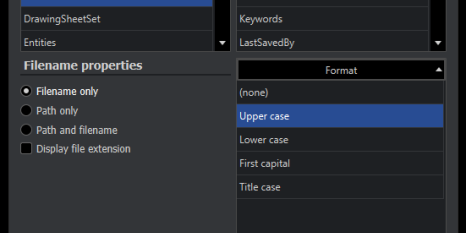
Within the SOLIDWORKS Document Properties, there are further options to control what is available with Detailing mode. The two main options are controlling whether all the model data is saved to be used in detailing mode and whether the standard views are saved in the View Palette. Although leaving these options on will increase the drawing size and slightly increase the loading time of the drawing, it is recommended to use these in conjunction with Detailing mode. Without those options, SOLIDWORKS Detailing mode is less effective and turns into just a faster way to open a drawing.
What can’t you Create with SOLIDWORKS Detailing Mode?
The biggest limitation to using SOLIDWORKS Detailing mode is the inability to create annotations or other objects that require the model data to be loaded. Since Detailing mode does not load part or assembly data, there is no way to pull that forward. If a view does not already exist in the View Palette, you can not create it in the drawing. Additionally, draft quality section views cannot be selected or exported to DXF/DWG since they require additional model data to produce. In the event that you need to create those types of annotations, the Resolve Drawing command will load the model data on demand and get you working on your way.
Leveraging SOLIDWORKS Detailing mode is something we typically leave on by default since it can greatly improve large drawing opening times. Further, by reducing the opening times of complex drawings you can increase your efficiency with SOLIDWORKS and continue on your learning journey. While learning SOLIDWORKS can take many forms, the best way to do so is by getting information directly from the TriMech Group team. Our years of experience can help answer all your SOLIDWORKS-related questions and make you the SOLIDWORKS user you were meant to be.
Content related to 'Opening a Drawing with SOLIDWORKS Detailing Mode'