


Always the same story with the Hole Wizard…….Slow Loading

Article by Chris Briand, CSWE updated August 29, 2011
Article
Keeping in Line with my recent theme of performance, when it comes to our blog postings, I thought we should share some insight on a question that comes up month after month, and release after release…….. Why does my hole wizard take so long to load after starting SolidWorks??
The short answer is that SolidWorks is attempting to load the entire Hole Wizard database, with all of the standards attached.
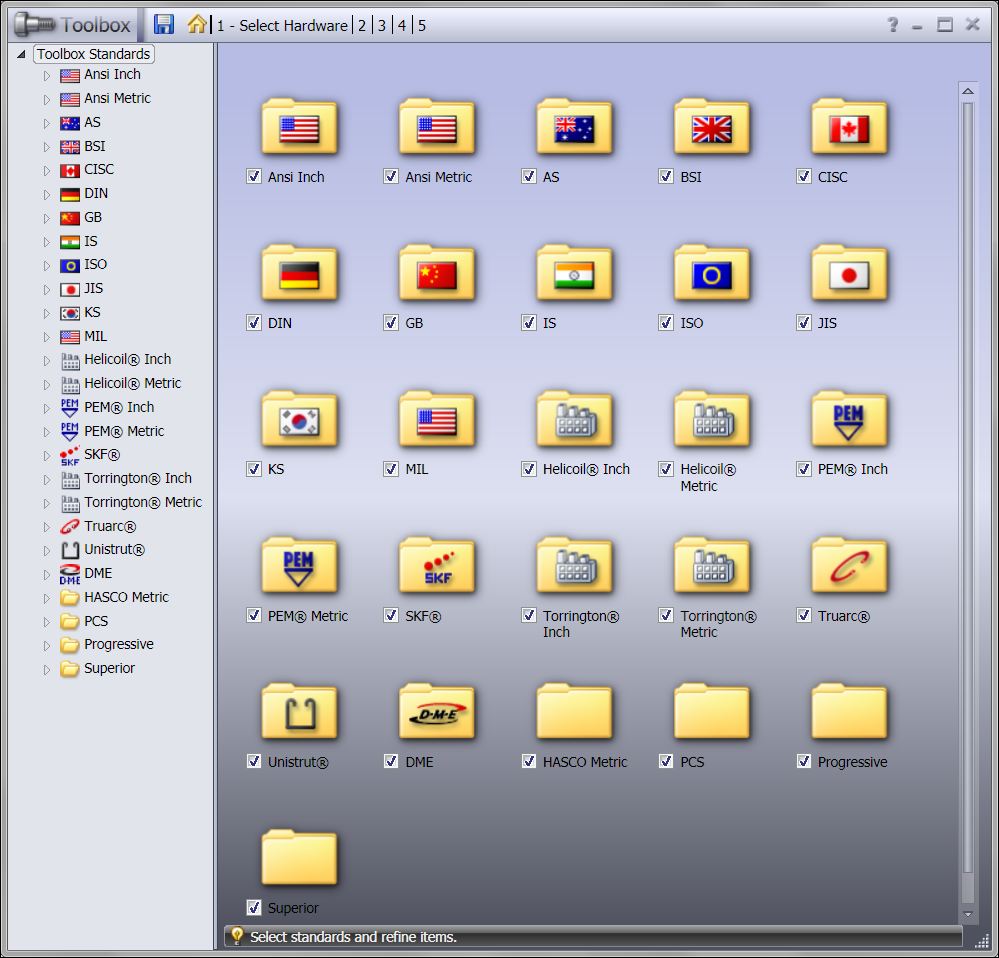
The simple solution is to disable the standards that you are not using, I am guessing that most folks have the entire set of standards loaded and only ever make use of two or three of them.
Editing the standards that load for the hole wizard is likely the most difficult part of this adjustment, as the location to find the hole wizard standards is a tad non intuitive.
To enable or disable a particular standard for the hole wizard, we actually need to adjust the standards that are selected for the Toolbox, as the two tools share the same set of Databases.
Click to enlarge
To make the changes:
1. Under you Windows Start Menu, find your SolidWorks folder, then open the tools folder and finally the Toolbox Settings utility.
2. Un-check any of the standards that you don’t regularly use and close the dialog.
3. Choose to Save your changes when prompted.
4. Re-visit your hole wizard tool to confirm that the changes have been saved.
5. Enjoy the faster load time for your hole wizard.
One related tip: Have you ever wondered why the DME, Hasco, PCS, Progressive & Superior standars are not available from the toolbox browser in the Task Pane?? These standards are Hole Wizard-only standards. They do not contain any Toolbox parts. Therefore they do not appear in the Task Pane.
Related Links
Certified SOLIDWORKS Services available from Javelin
Javelin can help you to:
Posts related to 'Always the same story with the Hole Wizard…….Slow Loading'
