


SOLIDWORKS 2016 Interface Brightness Options

Article by Scott Ellery updated December 1, 2015
Article
With the release of SOLIDWORKS 2016 we have been introduced to a multitude of new powerful features as well as a refreshing and clean vector based user interface. But what if you don’t fancy the default bright interface? Well as with most things in SOLIDWORKS, there is a solution for that!
Adjusting the SOLIDWORKS 2016 Interface Brightness
First you need to open SOLIDWORKS 2016 and click on the options dropdown:

The next step is navigating to the Colors selection under System Options

At the top of the Colors window you will see an Interface Brightness options with a Light, Medium, and Dark option.

You can now set you User Interface to any of the three optional brightness levels, this will only change you general User Interface and the Model window will remain unaffected.
-

- Dark UI

-
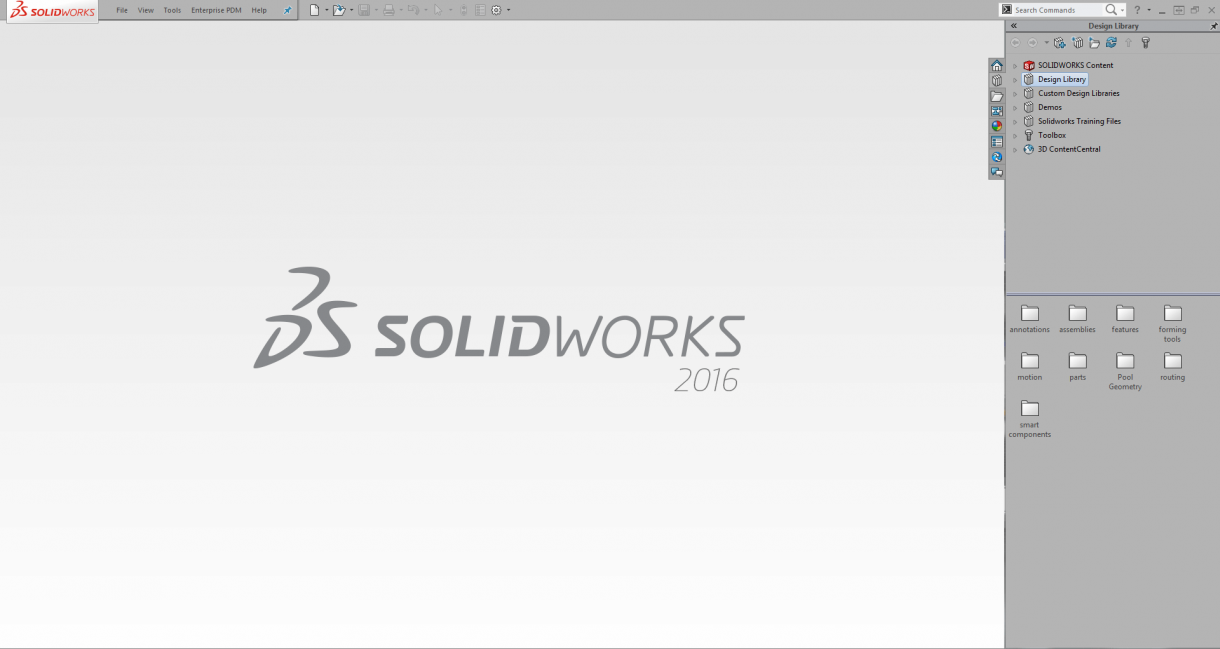
- Menium UI

Related Links
Certified SOLIDWORKS Services available from Javelin
Javelin can help you to:
Posts related to 'SOLIDWORKS 2016 Interface Brightness Options'
