


Installing and Setting Up the SOLIDWORKS PDM License Manager

Article by Jay Khajuriwala updated August 2, 2017
Article
SOLIDWORKS PDM Standard and Professional versions use a License Manager to control access to their respective licenses.
With SOLIDWORKS PDM Professional, installations are purchased separately. The number of installations purchased, dictates how many users can access PDM at any one time. With SOLIDWORKS PDM Standard, each license of SOLIDWORKS Professional or Premium, ships with one license of SOLIDWORKS PDM Standard.
The SolidNetWork License Manager, is installed using the same Installation Manager for SOLIDWORKS. The option to install the SolidNetWork License Manager, is listed under Server Products, on the Welcome screen:
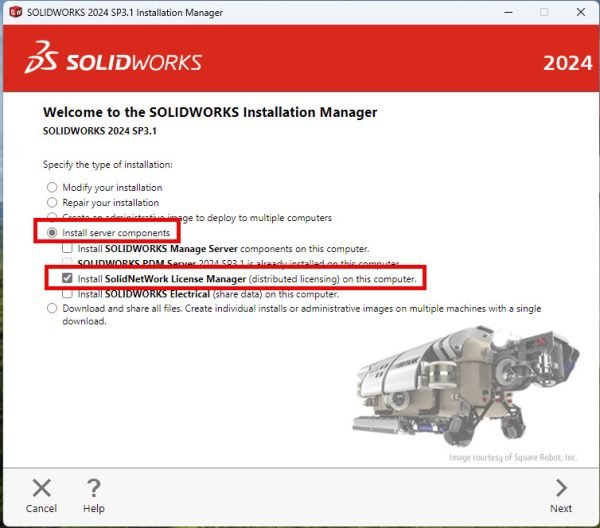
After pressing Next, finish the installation. Once SolidNetWork License Manager is installed open it and follow the steps below.
- Click Yes.

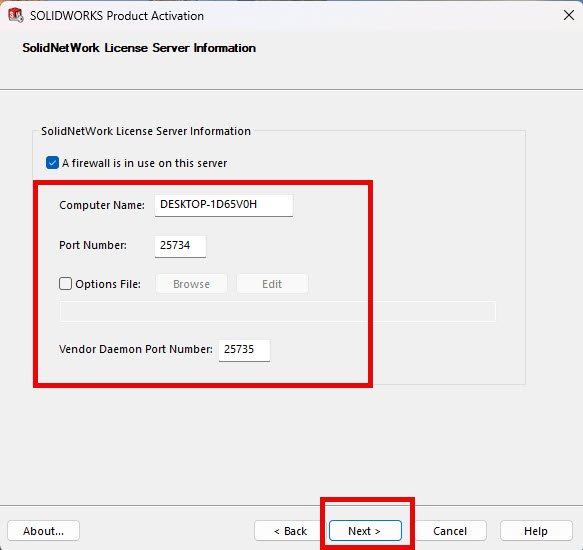
2. Enter the license server information and click next.
3. Add the serial number and contact information, then click next.

4. You should see a pop-up dialog box with successful activation message.
- If you are installing SOLIDWORKS PDM Professional, you will likely only have one serial number for PDM.
- With SOLIDWORKS PDM Standard you will also have only one serial number, even if you have a network license of SOLIDWORKS Professional or Premium.
- If you have standalone licenses of SOLIDWORKS Professional or Premium, you may need to enter serial numbers for each seat of SOLIDWORKS.
Please note: Your SOLIDWORKS PDM Standard or Professional serial number, is not the same, as your SOLIDWORKS serial number.
One further note: for SOLIDWORKS PDM Standard installations, you can either install a separate License Manager for each standalone installation of SOLIDWORKS; or you can install the License Manager on one computer/server that all client can access.
If you already use the SolidNetWork License Manager. for SOLIDWORKS or one of its add-ins (e.g. SOLIDWORKS Simulation), you can modify that installation and add the SOLIDWORKS PDM serial numbers.
Once the installation is complete, you next need to specify the location of the SolidNetWork License Manager. You will normally be prompted to do this when the installation finishes; but you can also do this from the License node of the SOLIDWORKS PDM Administration, shown below, or by launching the SolidNetWork License Manager application from Windows.

The format for entering the server, into the License Manager, is port number@server name. The default port number is 25734, but you can specify any port that is open.
Whichever port you use, should not be blocked on client or the License server side. This may require adding exceptions to security software, such as firewalls. If the port is blocked the client will not be able to retrieve a license. A Telnet test, to that port will tell you whether that port is blocked. There is a blog article on the Javelin website, which deals with connection issues, relating to the License Manager.
Now that the SolidNetWork License Manager has been installed, you can proceed with the installation of SOLIDWORKS PDM Server and Client.
Related Links
Want to do more with SOLIDWORKS PDM?
Our Certified SOLIDWORKS PDM Experts can help you to:
Posts related to 'Installing and Setting Up the SOLIDWORKS PDM License Manager'
