


Generating all SOLIDWORKS Toolbox Sizes in One Step when using a Customized Toolbox

Article by Scott Durksen, CSWE updated June 18, 2018
Article
The SOLIDWORKS Toolbox add-in uses a database to store information on available SOLIDWORKS Toolbox Sizes and Properties of hardware. The database is linked to a master part file for each type of hardware.
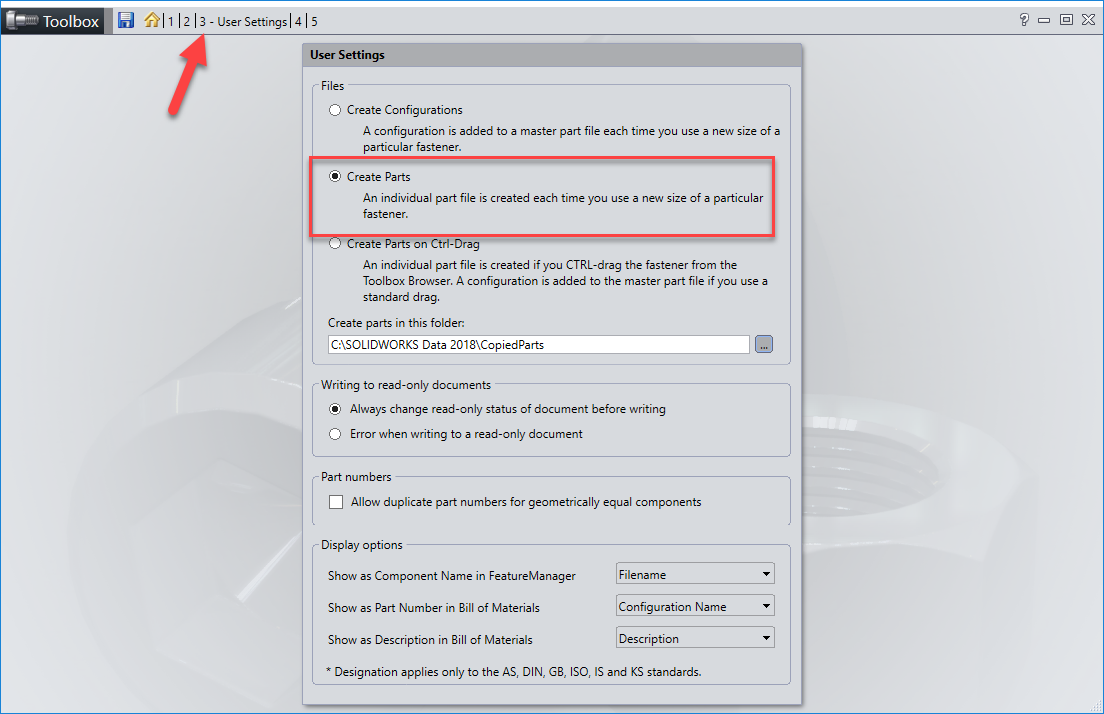
In a new Toolbox, master part files will start with only a Default configuration. As you add the Toolbox components into an assembly, it automatically generates the size as either a new configuration in the master part or as a separate part file (depending on the Toolbox User Settings).

If you have customized your Toolbox (using the Toolbox Configure tool), you have the ability to generate all of the selected sizes of a component in one step. This can improve performance in a shared environment with a small set of SOLIDWORKS Toolbox Sizes for a component so they don’t need to be generated on first use.
WARNING: This should only be done by a Toolbox Administrator and with a Toolbox that has been configured to include just the fasteners that are required. Using these steps on a default Toolbox can create thousands of parts or configurations for a single component. The Toolbox should be configured in such a way that only the required sizes and types are enabled, with the majority disabled.
Create All Configurations
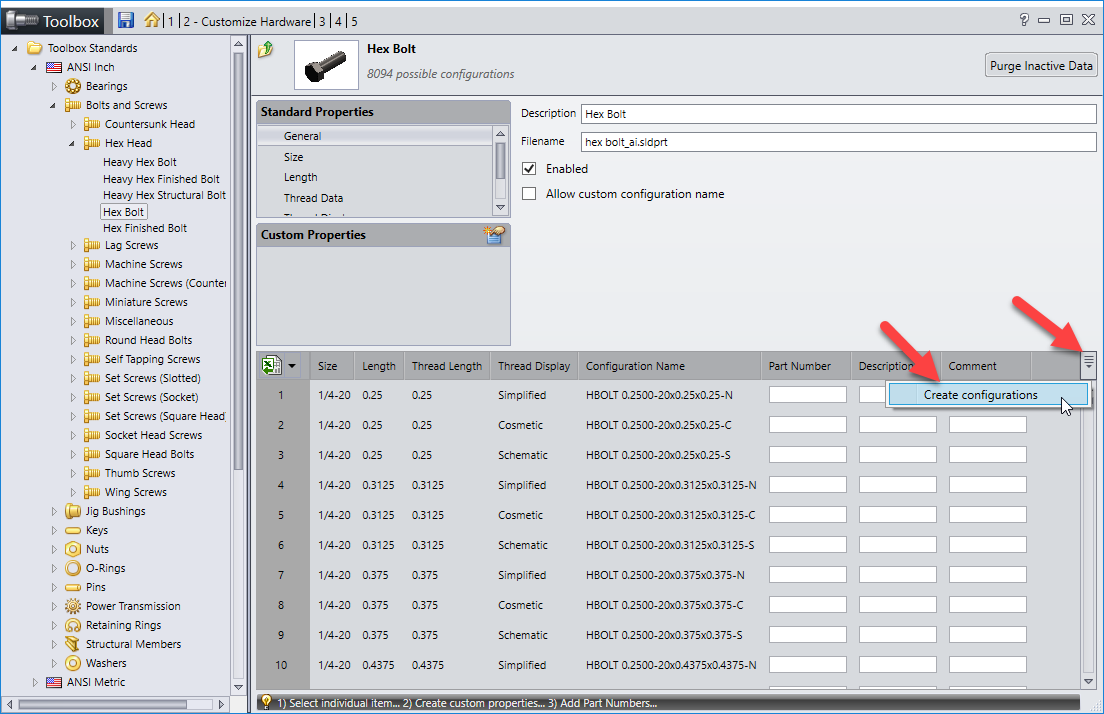
If the Toolbox User Settings are set to Create Configurations, browse to the hardware type and select the drop down icon in the top right corner of the table to Create Configurations.

Create All Parts
If the Toolbox User Settings are set to Create Parts, browse to the hardware type and select the drop down icon in the top right corner of the table to Create Parts.

Related Links
Certified SOLIDWORKS Services available from Javelin
Javelin can help you to:
Posts related to 'Generating all SOLIDWORKS Toolbox Sizes in One Step when using a Customized Toolbox'
