


SOLIDWORKS Compare and DrawCompare Tools

Article by Scott Durksen, CSWE updated April 9, 2019
Article
SOLIDWORKS Compare gives you the ability to find slight differences between two models. Perhaps you receive an updated model back and are not sure of all the changes made. The Compare tool can find slight differences in:
- Document Properties
- Features
- Geometry, or
- Bill of Materials

Compare Parts, Assemblies or Drawings
Choose two models and select the items to compare. You can use the tool to compare Parts, Assemblies or Drawings. Some items may not be available in different situations. For example this is comparing two part files so we cannot select Bill of Materials.

Document Properties
Once the Compare is complete, there will be tabs for each criteria with results. The first item is Document Properties. These files have differences between file size, last save date, mass properties, annotation display and units.

Feature Comparison
The second item is feature comparison. It will indicate if there are unique (separate) features between the two parts or if there is change in an existing feature. In this case there is only one difference with the Chamfer feature. Selecting the features shows a modified value.

Geometry Comparison
Lastly we found changes in Geometry. You can view by Volume comparison or Face comparison. In this case the Unique Faces provides an indication that the fillet has been changed.

Use DrawCompare for Drawings
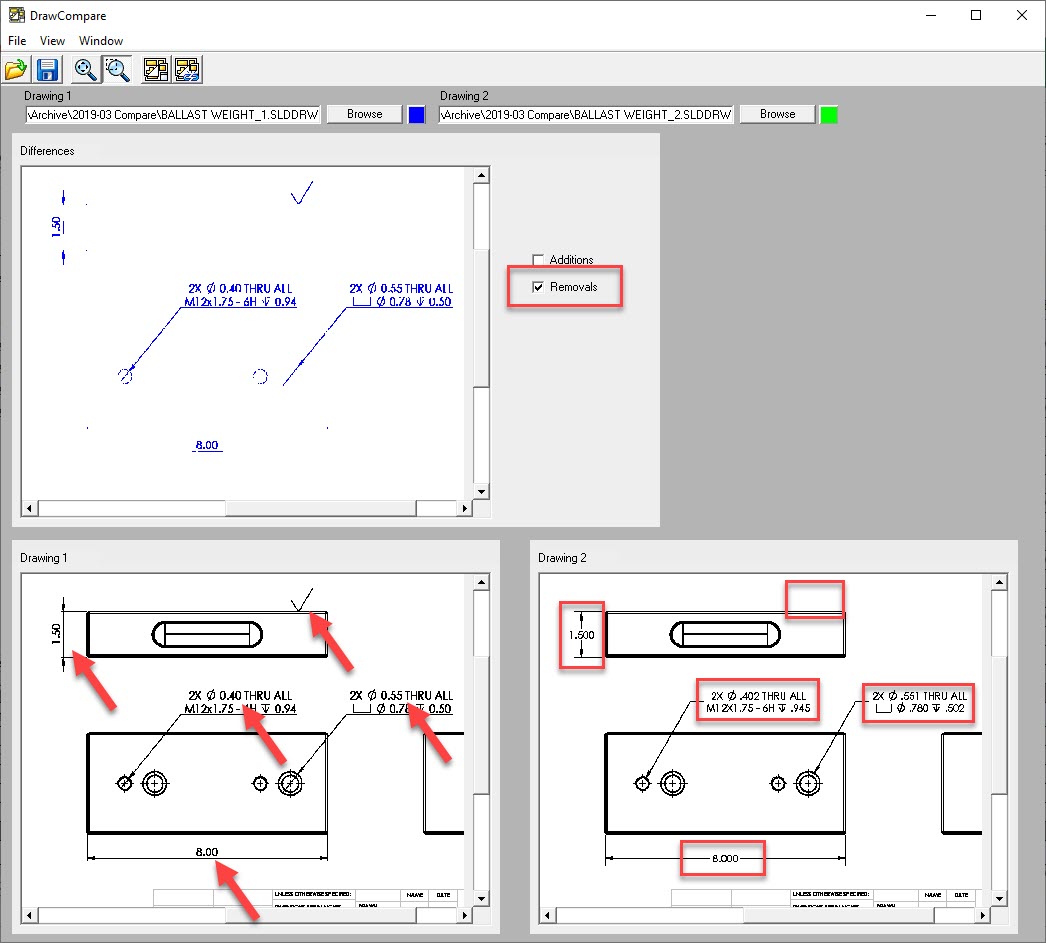
This tool can be used to compare drawings for its Document Properties and Bill of Materials. However there is another tool called DrawCompare to provide graphical feedback of differences on the drawing sheet. You can see any additions or removals between the two documents.


Related Links
Certified SOLIDWORKS Services available from Javelin
Javelin can help you to:
Posts related to 'SOLIDWORKS Compare and DrawCompare Tools'
