


SOLIDWORKS Toolbox Database Wrong Version!

Article by Nadeem Akhtar updated May 16, 2019
Article
If SOLIDWORKS is updated to a later service pack, you may find that SOLIDWORKS Toolbox fails with a message stating that the Toolbox database is “…not the expected version”, thereby preventing it’s use. The common cause of this is when upgrading to a newer version of SOLIDWORKS, the right Toolbox location is not “pointed to” during the SOLIDWORKS installation process and therefore is missed during the upgrade process. This is more common with network shared Toolbox setups.
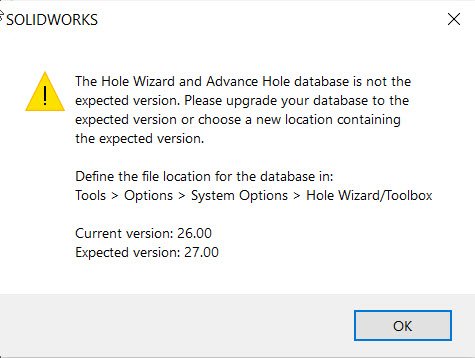
SOLIDWORKS Toolbox Database Wrong Version Error
The solution is to update the Toolbox database, browse to SOLIDWORKS installation folder, typically “C:\Program Files\SOLIDWORKS Corp\SOLIDWORKS“, and then to “Toolbox\data utilities” right click on “UpdateBrowserDatabase.exe” and select “Run as administrator”.

Update Browser Database
Click on “…” button to browse for the file “swbrowser.sldedb” located typically in “C:\SOLIDWORKS Data\lang\english“.
To begin the upgrade, click the “Update” button.

Update Toolbox Database
Related Links
Certified SOLIDWORKS Services available from Javelin
Javelin can help you to:
Posts related to 'SOLIDWORKS Toolbox Database Wrong Version!'
