


Differentiating between 3DEXPERIENCE Title and File Name

Article by Scott Durksen, CSWE updated March 11, 2024
Article
In this tech tip learn how a 3DEXPERIENCE Title identifier is used for managing files on the 3DEXPERIENCE Platform
The 3DEXPERIENCE platform provides a robust method for file management of SOLIDWORKS models to ensure all references are maintained even if model names change or are moved to other projects. SOLIDWORKS uses references to ensure parts, assemblies, and drawings are linked together to parametrically update.
There is a key difference in how files are managed in the platform. Rather than using file names to keep models organized, we can control a 3DEXPERIENCE Title identifier that can be quickly changed without worrying about broken references.

With standard file management in Windows Explorer, any change to a file name or relocating files to other folders can cause lost references as the original files are no longer found. SOLIDWORKS PDM avoids broken references with the use of SQL databases to ensure references are updated when changes are made to the file structure in the vault view.
Windows File Management
The File Name that we’ve become accustomed to is a unique Windows identifier. It is the name of the file on the hard drive which is saved in different folders. There can be multiple files with the same name in separate folders. Changing a file name or folder structure will inevitably cause difficulties with file references without implementing SOLIDWORKS PDM.
3DEXPERIENCE File Management
The 3DEXPERIENCE platform takes a different approach. While Windows still needs a file name to save a local copy to disk, all files are saved to a single local cache folder with unique file names. Once saved to the platform, the file name is no longer important. In fact, it actually can no longer be changed. We can now control the naming with a 3DEXPERIENCE attribute called Title. This can be easily be renamed at any time. Organization is handled with the Bookmark Editor rather than saving files in various folders. As the files are not renamed or moved to another folder, references are not broken.
Difference in Terms
There are a few terms associated with file management in the 3DEXPERIENCE platform. The main and most important is the Title, however here is a quick explanation.
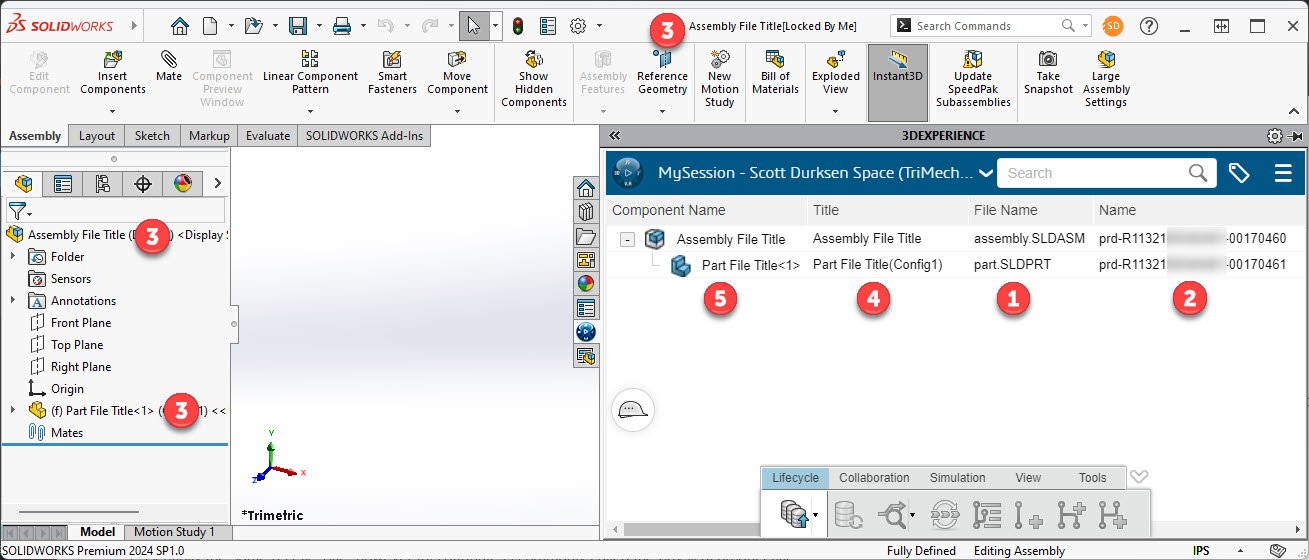
- File Name
This is the name of the file saved to the local cache folder in Windows. Once the file is saved to the platform, it is locked and cannot be changed. In doing so, we prevent any broken references. If two files were saved to the platform with the same name, the local cache may apply a unique file name (i.e. xcadmodel###.sldprt) as Windows cannot have multiple files with the same name in the same folder. - Name
This is a unique 3DEXPERIENCE identifier used to differentiate an object in a Collaborative Space (i.e. prd-R###) - File Title
This is a 3DEXPERIENCE attribute to help organize your models. This applies to the CAD Family, physical product, 3DShape, and drawing title. - Title
Essentially the same as the File Title, however, this attribute is also referred to as the Physical Product Title.- If a part or assembly has more than one configuration, the Title keeps them separate by adding the configuration name in parenthesis, for example, “Part123(Config123)”.
- For a drawing, this could be the file title of the referenced part or assembly, or its unique file title.
- Component Name
This is a unique identifier for SOLIDWORKS that shows in the MySession app which includes the instance number of the component in an assembly. This is linked to the File Title. Changes to the File Title will also change the Component Name.
Renaming the 3DEXPERIENCE Title
Now that we know the file name will never change, the SOLIDWORKS references remain intact when renaming the Title. This can be changed by right-clicking the top of the FeatureManager Design Tree and Rename Title.

Matching Drawing Title to Referenced Part/Assembly Title
The title of a drawing is commonly set to match that of the referenced model. The 3DEXPERIENCE task pane options allow this to be automated.

Want to learn how to use 3DEXPERIENCE?
Take a 3DEXPERIENCE training course from Javelin to learn how to administrate and work with CAD data on the platform.
Related Links
Discover SOLIDWORKS & 3DEXPERIENCE Works
Learn more about SOLIDWORKS cloud-based collaboration:
Posts related to 'Differentiating between 3DEXPERIENCE Title and File Name'
