


How to Install SOLIDWORKS for Makers | A Step-by-Step Guide

Article by Chris Duchaine updated May 20, 2026
Article
Installing SOLIDWORKS for Makers can alleviate some of the difficulties encountered when considering new CAD software. These include permission issues and failing to locate the installer.
If issues arise, this step-by-step walkthrough covers the entire installation process, so you can solve problems and save time.
What to Expect When Installing SOLIDWORKS for Makers
To provide an at-a-glance overview, here is a summarized visual checklist of the installation steps:
- Log in to the 3DEXPERIENCE SOLIDWORKS platform.
- Locate the SOLIDWORKS welcome panel or dashboard.
- Download and run the 3DEXPERIENCE Launcher.
- Approve necessary permissions.
- Complete the local SOLIDWORKS installation.
- Launch SOLIDWORKS for Makers and verify your license.
How to Install SOLIDWORKS For Makers
SOLIDWORKS for Makers is a relatively straightforward process, but if you’ve never used the 3DEXPERIENCE platform before, keep reading to learn how.
Accessing The 3DEXPERIENCE Platform
After you create your account, log in to the 3DEXPERIENCE SOLIDWORKS platform, a cloud-based suite provided by Dassault Systèmes for managing SOLIDWORKS applications and user accounts. Once you are in, you should see a SOLIDWORKS welcome panel with your installation button there in blue.
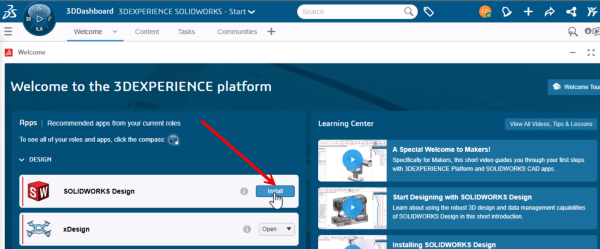
Installing SOLIDWORKS Design
If you do not see the SOLIDWORKS Welcome panel, navigate to the hamburger menu in the upper left corner and then choose 3DEXPERIENCE SOLIDWORKS. This will direct you to the appropriate welcome dashboard, where you can click Install for your SOLIDWORKS Local Makers version.
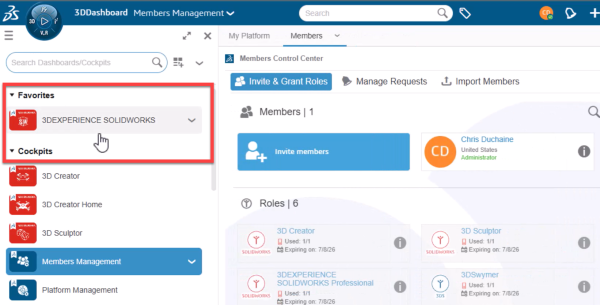
Click here to navigate back to the SOLIDWORKS dashboard
If the SOLIDWORKS option does not appear after following these steps, try refreshing the page or logging out and back into the platform, and ensure your browser is compatible and up to date.
Downloading the 3DEXPERIENCE Launcher
To begin the installation process, you will first be prompted to download the 3DEXPERIENCE Launcher. The Launcher is the bridge between the cloud platform and your desktop environment. Without it, SOLIDWORKS cannot verify your license or communicate back to the platform.
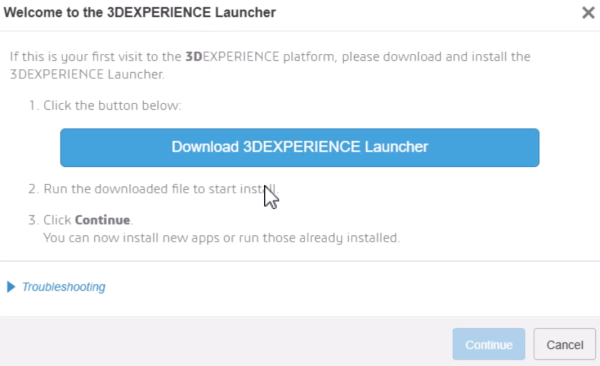
Installing the 3DEXPERIENCE Launcher
Key Permissions for the 3DEXPERIENCE Launcher
At this stage, you may see dialog boxes requesting access for the 3DEXPERIENCE Launcher or prompts asking for permission to communicate through your firewall. It is important to review each prompt and grant the necessary permissions for the installation to proceed smoothly. You may have to validate a couple of permissions during the installation.
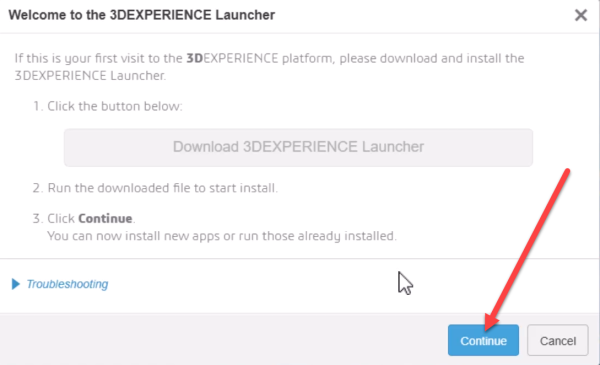
Continuing the installation
Once the blue Continue button appears in the lower right corner, select it and make sure to allow the application to connect to your firewall and the Launcher. You may see additional permission requests for applications like the 3DEXPERIENCE Launcher. Make sure it is always allowed to connect to ensure seamless integration going forward.
Running the SOLIDWORKS Installation
After the Launcher installation is complete and the installer has been downloaded, you will be prompted to begin the SOLIDWORKS installation. The local installation defaults to the C drive on the machine, but can be changed to a specific directory if required.
During the installation, you will encounter a list of add-ins. Select Next to continue past this screen, as the Maker version of SOLIDWORKS does not include support for any of these add-ins, and you will not be able to use them in this version.
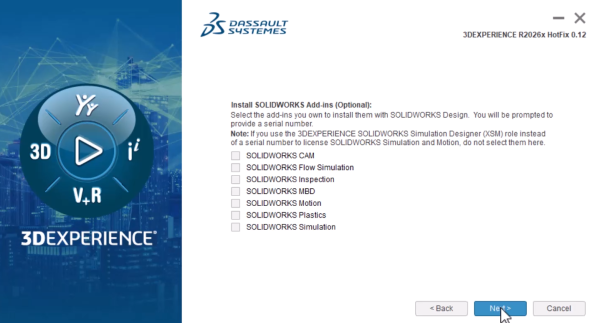
Skipping the add-ins for SOLIDWORKS for Makers
Considerations for SOLIDWORKS for Makers Download Time
The installation process can take a long time, depending on both your internet connection speed and your PC’s speed plays a role. The installer downloads all the files first, then extracts them to install on your local machine, so prepare to set aside time.
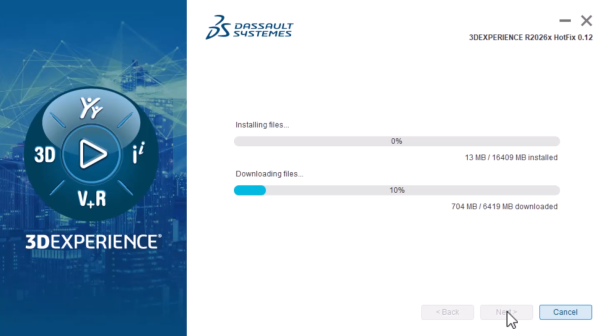
3DEXPERIENCE SOLIDWORKS installation manager
To improve installation speed, consider checking your network connection for stability or pausing any large downloads on your system, and ensuring that your device meets the minimum hardware requirements. Do not close the window while the installation is in process.
Launching SOLIDWORKS for Makers
On the 3DEXPERIENCE platform, the Install button for SOLIDWORKS Design will change to Open. Select this, and it begins the process of launching SOLIDWORKS for Makers.
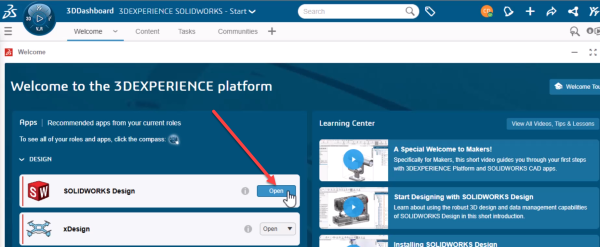
Opening SOLIDWORKS for Makers
Once it launches, you will see your welcome screen. After a few seconds, it will connect to your 3DEXPERIENCE platform and obtain your license automatically.
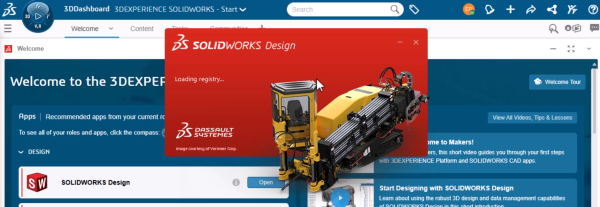
The SOLIDWORKS Design splash screen
That completes the installation process; you can now access SOLIDWORKS for Makers. If you prefer a more visually guided installation, visit the video walkthrough.
Make the Most Out of SOLIDWORKS for Makers
SOLIDWORKS for Makers is a great tool for hobbyists, DIY enthusiasts, and those looking to explore commercial-grade CAD for personal projects without a significant financial commitment. However, like any tool, it is important to make the most of it.
For SOLIDWORKS tips, tutorials, and walkthroughs, explore our full library of technical blogs and instructional videos covering installation, configuration, and everyday modeling workflows from our Tech Tip articles.
Ready to move beyond SOLIDWORKS for Makers into a full seat of SOLIDWORKS? Request a quote here.
Related Links
Discover 3DEXPERIENCE SOLIDWORKS for Makers
Essential online resources for the Maker software:
Posts related to 'How to Install SOLIDWORKS for Makers | A Step-by-Step Guide'
