


Automatic PLC Channel Addressing in SOLIDWORKS Electrical

Article by Alaa Hosn updated August 27, 2025
Article
Users building control panels know the pain of managing PLC channel addresses. Depending on what software users are using, this can be a very manual and tedious operation. Imagine clicking through each channel, having to enter addresses one by one, then having to confirm that there are no typos and that everything lines up with the right slot, terminal, and signal.
Thankfully, for those who have SOLIDWORKS Electrical Schematic Professional, creating channel addresses is an automated process based on a customized formula to provide whatever output users are looking for. This data can then be propagated to connected components and used downstream in places like reports. All of this is done automatically with only a few clicks through the power of SOLIDWORKS Electrical.
Channel Addresses and Physical Addresses
The ability to define how PLC channel addresses are generated is based on a list of variables, like the slot number and channel position. The necessary variables are selected when defining the channel address callout formula. SOLIDWORKS Electrical makes it so that users can fully configure formulas that display a PLC’s channel address.
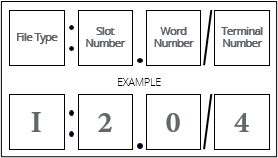
Example of a channel address
Some of the selectable variables of the channel address formula can be extracted from the physical address. A physical address usually defines the module type (whether it is an input or output) and the address bit. A channel address can be defined by the file type (input or output), the slot number, a word number (selects a specific word in a data set of a 16-bit unit), and the terminal number. An example of a channel address can be seen here:
Configuring a Physical Address
The physical address of a PLC can be modified within the manufacturer’s part. Ideally, when importing manufacturer parts into SOLIDWORKS Electrical, there will be a physical address already defined.
If any information is missing from imported or new manufacturer parts, users can enter this data manually. Modifying a physical address can easily be done by going to the manufacturer part properties and selecting the Circuits, terminals tab. In the Physical address column, users can click on a cell to input the desired physical address.
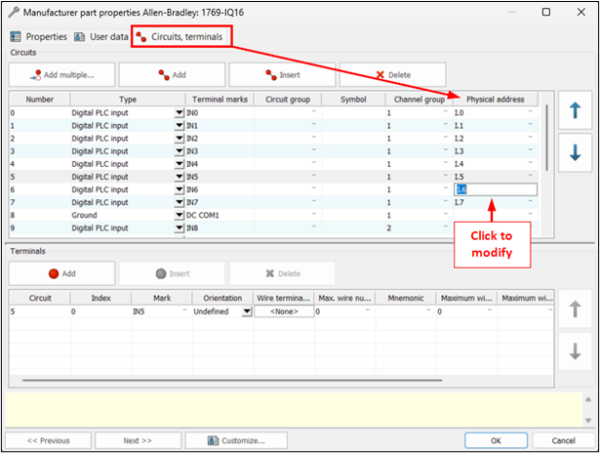
Modifying the physical address in the manufacturer’s properties
Configuring a Channel Address
With the physical address defined, this information can be referenced in a formula to build the channel address. Building the channel address is done in the Configurations tab.
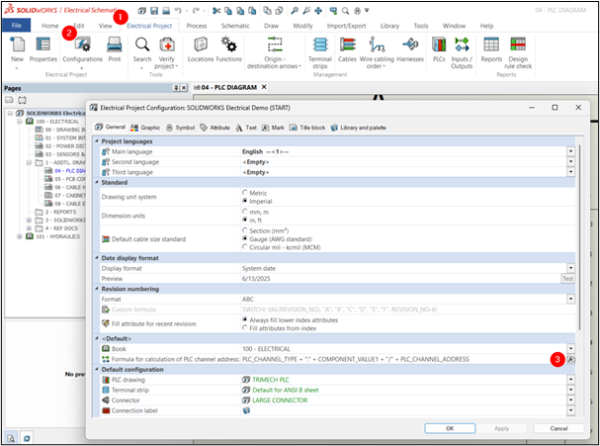
Modifying the channel address in the project configurations
There are a few variables that can be selected in the Variables and simple formulas tab, but the Predefined formulas tab has some formulas ready to go.
Building a PLC Channel Address Formula
Once a formula is set up, users can select the calculator icon to test and make sure the formula displays properly. Let’s break down the default PLC channel address formula PLC_CHANNEL_TYPE + “:” + COMPONENT_VALUE1 + “/” + PLC_CHANNEL_ADDRESS:
- PLC_CHANNEL_TYPE is straightforward and represents the channel type.
- The plus sign indicates that the next value is placed after the previous one; in this case, the next value is a colon in the form of static text.
- The value COMPONENT_VALUE1 is the manufacturer data found in the first field of the PLC’s component properties.
- Users can also utilize the other manufacturer data fields, if necessary, using COMPONENT_VALUE2 through COMPONENT_VALUE7.
- The default PLC channel address is finalized by adding a forward slash in static text and the channel address.
The channel address can also be configured per component rather than at a global level. Right-clicking on a symbol with a PLC classification allows users to select either component properties or symbol properties. In the Mark and data tab, there is a Manufacturer data section, users can select the fx icon on the right side of the Channel address formula field to build the channel address.
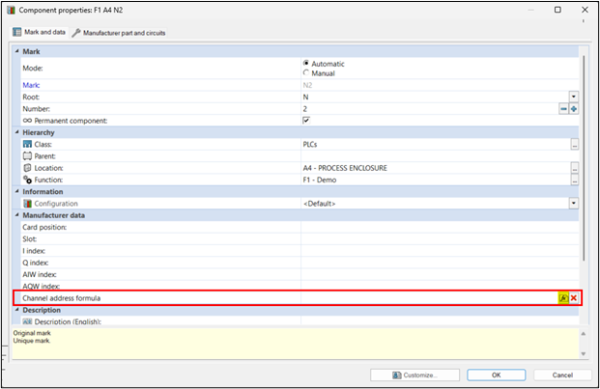
Changing channel address for a single component instead of globally
Leveraging Automation
With the formula set up and all reference fields populated, the automation can begin. The PLC manager shows the physical address as defined in the manufacturer’s part, and the channel address as defined in the formula. The image below shows where each variable is being drawn from. In this case, the formula PLC_CHANNEL_TYPE + “:” + COMPONENT_VALUE1 + “/” + PLC_CHANNEL_ADDRESS results in I:3/0 for the top row.
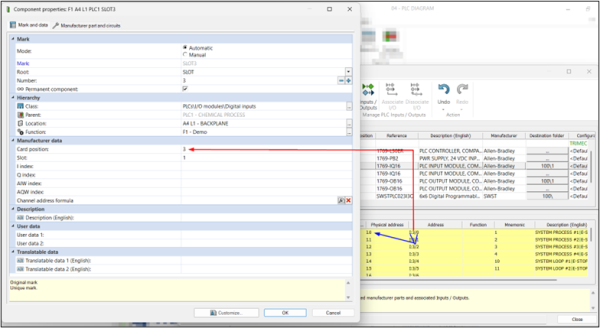
Indicators showing where address values are pulling from
Data Propagation
Users can take automation one step further after automatically addressing the PLC channels. Propagate data to connected objects can push information through connected components, ensuring consistent data transfer across the schematic. This command is accessed through the Process tab.
This opens a dialog where users can define the propagation by calling out which object is to be copied from (like the PLC channel) and what data from that object will go where (such as a terminal mark or wire property). Users can re-run propagation at any point during the project. If a wire is moved, an address is changed, a terminal is updated, etc., just propagate again to keep data in sync. The image below shows how the channel address is being copied from the PLC channel to the equipotential mark, which is then carried over to the terminal mark.
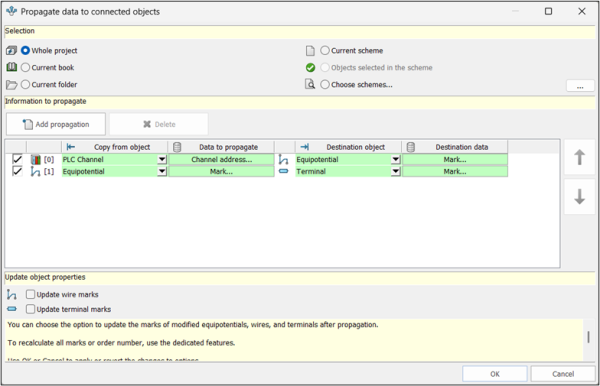
Setting up data propagation to send the PLC channel address to connected components
Moving Beyond Manual Data Entry
Automating PLC addressing and data propagation provides a time-saving advantage that is less error-prone. There is no need to manually assign addresses anymore. There is not much setup required to prepare SOLIDWORKS Electrical to do the repetitive work. Just imagine how long it would take to enter a large number of addresses for a multi-slot PLC. Try addressing your PLCs with SOLIDWORKS Electrical to see how much time you can save!
Related Links
Get Certified SOLIDWORKS Electrical Services
Our Certified Electrical Experts can help you to:
Posts related to 'Automatic PLC Channel Addressing in SOLIDWORKS Electrical'
