How to Easily Edit Imported Models in SOLIDWORKS

Video by John Landis updated August 11, 2025

Like this Video? Get Live Online Training from Javelin
Take a live online training course with a Certified Instructor and become a SOLIDWORKS Expert.
About the Video
We live and work in a multi-CAD world, and we often have to work with models that were created in software other than SOLIDWORKS. While we can open most major (and minor) native and neutral file types directly, they typically come in as a dumb solid, missing the parametric features from the original CAD tool. This is generally fine for commercial off-the-shelf components, but there are times when we need to edit imported models.
Luckily, SOLIDWORKS has a set of modeling tools and techniques that make it easy to leverage, reuse, and change imported 3D geometry. It reflects an efficient approach to making minor changes, and we can do quick and easy editing operations directly on our imported solid.
Edit Imported Models with Direct Editing
Occasionally, we need to make minor edits to these imported parts and may not want to go through all the work of creating new volumetric features to modify model topology. It reflects an efficient approach to making minor changes, and we can do quick and easy editing operations directly on our imported solid. We can change the model directly by moving or deleting faces, moving or copying or deleting solid bodies, and splitting or combining the bodies. These common commands are grouped together on the Direct Editing Command Manager toolbar.

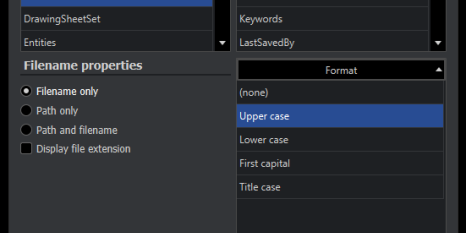
Direct Editing tab on the Command Manager
Delete Face Command
The Delete Face tool allows us to remove model faces with options to automatically extend surrounding faces so that it will remain a solid body. This prevents the model from decomposing into a surface body.
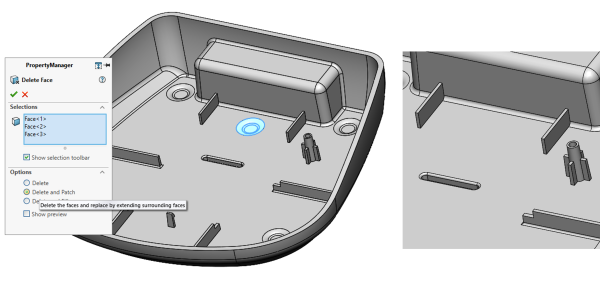
Using the Delete Face command
Move Face Command
The Move Face tool allows us to move model faces. Select the faces and then drag the triad, or key in the values in the property manager. Move Face will not permit an operation that would result in a disjointed face falling off the part or a non-manifold body, so be sure to select the appropriate adjacent faces. As an added bonus, you get a parametric dimension that can be changed if needed!

Using the Move Face command
Split Command
If we need to break away functional portions of the solid model, we can use the Split tool to create multiple bodies. With the Split command, you can choose your trimming surface and specify which bodies to keep and which to remove. This command is extremely helpful when working on mold designs or trying to clean up imported bodies.

Using the Split command
Move/Copy Body
To completely relocate a free-floating body, you can use the Move/Copy Body command. With this command, the body can be relocated or a new copy can be created in the new location. These tools all create a feature in the tree, and any relevant parameters can be easily changed after the fact.

Using the Move/Copy Body command
No matter if you work on imported models once a day or once a year, the TriMech and Javelin teams are here to support you. Our decades of experience helping clients work with and edit imported models means we can answer even your toughest design challenges.
You can use your SOLIDWORKS Subscription to schedule an Ask an Expert session to have all your SOLIDWORKS questions answered by our certified team of experts.
To schedule your Ask an Expert technical session, click here.
Content related to 'How to Easily Edit Imported Models in SOLIDWORKS'