


How to Use the SOLIDWORKS Settings Wizard

Article by Carleigh Amyot, CSWE updated July 27, 2026
Article
The SOLIDWORKS Settings Wizard, formerly known as the Copy Settings Wizard, is a tool that allows you to save and restore the settings in your SOLIDWORKS software.
This is useful for transferring settings to a new computer or reverting to a previous set of settings after making a change.
What Can I Save with the SOLIDWORKS Settings Wizard?
The SOLIDWORKS Settings Wizard gives you the option to save a variety of settings you would need to deploy across multiple machines in the organization or to keep working efficiently on a new computer.
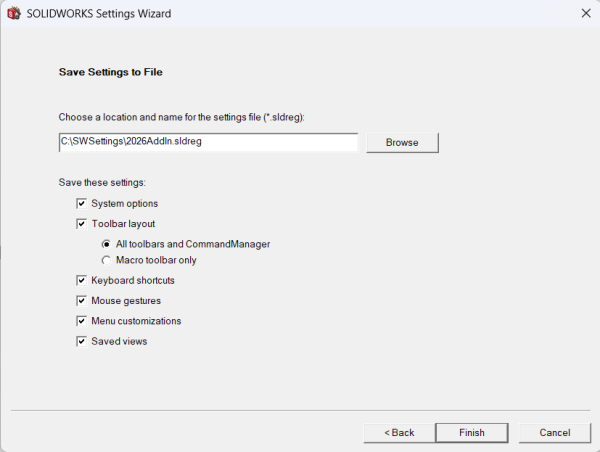
Selecting settings to be saved
You can capture some or all of the following:
- SOLIDWORKS System Options
- Toolbar layout
- Keyboard shortcuts and mouse gestures
- Menu customizations
- Saved/Named views
The SOLIDWORKS Settings Wizard only saves and restores certain types of settings in SOLIDWORKS. It does not save or restore document properties, macros, or any data and files related to your project.
How to Access the SOLIDWORKS Settings Wizard
There are two main locations to access the SOLIDWORKS Settings Wizard. From inside of SOLIDWORKS, there are multiple paths to opening the tool, but from outside, you can use the Windows program search.
Opening the Wizard Within SOLIDWORKS
To access the SOLIDWORKS Settings Wizard, navigate to the Tools menu and select Save/Restore Settings. You can also access the tool from the Task Pane.

SOLIDWORKS Settings Wizard in the Tools menu
Before SOLIDWORKS 2023, the SOLIDWORKS Settings Wizard was named the Copy Settings Wizard. Regardless of the name, it will be listed second to last in the SOLIDWORKS Tools section list.
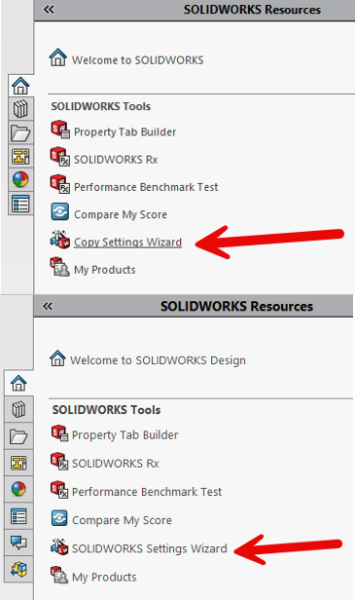
Accessing the Copy Settings Wizard from the SOLIDWORKS Task Pane
Finally, the last place it can be found within SOLIDWORKS is under the Gear icon.

SOLIDWORKS Settings Wizard in Options menu
These three methods are for finding the SOLIDWORKS Settings Wizard while inside of SOLIDWORKS and will not work outside of the software.
Using the Windows Program Search
The SOLIDWORKS Settings Wizard is a standalone software and does not require SOLIDWORKS to be running to use it.
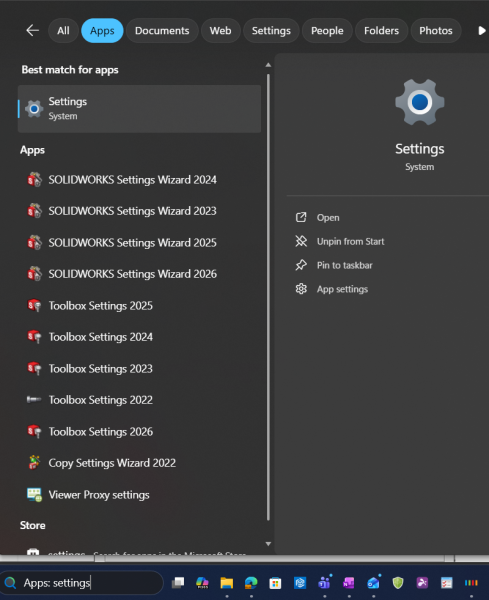
Open the Wizard from Windows
Using the program search or looking through installed programs, you can find SOLIDWORKS Settings Wizard 20XX.
Using the SOLIDWORKS Settings Wizard
Once launched, you can choose to save your current settings to a file or restore settings from a previously saved file. The settings will be saved to a SOLIDWORKS registry file that can be stored on a thumb drive or network location to back it up.
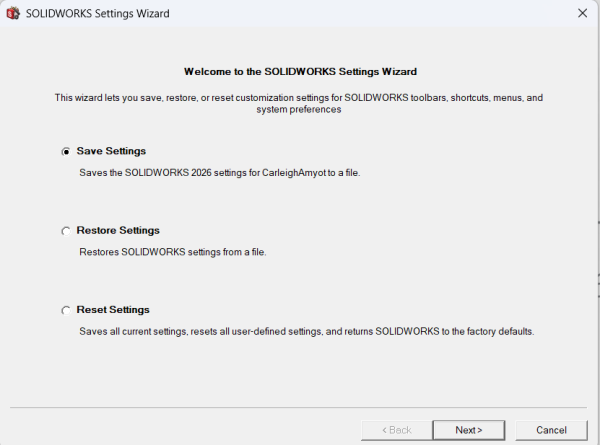
The SOLIDWORKS Settings Wizard
Name these files for both the user and the version the settings are saved in. If you are working with multiple versions on the machine, saving a copy for each version is a good way to keep everything clean.
Additionally, there is an option to reset to factory default settings. This is useful for working on a shared machine, troubleshooting an issue, or resetting a machine for a new user.
Troubleshooting SOLIDWORKS
Making a backup of your SOLIDWORKS settings and resetting to defaults is a great first step in troubleshooting SOLIDWORKS. It lets you see if it is a custom configuration causing issues or if something deeper is going on.
In the instances where basic troubleshooting fails, we are standing by to support. Contact our Technical Support team for expert support for any SOLIDWORKS issue.
To create a ticket with our Technical Support team, click here.
Related Links
Certified SOLIDWORKS Services available from Javelin
Javelin can help you to:
Posts related to 'How to Use the SOLIDWORKS Settings Wizard'
