


Javelin / TriMech Author

Jamie Hill, CSWE/CSWE-S
Physics Fun with Jamie: Best Practices for Applying Loads
 By Jamie Hill, CSWE/CSWE-S on April 24, 2023
Welcome back to “Physics Fun with Jamie”. SOLIDWORKS is a powerful tool for finite element analysis (FEA) of mechanical systems. One of the key aspects of a successful FEA analysis is the accurate application of loads to the model. The following are some best practices…
Physics Fun with Jamie: Best Practices for Applying Fixtures
By Jamie Hill, CSWE/CSWE-S on April 21, 2023
Welcome back to “Physics Fun with Jamie”. SOLIDWORKS FEA is a powerful tool that allows users to simulate physical behavior of designs and analyze their performance under different loading scenarios. One of the key elements in FEA analysis is the use of fixtures, which are…
Physics Fun with Jamie: SOLIDWORKS FEA Simulation Fixtures
By Jamie Hill, CSWE/CSWE-S on December 27, 2022
In this blog article we will cover the different fixture types available in SOLIDWORKS FEA Simulation. Fixed Geometry Fixture The Fixed Geometry Fixture in SOLIDWORKS FEA Simulation locks down all degrees of freedom. You can apply this fixture to faces, edges, vertices for solids and…
Nested IF Statements in SOLIDWORKS Equations to control dimension length
By Jamie Hill, CSWE/CSWE-S on May 24, 2018
Recently a customer asked me: “Is it possible to automatically size sections of a body or component based on an overall length?” This stood out to me as a perfect scenario to utilize the power of equations, and more specifically nested SOLIDWORKS IF statements. IF…
Need to create a non-standard SOLIDWORKS Drawing View?
By Jamie Hill, CSWE/CSWE-S on May 21, 2018
I have the following tube I need to detail: Wouldn’t it be nice if I had a view normal to the hole pattern to add my dimensions? Try a SOLIDWORKS Auxiliary View: Simply select a reference edge (or quickly sketch one): The end result is…
Suppress features or components with nested SOLIDWORKS IF statements
By Jamie Hill, CSWE/CSWE-S on May 18, 2018
I recently had a customer ask me if it was possible to automatically suppress features or components based on an overall length. This stood out to me as a perfect scenario to utilize the power of equations, and more specifically nested IF statements. In this…
Create a solid from an enclosed volume using the SOLIDWORKS Thicken command
By Jamie Hill, CSWE/CSWE-S on May 15, 2018
The Thicken feature has a hidden option you may not be aware of! If you do any amount of surfacing work you should be familiar with the Knit feature, which gives you the ability to create solid body from surface bodies. Did you know the…
How to quickly show ALL hidden components in your SOLIDWORKS assembly
By Jamie Hill, CSWE/CSWE-S on May 11, 2018
Have you ever gotten a little trigger happy with suppressing components in your assembly? It can be tedious sometimes to make certain that all the components are turned back to a visible state once you’ve done what you needed to do. Either you used CTRL +…
SOLIDWORKS Configurations and the ‘Save Bodies’ command
By Jamie Hill, CSWE/CSWE-S on May 10, 2018
The “Save Bodies” command is a great feature for saving out all or some of the individual bodies of a multibody part to their own individual part files while keeping them parametrically linked to the original. I’ve seen this used for a multitude of reasons,…
Changing the SOLIDWORKS Standard View Orientation
By Jamie Hill, CSWE/CSWE-S on July 18, 2017
Have you ever imported a model from a vendor, customer, etc. and the part orientation just doesn’t make sense? Well it just so happens you can change the default view to any rotation that you’d like! We are going to focus on the Update Standard…
How to use the SOLIDWORKS Hole Series Wizard
By Jamie Hill, CSWE/CSWE-S on July 12, 2017
The SOLIDWORKS Hole Series is an assembly feature that creates hole features in the individual components of the assembly. A SOLIDWORKS Hole Series extends through each unsuppressed component in the assembly that intersects the axis of the hole (the components do not have to touch)….
How to use the SOLIDWORKS Split Line Tool
By Jamie Hill, CSWE/CSWE-S on July 10, 2017
The SOLIDWORKS Split Line tool is used to project an entity (sketch, solid, surface, face, plane, or surface spline) onto other surfaces or curved/planar faces. You are also able to split faces on multiple bodies with one command. The Split Line command comes equipped with 3…
Essential SOLIDWORKS keyboard shortcuts
By Jamie Hill, CSWE/CSWE-S on July 4, 2017
This is going to be a debatable list, as many different people have many different workflows and habits they are accustomed to. I will however try and walk the centerline, and tell you about some of the time saving SOLIDWORKS keyboard shortcuts that everyone should…
The difference between SOLIDWORKS Save as & Save as Copy Settings
By Jamie Hill, CSWE/CSWE-S on June 30, 2017
“SOLIDWORKS Save as” saves your already existing part/assembly/drawing, with a new name, and replaces any references made to the original file with that of the new file. “SOLIDWORKS Save as Copy” saves your already existing part/assembly/drawing, with a new name, but breaks all references to…
Creating and orientating SOLIDWORKS derived sketches
By Jamie Hill, CSWE/CSWE-S on June 22, 2017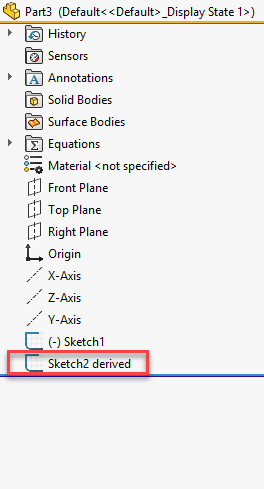
Let’s start with a question: If you needed to translate a sketch 90°, let’s say from the Top Plane to the Front Plane and have those sketches update as one (linked), what would you do? You could copy/paste the sketch, redefine relations, apply in-context relations,…