


How to resolve SOLIDWORKS Non-Matching Internal ID Errors

Article by Scott Durksen, CSWE updated April 24, 2013
Article
Perhaps you received a different part file that you need to use in your assembly. Or maybe your original file was lost and needed to be recreated. If the new file is saved as the same name as the original file, the next time you open your assembly get ready for some SOLIDWORKS Non-Matching Internal ID Errors.

What is a SOLIDWORKS internal ID code?
When a new file is created, even if the geometry is identical, every face/edge/vertex is assigned a different internal ID code. Therefore when an assembly picks up the reference to a completely new file, the ID codes will not match. You can choose to browse for the original file if it has moved and avoid errors.
If you select “Use this file anyway”, mate errors will inevitably be waiting for you. Mates are assigned to specific IDs so mate errors will occur when these IDs are missing.

It can be a daunting task to see the SOLIDWORKS Non-Matching Internal ID error and all the mate errors that need to be corrected, as shown in the screenshot below:

Using the Replace Components Tool
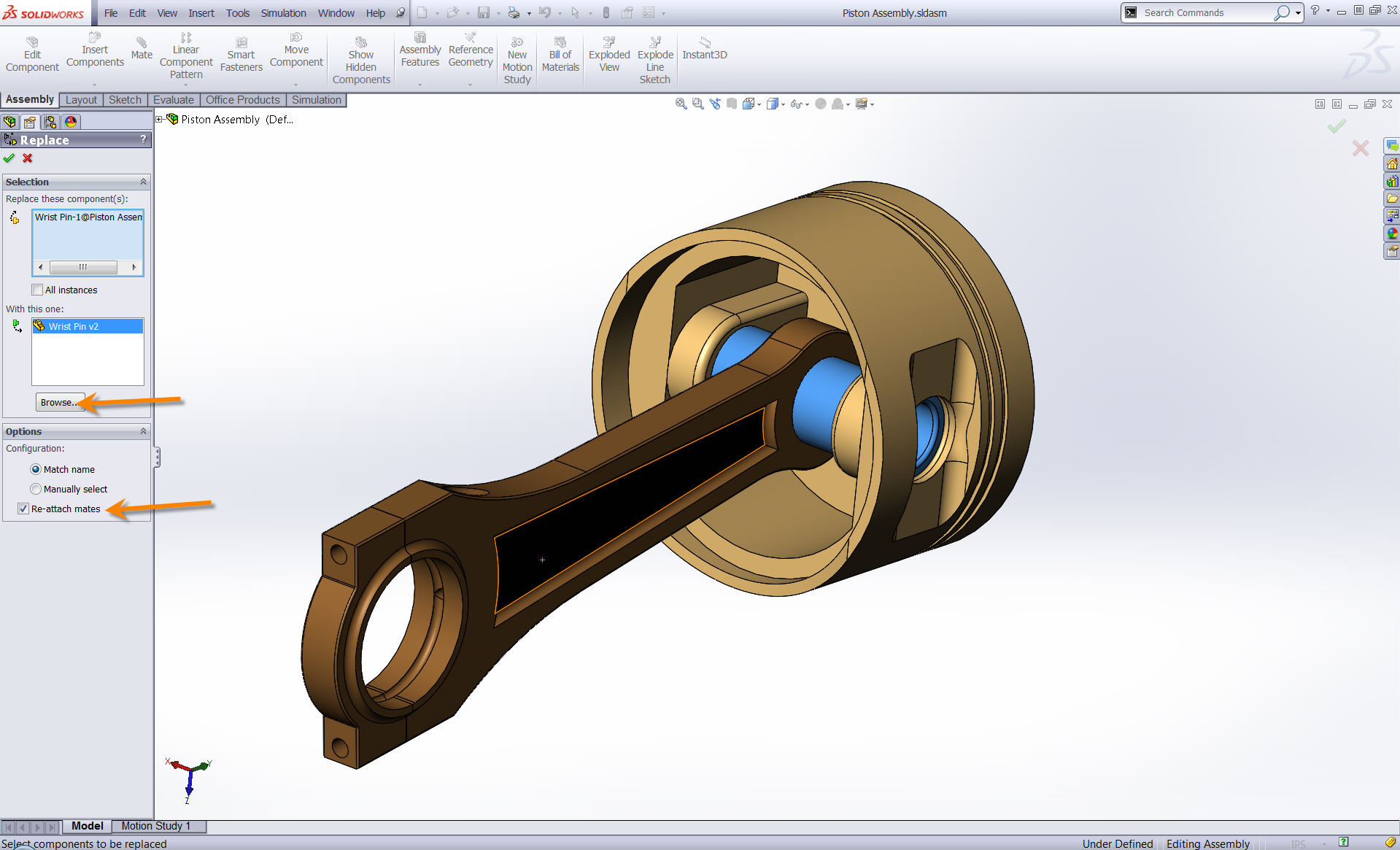
Instead of replacing the file with the same filename in Windows Explorer, a better method is to use the Replace Components command within SOLIDWORKS. This will provide graphical prompts showing what mates are missing their ID codes. The Replace Components command cannot replace a component with the same filename. It is always best practice to have files with unique filenames to avoid reference errors. In this example, I am replacing the “Wrist Pin” file with “Wrist Pin v2”.

Right-click on the component in the Design Tree and click the arrow at the bottom of the menu to expand. Select Replace Components to open this command.

With this command, you can browse to the replacement file. Ensure that the “Re-attach mates” option is enabled.
Resolving missing mates
The PropertyManager will list all mates and show a “?” beside any mates that cannot locate the modified face/edge/vertex. Click on each one to see a graphics window highlighting the face of the original file, then select the face on the new file that has been inserted.

Continue through the mates until all have a green checkmark:

Pick OK to finish and the mate error will now be resolved:

Related Links
Certified SOLIDWORKS Services available from Javelin
Javelin can help you to:
Posts related to 'How to resolve SOLIDWORKS Non-Matching Internal ID Errors'
