


SolidWorks Thickness Analysis [VIDEO]

Article by Scott Durksen, CSWE updated July 17, 2014
Article
The SolidWorks Thickness Analysis tool (found under the Evaluate tab in the CommandManager) allows you to quickly review your model to see if there are any areas that are too thin. It can also be used to visualize areas that fall outside a specified range.
The following video demonstrates the example in the screenshots below:
Applying Thickness Analysis
Here is a simple part with varying thicknesses. The part ranges from 0.5″, 1″ and 2″ thick

Show thin regions
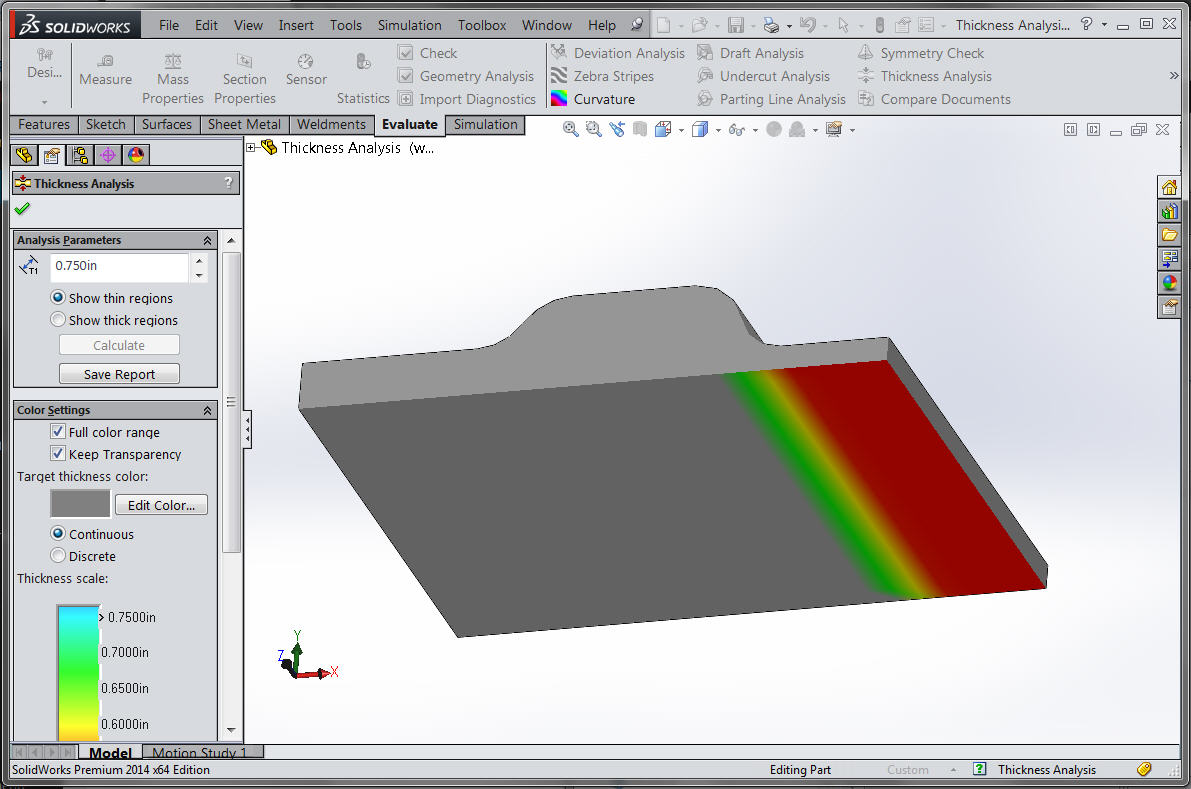
If you enable the “Show thin regions” option, this will highlight the faces that fall below this value. As you can see the 0.5″ thick face is highlighted.

The opposite side face will also be highlighted.
Show thick regions
You also have the option for “Show thick regions”. This will highlight the areas that fall between this range. Any areas greater or smaller than the specified range will be grey. As you can see in the part below, the range is from 0.75″ to 1.75″, so the area that was 1″ thick falls in this range. However on the opposite side, some of the fillet area also falls in the range as it transitions from 0.5″ to 2″ thick.

Treat corners as zero thickness
The “Treat corners as zero thickness” option specifies that the sharp corners are zero thickness and the target thickness may be reached when looking at an angle away from the corner.

Related Links
Certified SOLIDWORKS Services available from Javelin
Javelin can help you to:
Posts related to 'SolidWorks Thickness Analysis [VIDEO]'
