


Understanding the SOLIDWORKS Simulation Add-In

Article by Scott Durksen, CSWE updated June 8, 2026
Article
The SOLIDWORKS Simulation add-in can be difficult to understand in terms of how it is selected, activated, and tied to licensing. Despite this, it is a powerful tool that allows engineers and designers to validate their designs directly within the SOLIDWORKS environment.
What is the SOLIDWORKS Simulation Add-In?
SOLIDWORKS Simulation is not a standalone application but instead operates as an add-in module within SOLIDWORKS. This means it must be turned on before use.
Once activated, the add-in integrates directly into the SOLIDWORKS interface, adding a Simulation tab to the CommandManger and a new Feature Tree tab. This integration allows simulation studies to remain fully associated with the CAD model, so any design updates automatically propagate into the analysis.
How to Enable the SOLIDWORKS Simulation Add-In
To access SOLIDWORKS Simulation, users must enable it from within SOLIDWORKS. There are two methods to enable the SOLIDWORKS Simulation add-in.
Using the Add-Ins Menu
To enable SOLIDWORKS Simulation from the Add-Ins menu, follow these steps:
- Open the Tools menu and select Add-Ins.
- In the list of available add-ins, find SOLIDWORKS Simulation.
- The Active column will turn on SOLIDWORKS Simulation for the current session only.
- The Start Up column will turn on SOLIDWORKS Simulation for future sessions.
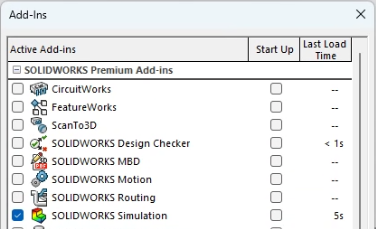
The Add-Ins menu showing SOLIDWORKS Simulation activated
In a network licensing environment, it is recommended not to have the add-in activated on startup, so licenses are not inadvertently consumed when not required.
Using the CommandManager
To enable SOLIDWORKS Simulation from the CommandManager, follow these steps:
- In the CommandManager, switch to the SOLIDWORKS Add-Ins tab.
- Select the dropdown menu under SOLIDWORKS Simulation to view the available license types.

Activating the SOLIDWORKS Simulation add-in from the CommandManager
If the add-in is not enabled, simulation functionality will not be available, even if the add-in is installed.
How to Fix the Add-In Missing
When the SOLIDWORKS Simulation add-in is missing from the tool menu or the SOLIDWORKS Simulation button is greyed out in the CommandManager, this indicates the package was not included with the installation. You must modify the installation and ensure SOLIDWORKS Simulation is included under product selection.
Standalone Installations
- Open the Windows installed apps list, select SOLIDWORKS, and Modify/Change.
- When the SOLIDWORKS Installation Manager opens, choose to modify the installation.
- On the product selection screen, enable SOLIDWORKS Simulation.
Administrative Images
For users with administrative images, there may be two different required workflows to include SOLIDWORKS Simulation on the end-user machines.
- Use the sldAdminOptionEditor.exe within the image folder and ensure SOLIDWORKS Simulation is included.
- If SOLIDWORKS Simulation is missing from the list of products in the option editor, create a new administrative image and ensure SOLIDWORKS Simulation is included.
Once SOLIDWORKS Simulation is included in the image, you can push it out to clients.
What SOLIDWORKS Simulation Licenses are Available
SOLIDWORKS Simulation is available in a few product configurations:
- SOLIDWORKS SimulationXpress: Basic part-level analysis of single body parts (included with all SOLIDWORKS licenses).
- SOLIDWORKS Premium: Linear and static analysis for parts and assemblies.
- Simulation Standard: Linear, static, and fatigue analysis for parts and assemblies.
- Simulation Professional: Adds fatigue, frequency, and more advanced studies for parts and assemblies.
- Simulation Premium: Includes nonlinear and advanced capabilities for parts and assemblies.
How to Specify Which License is Used
SimulationXpress does not use the SOLIDWORKS Simulation add-in and instead is activated separately. All other levels of SOLIDWORKS Simulation use the add-in activation.
Standalone Licensing
For standalone licenses like SOLIDWORKS Premium or an additional Simulation serial number, activation provides access to the applicable license level.
To find this information:
- Open the SOLIDWORKS Help menu.
- Navigate to the Licenses menu option.
- Select Activate.
- Select the licenses that were included with the installation and proceed with activation.
Network Licensing
For network licenses, the level of license is determined by the license order tab in the SolidNetWork License Manager Client on each machine.
To find this information:
- Open the SOLIDWORKS Help menu.
- Navigate to the SolidNetWork License Manager menu option.

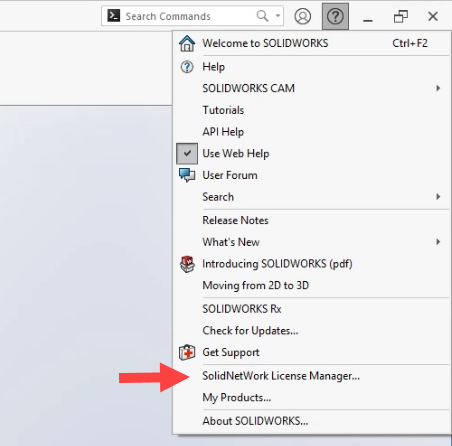 Opening the SolidNetWork License Manager
 - Switch to the License Order tab.
- Reorder the SOLIDWORK Simulation licenses so that the desired level is at the top.
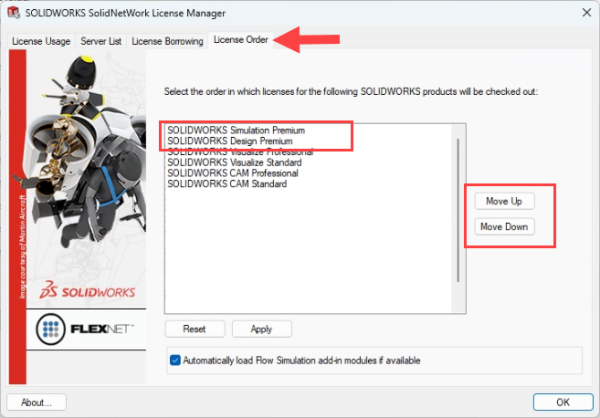 License Order tab in SolidNetWork License Manager
Best Practices for Add-In Management
Understanding how the SOLIDWORKS Simulation add-in selection works is key to maximizing both performance and licensing efficiency. Whether you’re troubleshooting a missing add-in or optimizing license usage across a team, taking a few moments to review your add-in settings can save significant time and frustration.
Best practices include:
- Enabling SOLIDWORKS Simulation only when needed.
- Avoiding the use of startup activation in a shared network environment.
- Verifying installation if the add-in is missing.
- Monitoring license usage in network environments to see if licenses are available.
- Aligning add-in selection with your analysis goals.
Having Trouble with SOLIDWORKS Add-Ins?
If you are having trouble with the SOLIDWORKS Simulation add-in selection or anything related to SOLIDWORKS Simulation, feel free to reach out to our tech team for help. You can report a problem, get remote support, and get software updates.
Related Links
Certified SOLIDWORKS Services available from Javelin
Javelin can help you to:
Posts related to 'Understanding the SOLIDWORKS Simulation Add-In'
