


The Ultimate Guide to SOLIDWORKS Keyboard Shortcuts

Article by Lynette Proch updated May 29, 2026
Article
SOLIDWORKS keyboard shortcuts are a great time-saving tool, and most users don’t realize the extensive amount of customization they can unlock.
If you are new to modeling and trying to figure out how to be more efficient, customizing your keyboard is a great first step in your learning journey. Adding quick access to your commonly used tools can turn you from a novice to a pro in no time.
Customizing Your SOLIDWORKS Keyboard Shortcuts
To start customizing your workspace, navigate to the Customization Menu. To open it, right-click anywhere on the SOLIDWORKS CommandManager at the top of your SOLIDWORKS window and select Customize at the bottom of the pop-up.
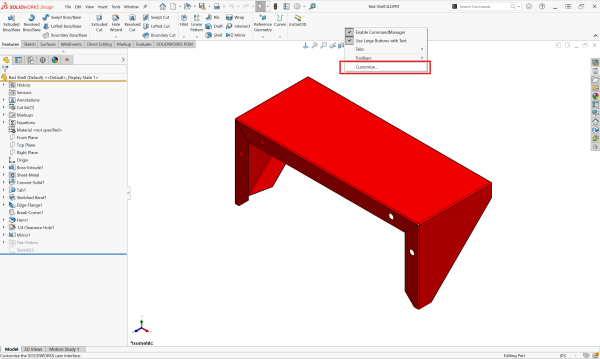
SOLIDWORKS Customize menu location outlined in red
There are six tabs in the Customize menu. Depending on which tab you are in, this menu gives you options to tailor your user interface to your preferences. For shortcuts, you will focus on the Keyboard tab.
Adding, Deleting, and Modifying Keyboard Shortcuts
The Keyboard tab allows you to add your own Hot Keys; however, SOLIDWORKS comes with some already set up for you. Due to the extensive number of commands in SOLIDWORKS, you can filter commands based on category.
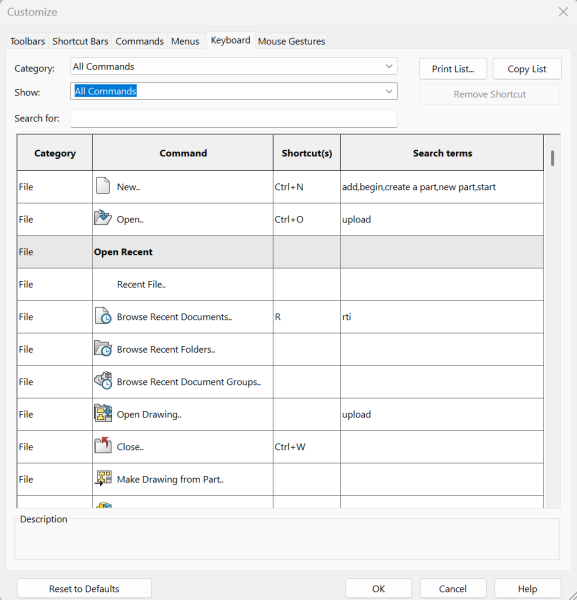
Keyboard shortcuts in the customization menu
These categories allow you to filter by function:
- All Commands: Displays every available SOLIDWORKS command.
- File: Shows the items from the File Drop Down Menu.
- Edit: Lists all commands that edit features, configurations, tables, or appearances.
- View: Displays settings that can change your model location, display type, hide/show, and more.
- Insert: Features to insert into the part, assembly, and drawing files will be revealed.
- Tools: Lays out all sketch tools, evaluation tools, macro commands, and tools from add-Ins like SOLIDWORKS PDM or SOLIDWORKS Inspection.
- Window: Shows the SOLIDWORKS Viewport options.
- Help: Any Help menus found throughout SOLIDWORKS will show up here.
- Others: All the commands that don’t fit into others will be listed.
- Search: The search tools will be presented here.
- Selection: Displays the selection filters.
- Macros: Lists the New Macro command.
The next drop-down is the Show Filter, which allows you to filter by how the commands are accessed. Options include All Commands, Commands with Keyboard Shortcuts, Commands with Search Terms, and Commands with Keyboard or Search Terms.
Where to Implement Your Favorites
The Keyboard Customize table is where you can customize your keyboard to your preferences. The table with all keyboard shortcuts is split up into four categories.
- Category: The category that the command belongs to.
- Command: The name of the command.
- Shortcut(s): The keyboard input to use this command.
- Search Terms: Words you can add to find the commands using the Search Command bar or the S Key. Multiple words can be added with a comma.
Once your customization is complete, do not forget to save your settings. The SOLIDWORKS Settings Wizard allows you to save your user interface customizations and copy them across SOLIDWORKS versions or to other machines.
Acclimatizing to Your New SOLIDWORKS Shortcuts
One of the best ways to learn the SOLIDWORKS keyboard shortcuts is to print out the list of customizations to a PDF or paper to store on your desk. For example, to make a resource guide of all the shortcuts for working with the file commands, you can search for that category and print it out.
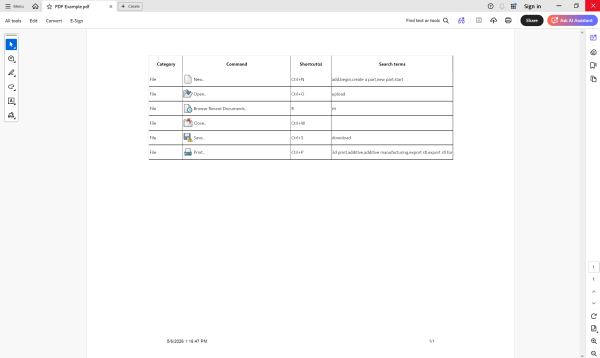
A PDF list of SOLIDWORKS keyboard shortcuts
When you use the Print List command, you can make a PDF of just these commands. This may be customized to commands you want to remember and kept handy until you memorize them.
More SOLIDWORKS Tips for Beginners
Customizing SOLIDWORKS with keyboard shortcuts is just the start of turning into a power user. Whether through formal, instructor-led training or through helpful SOLIDWORKS Tech Tips, you can master the industry-leading CAD software in no time.
The TriMech Group is here to support you and help you cut through the noise of finding information online. We help provide valuable direction to elevate your SOLIDWORKS skills.
To learn more SOLIDWORKS shortcuts and customizations, download SOLIDWORKS Beginner’s Guide here.
Related Links
Certified SOLIDWORKS Services available from Javelin
Javelin can help you to:
Posts related to 'The Ultimate Guide to SOLIDWORKS Keyboard Shortcuts'
