


What are File Version Icons in SOLIDWORKS PDM?

Article by Cody Foley updated June 1, 2026
Article
File version icons in SOLIDWORKS PDM provide quick status information for vaulted files. The status icons are available in both Windows File Explorer and through the SOLIDWORKS add-in.
The file version icons can be used to quickly verify information about a file to determine if you have the latest version or are lagging.
What Do the File Version Icons Look Like?
SOLIDWORKS PDM operates by setting up a local view known as a vault view and downloading a copy of a file from the server to your local workspace. From there, the user works with that copy of the file to view or modify it before checking it in to update the server.
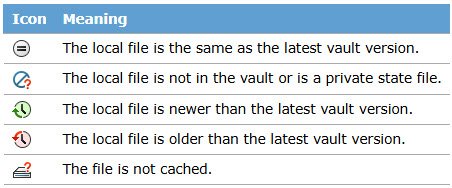
List of SOLIDWORKS PDM file version icons
These Icons are generally in relation to the file that is local on the vault view and compare it to the file on the SOLIDWORKS PDM server.
The Latest File Version
The equals icon means the cached file is the latest version and equal to the latest that exists on the server.
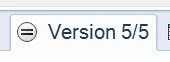
The local version matches the vaulted version
If you see this icon and the file has five versions, the local file that is cached is version five. SOLIDWORKS PDM is showing that you have version five out of five total versions.
Inside or Outside the File Vault
The icon that looks like a crossed-out circle with a question mark points to a file being outside the vault or a private state file. SOLIDWORKS PDM usually cannot act on these files.

Icon in SOLIDWORKS denoting that a file may be outside the vault
You will not see this icon in the vault view frequently as it is primarily used in SOLIDWORKS via the PDM Add-in to signal that the file referenced is either outside of the vault or has not been initially checked in.
File Version Increase
The icon with a green arrow pointing up and around a clock is reserved for files that have been saved or modified in a way that will cause a version increase when checked in. This would indicate that the version in the vault doesn’t match any of the versions that have been checked in prior.
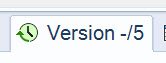
File version increase icon
If you are performing a Get action on a file that has this icon, you will be overwriting any changes that have been made. The version in the vault is going to be overwritten, and unless you have the backup option selected in SOLIDWORKS, the changes will be lost.
Older File Versions
The icon with a red arrow pointing down and around a clock means that the version currently cached in the vault view is older than the latest version. This might happen if you had a file cached and then a coworker updated it before you cached that new version.
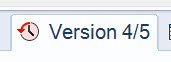
Older file version status icon
If you are working with a file and it isn’t looking like you expect, review the versions currently cached. If you see this icon, you might need to get the latest version of a file.
No Local File Cached
The icon with a disk drive and a question mark indicates that you do not have any local files currently cached in your vault view. This could mean you haven’t done a Get action on it. This is caused by the local cache being cleared or by accessing the local view for the first time.
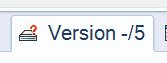
No local file currently cached
In some instances, such as trying to use SOLIDWORKS template files, issues can arise. SOLIDWORKS will try to find the template file, but there is no current local file, or nothing is cached in the vault view.
Extended Collaboration with SOLIDWORKS PDM
SOLIDWORKS PDM enables collaboration by automatically syncing files from client machines to the server, allowing continuous work no matter where your workforce is located. Always be sure to check in local files to ensure your team members can get the latest version of your project.
Related Links
Want to do more with SOLIDWORKS PDM?
Our Certified SOLIDWORKS PDM Experts can help you to:
Posts related to 'What are File Version Icons in SOLIDWORKS PDM?'
