


Revert to a previous file revision with SOLIDWORKS PDM Rollback

Article by Izaaz Sheikh updated April 28, 2016
Article
Ever made a mistake and transitioned a file to a released state before it was ready? Not to fear! SOLIDWORKS has you covered; with its SOLIDWORKS PDM Rollback functionality you can return a file to a previous version.
NOTE: This function should be used with caution as it permanently deletes file versions. Permission should be limited to the appropriate personnel.
First, enable the rollback permission found In the admin tool > select the desired group/user > folder permissions, select the permission for the desired folder or the whole vault > Check the Rollback Permission > Hit OK to save

Navigate to and select the file you’d like to rollback, and the Right-click > History

Access File History
Select the previous version you’d like to return to

Select a previous file version
Click Rollback
WARNING! This action will permanently delete all versions that were created after the selected point and cannot be reversed
If your file is an assembly file, after you click Rollback, you will be prompted to select the type of rollback you want to proceed with.
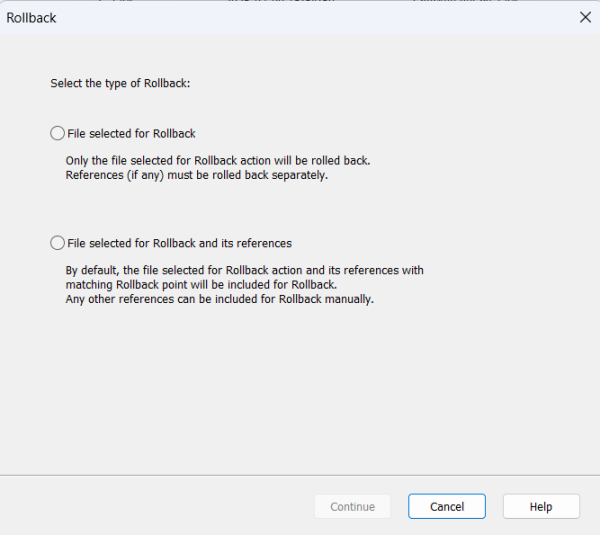
If you select Files selected for Rollback, only the file selected for Rollback action will be rolled back. If you select File selected for Rollback and its references, the file selected for rollback action AND its references with matching rollback point will be included for rollback.
After the selection, a Rollback dialog box will appear, displaying all files that are in the process of being rolled back. In this dialog box is an option Redirect parent references of the file to be rolled back. If you select Yes, it will redirect the parent files to use the rolled back version rather than deleting the reference. If you select No, it will delete the parent references of the rolled back versions.

After selecting Continue, a Rollback dialog box will appear listing items that will be either redirected or deleted. After selecting continue, you will prompt with a dialog box below.

Rollback Warning Message
Now the file will be returned to its previous version, including state and revision:

File has been rolled back
Learn more about SOLIDWORKS PDM
Javelin delivers SOLIDWORKS PDM user and administration training courses either in-class, online, or on-site at your location. Learn more about our SOLIDWORKS PDM training »
Related Links
Want to do more with SOLIDWORKS PDM?
Our Certified SOLIDWORKS PDM Experts can help you to:
Posts related to 'Revert to a previous file revision with SOLIDWORKS PDM Rollback'
