


SOLIDWORKS PDM Complete Search Card

Article by Justin Williams updated May 31, 2017
Article
‘Out of the box’ SOLIDWORKS PDM contains a Complete Search Card that has many options for search criteria. For example; Users can search by filename, description, current state, or even so far as text contained inside a document using the “Content” tab. Basically; this form has an option for pretty much any value you may be looking for within the vault.
Some users may find this card overwhelming, therefore it can be a good idea to modify this card to make it more suited for the company’s needs. If you’d like to make changes but leave the original intact you can import it and save it as a different name.
Importing the Complete Search Card
Note; This can be complete on any client machine.
- Via the Administration Tool open the card editor;

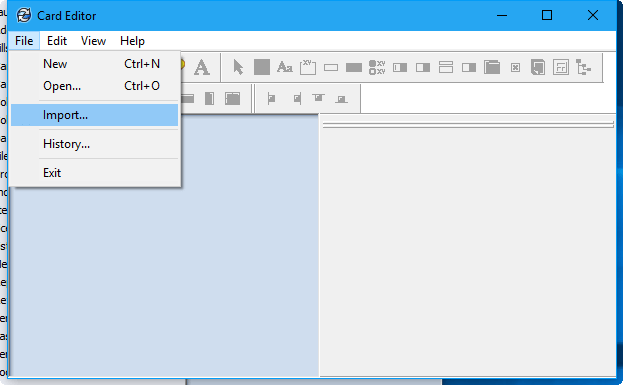
- From the Card Editor select; File > Import
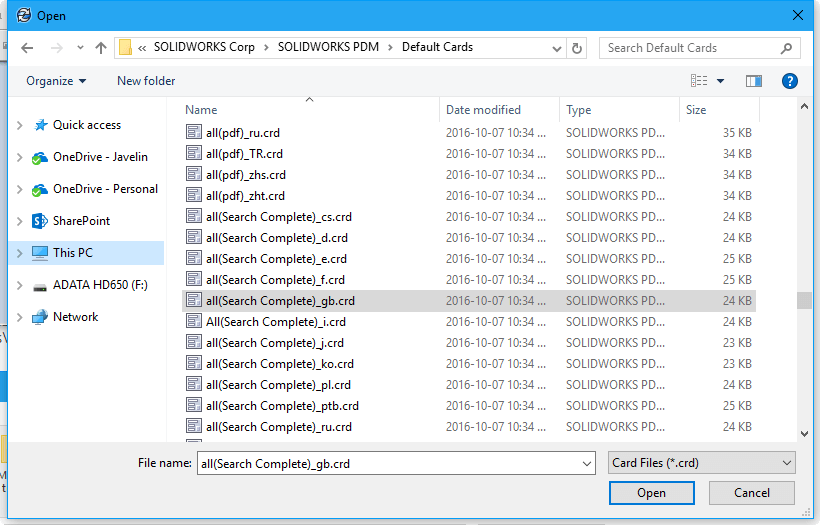
- Navigate to the client installation files and select all(Search Complete)_gb.crd for English
- By default the installation files can be found at C:\Program Files\SOLIDWORKS Corp\SOLIDWORKS PDM\Default Cards
Modify/Customize the Search Card
- We can then modify the card as desired
- Note; Don’t forget to assign permissions for who can use this card

- File > Save As > [New Name]
- Using a different name ensures it won’t overwrite if there’s a existing complete search card
![File > Save As > [New Name]](https://www.javelin-tech.com/blog/wp-content/uploads/2017/03/File_SaveAs.png "SOLIDWORKS PDM Complete Search Card 9")
- Done. Users with permission should now be able access the card via their vault view

Need SOLIDWORKS PDM Training?
Contact us about our SOLIDWORKS PDM training courses for users and administrators.
Related Links
Want to do more with SOLIDWORKS PDM?
Our Certified SOLIDWORKS PDM Experts can help you to:
Posts related to 'SOLIDWORKS PDM Complete Search Card'
