


How to prevent broken references being checked into a SOLIDWORKS PDM Vault

Article by Justin Williams updated August 28, 2017
Article
Nobody enjoys being greeted by this error message when opening an assembly in SOLIDWORKS.

It usually means there’s a broken reference…

Yup definitely broken.
Within a SOLIDWORKS PDM environment this can happen when migrating files via explorer into the vault. When dragged into the vault, no reference are evaluated. This allows you to add files in any order you wish.
They key step is the initial check-in. When the files are checked into the vault the references are written to the database.
If everything is accounted for at this point then the vault will do its magic and maintain the file references as they are moved or renamed within the vault.
The initial check-in crucial…the vault can only track what it can account for therefore broken references happen if the assembly reference is not found or is outside the vault at the time of initial check in.
The good news is that there’s a warning when this is about to happen;

Or the following message:

With the appropriate permissions we can turn this from a warning into a STOP action via the PDM Administration Tool;
- Administration Tool > [Vault Name] > Groups > [Group Name] > Warnings
- Affected Option = Check In
- Check the boxes for ‘File not found.’ and ‘Outside SOLIDWORKS PDM’
- Affected Option = Check In

Thus stopping an assembly with broken references being references being checked into the vault;
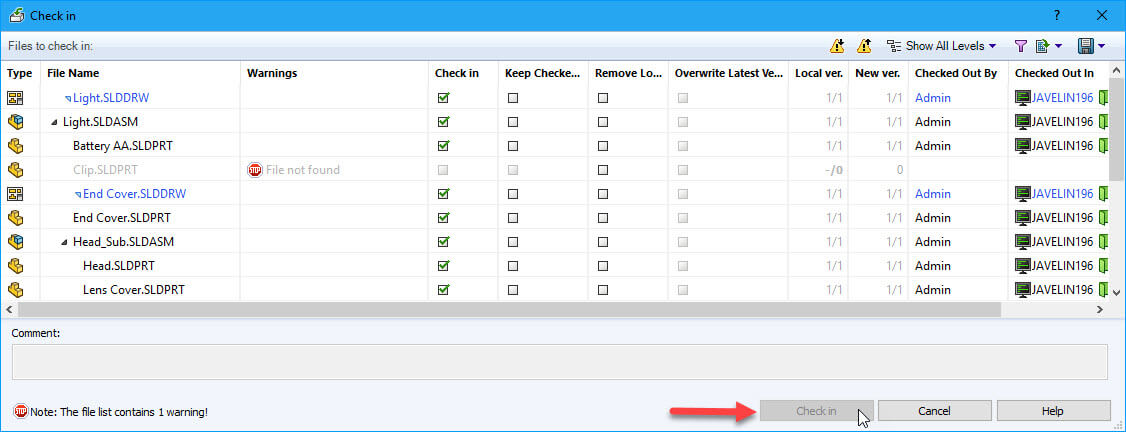
I strongly recommend implementing this as a preventative measure to adding assemblies/parts/drawings with broken references.
Interested in further SOLIDWORKS PDM Training?
Contact us about our SOLIDWORKS PDM training courses for users and administrators.
Related Links
Want to do more with SOLIDWORKS PDM?
Our Certified SOLIDWORKS PDM Experts can help you to:
Posts related to 'How to prevent broken references being checked into a SOLIDWORKS PDM Vault'
