


Why won’t my origin destination arrows work in SOLIDWORKS Electrical?

Article by Jesse Deane updated May 8, 2023
Article
Origin-destination arrows can be used to create a continuity link between wires in different areas of a single sheet, or to show a continuity link between wires that are displayed on separate sheets. So, what happens when you attempt to insert the arrows, and the green circle that indicates an arrow can be placed does not show up? In this article, we will look at why the origin-destination arrow won’t work and how to fix it. We’ll also take a look at a bonus tip after resolving the issue, where we’ll explore the option of multiple origin-destination arrow insertion.

This will be an easy issue to spot, as the origin-destination arrow manager simply won’t recognize a valid destination selection after we select our initial origin wire segment. In most cases, this is because the wires styles of the wires which the user is selecting for the origin-destination arrows do not match. In order to place origin-destination arrows, the wire styles of the wires you are selecting must be the same. Remember, we are representing the same wire on separate pages. Naturally, the properties between the segments will align. Be sure to check the name and description fields, to ensure that you are selecting the correct wire style when you replace the style of the troublesome wire segment.

There are a couple of ways to check and modify the wire style. One way is to right-click on the wire in question, then go to Wire style > Properties. From here, you can check the properties of the wire style for this individual wire, then right click and replace it with the appropriate wire so that a continuity link can be made. In most cases, the wire replacement option “Propagation to equipotential” will be useful in this context, as it will ensure that all segments of the wire will be changed to the appropriate style. To edit the wire style properties on a project level, one can navigate to the wire style configuration located under the Electrical Project tab and view the wire styles used throughout the project.

Once this wire style compatibility issue is cleared up, we can navigate to the Electrical Project tab and insert the origin-destination arrows as desired. Accessing the origin destination arrow management through the Electrical Project tab is recommended, as it will work for schemes and line diagrams alike. The green circle will show for the wires with a matching wire style. Hopefully you found this tip to solve why the origin destination arrow doesn’t work helpful!
Bonus tip:
Not only can we insert single origin-destination arrows like the example above, but we can also insert multiple origin-destination arrows. While this is a helpful feature, it’s important to make sure we’re following the correct workflow to avoid any confusion.

Let’s start, once again, within the origin-destination arrow management. This time, rather than selecting the previously mentioned option for a single insertion, we will select the second option, “Multiple insertion.” The key here is to click in a repeating sequence of origin, destination, origin, destination. It’s crucial that we perform the steps in this order, rather than clicking the origin, then trying to select multiple destinations.
Bonus tip 2:
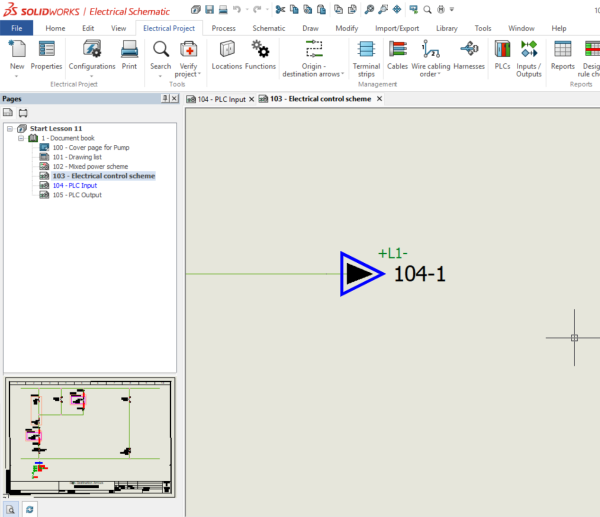
Something to keep in mind when selecting origin-destination symbols is that once the documents are exported as PDFs, symbols, such as the example below that includes a blue outline, will only show as the default black origin or destination arrow.
Hopefully you found this tip to solve why the origin destination arrow doesn’t work to be helpful! Remember, when inserting multiple origin-destination arrows, always return to the origin before selecting your next destination!
Need more help?
If you would like to learn more SOLIDWORKS Electrical tips, check out our blog for more articles like this. If you need more in-depth training, we offer a range of SOLIDWORKS Electrical training courses led by certified instructors.
Related Links
Get Certified SOLIDWORKS Electrical Services
Our Certified Electrical Experts can help you to:
Posts related to 'Why won’t my origin destination arrows work in SOLIDWORKS Electrical?'
