


Mistakes to Avoid with SOLIDWORKS Flow Simulation Fan Setup

Article by David Arthur, CSWE-S updated November 29, 2023
Article
Let’s take a look at a few tips that will help with the SOLIDWORKS Flow Simulation Fan setup. When defining a fan in a SOLIDWORKS Flow Simulation study here are a few of the most common mistakes. These rules apply to External Inlet Fans, External Outlet Fans and Internal Fans.
- Neglecting to use the correct fan curve. Use the correct fan definition. If it doesn’t exist, create a new fan in the database using the manufacturer’s specification sheet.
- Neglecting the importance of using the correct fan geometry. The dimensions of the face selected should match the definition in the Engineering Database.
- Selecting a face that’s coplanar with other faces as the fan face. Ensure there is an offset between the fan face and the surrounding geometry.
- Using too coarse of a mesh on the fan face. The mesh should be sufficient to capture the geometry.
- Obstructions to the flow. Don’t model the fan blades.
Neglecting to use the correct SOLIDWORKS Flow Simulation fan curve and/or dimensions
To get meaningful results, it is critical to use the correct fan definition. There are a large number of fans included in the Engineering Database but it’s not uncommon to find that the fan you need isn’t included. If the fan isn’t included, you will need to create a new fan in the Engineering Database using the manufacturer’s specification sheet. To avoid issues with fans in SOLIDWORKS Flow Simulation it’s important to define the fan properly before using it in a study.
The first critical bit of information for the fan definition is the fan curve. While referencing the manufacturer’s specification sheet, enter the fan curve. Pay careful attention to the units of both the specification sheet and the units in the Engineering Database.

SOLIDWORKS Flow Simulation Fan Curve
The second critical component of the definition is the dimensions of the fan. Referencing the manufacturer’s specification sheet, enter the correct dimensions for both the Outer Diameter and Hub Diameter. You will use these dimensions later on when creating the geometry of the fan.
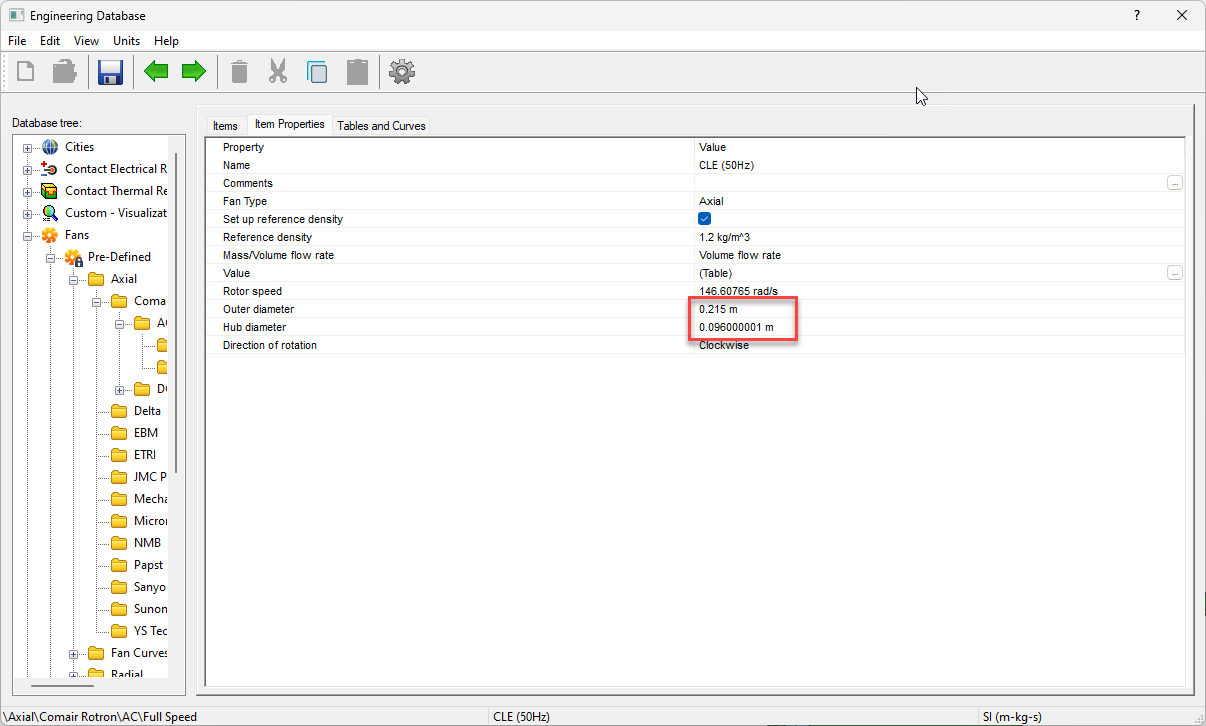
Neglecting the importance of using the correct fan geometry
The geometry used to define the fan should closely match the definition in the Engineering Database and manufacturer specification sheet.

Flow Simulation fan geometry
Create the matching fan geometry using the dimensions from the Engineering Database. The outer diameter and inner diameter should be correctly represented in the geometry used to define the fan face.
Selecting a face that’s coplanar with the surrounding faces.
Avoid selecting a face that’s coplanar with the surrounding faces.
-
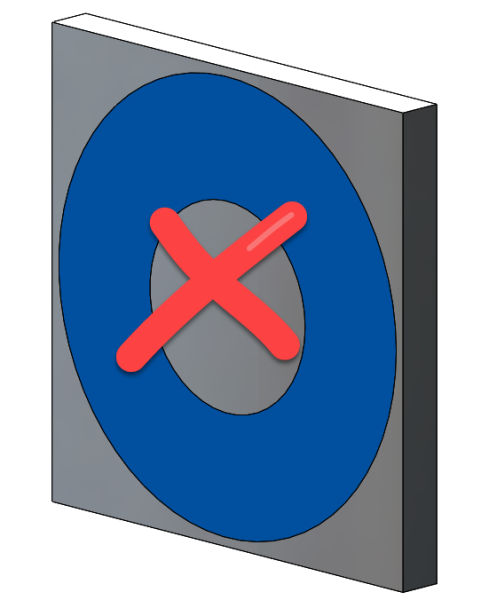
- Fan Geometry Bad

-
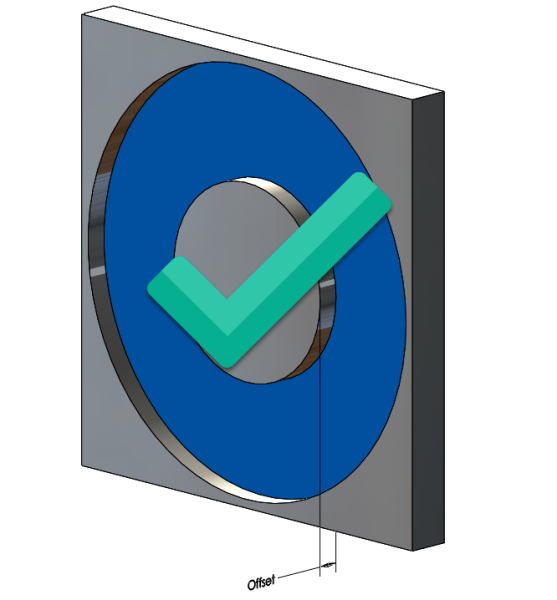
- Fan Geometry Good

When creating the geometry for the fan face, a Split Line feature may not be the best choice. The Split Line feature creates a face with zero offset from the surrounding face(s). The flow developers recommend a step or offset, between the fan face and the surrounding faces. This is easily achieved using a simple Extruded Cut.
Using too coarse of a mesh on the fan face
The default mesh for the fan face may be insufficient. Check and make sure there are sufficient mesh elements on the face to capture the geometry. Adding mesh controls to the faces used to define the fans may be necessary.
-
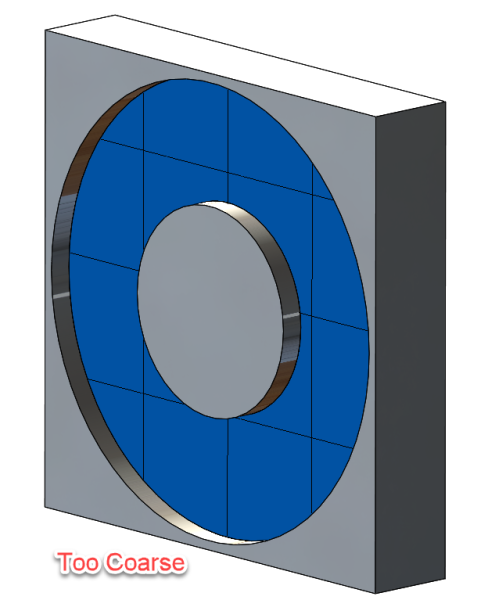
- Fan Too Coarse

-
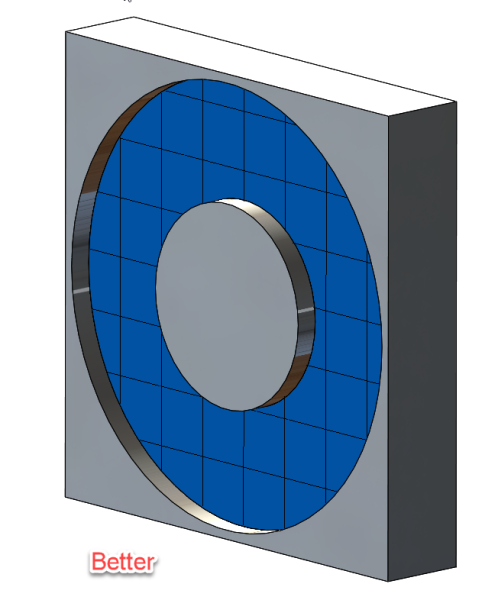
- Fan Better

-

- Good Mesh

Obstructions to the fan flow
Don’t model the fan blades. Modeling fan blades is only required when using a Rotating Reference frame and would not be used to look at flow through a larger assembly. If the fan model already has fan blades and they are in a location that obstructs flow from the fan face, the blades should be removed by deleting or cutting away the obstructing geometry.
Conclusion
Hopefully, the tips above will help you avoid any unnecessary headaches when using SOLIDWORKS Flow Simulation fans.
Related Links
Certified SOLIDWORKS Services available from Javelin
Javelin can help you to:
Posts related to 'Mistakes to Avoid with SOLIDWORKS Flow Simulation Fan Setup'
